Welcome to Mojo Gift
A walk-through of what your gift card unlocks.
Updated October 3, 2026
Welcome. If you have just received a Mojo Gift card, this page walks you through what it unlocks, where things live in the redeem portal, and how Mojo Credits fit alongside your card. You do not need to read this end to end. Each section is independent.
Before you sign in
If you visit the redeem portal without an account yet, you land on a public welcome page. This is where most recipients arrive after clicking the link in the email that came with their gift card.
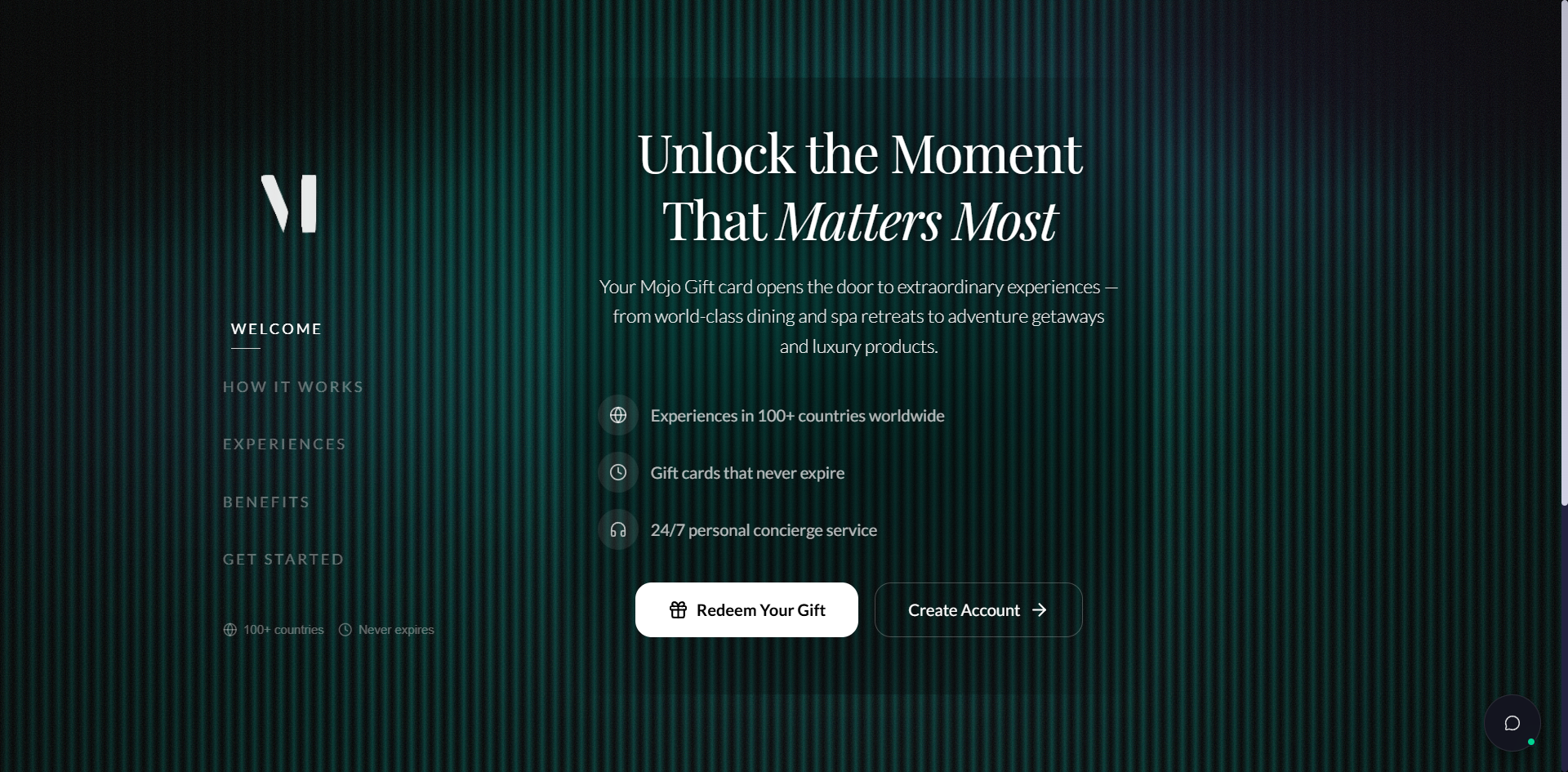
The left rail walks through five short panels in sequence. The most useful one is GET STARTED, which gives you a code field and account-creation buttons in one place.
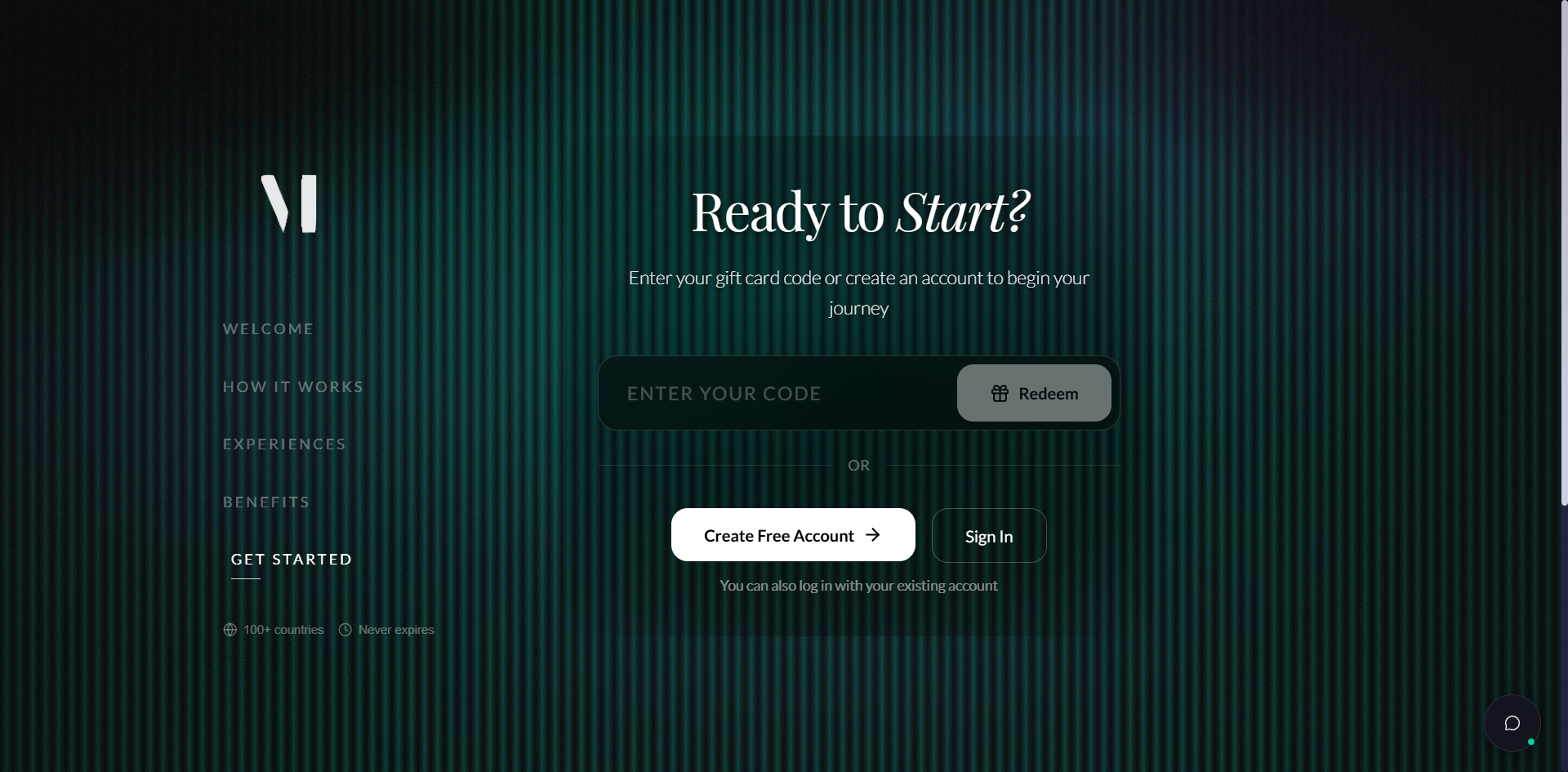
If you already have an account, click Sign In. The full code-redemption walkthrough lives at Redeeming a gift card.
Quick start (signed in)
Five steps from sign-in to your first request.
Your first redemption
Step 1 of 5
Sign in
Sign in at Mojo Gift login using the email your gift card was sent to. If you do not have a password yet, use the magic link option. Once you are in, you land on the redeem portal home.
The home screen
After signing in, you land on the redeem home. The layout is the same regardless of the redemption mode you eventually pick.
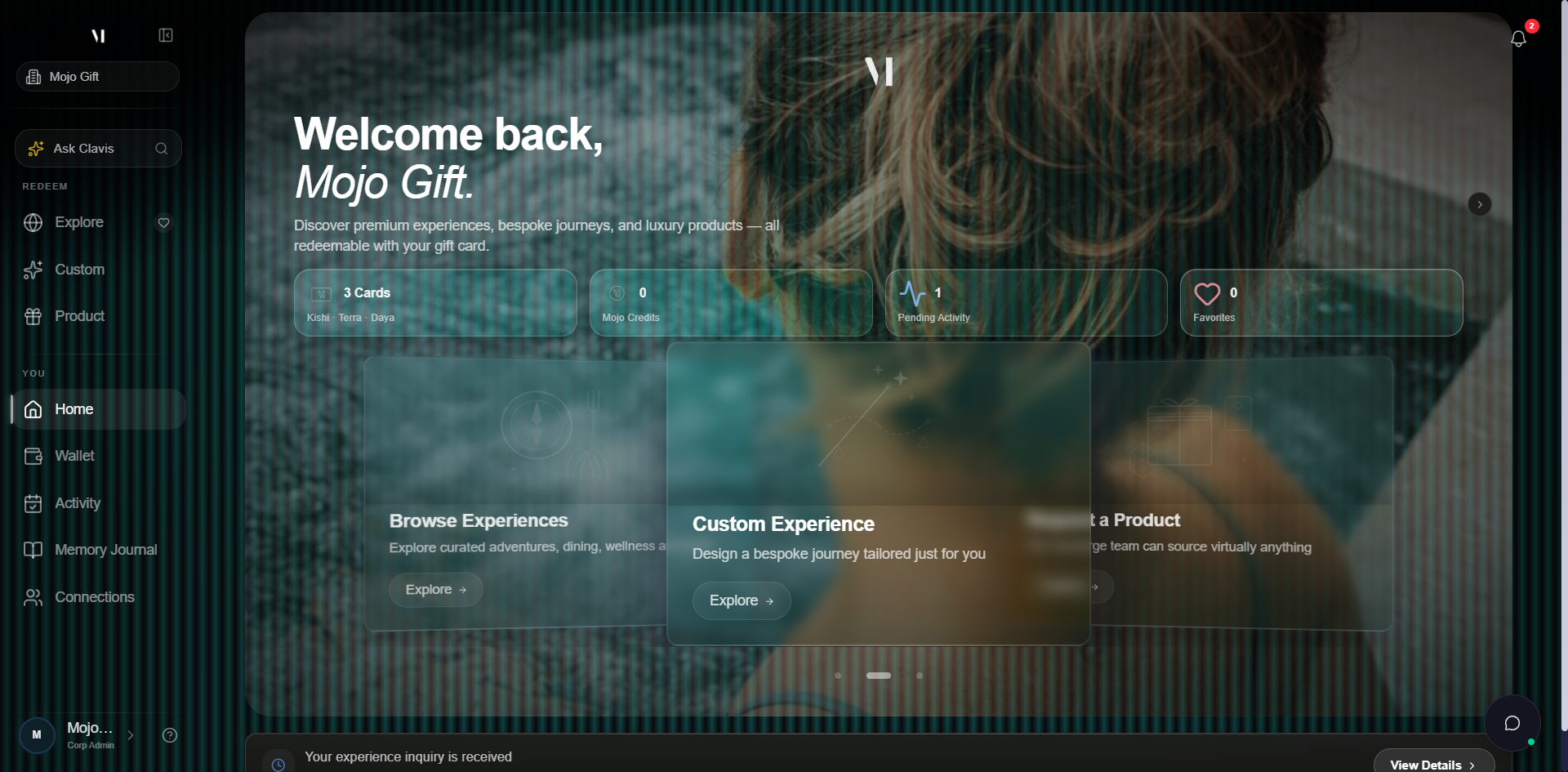
The four stat tiles tell you, at a glance, how many active gift cards you have, how many Mojo Credits you hold, what's pending in your Activity tab, and how many experiences you have favorited.
The carousel below is the entry point into the three redemption modes. Each card opens its dedicated page.
What your gift card looks like
When a gift card is issued to you, it appears in your wallet with the cover image, your name, and a personal message. Recipients always see the tier name. Real-currency values are intentionally not shown.
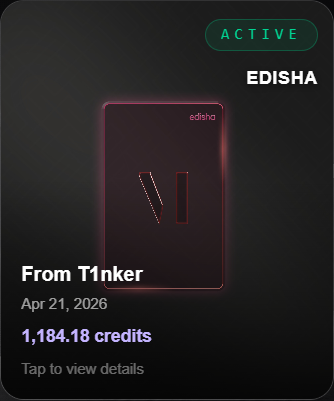
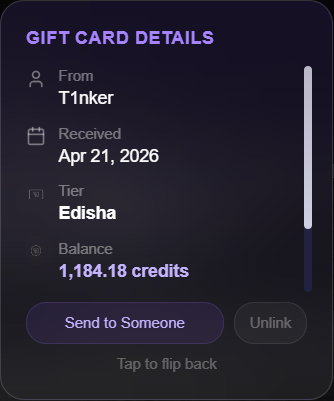
In the wallet, multiple cards stack into a horizontal carousel. Each card shows the cover, tier, sender, and the date you received it.
Tiers, at a glance
Tiers replace dollar amounts everywhere recipients see. The brand is built around experiences, not currency.
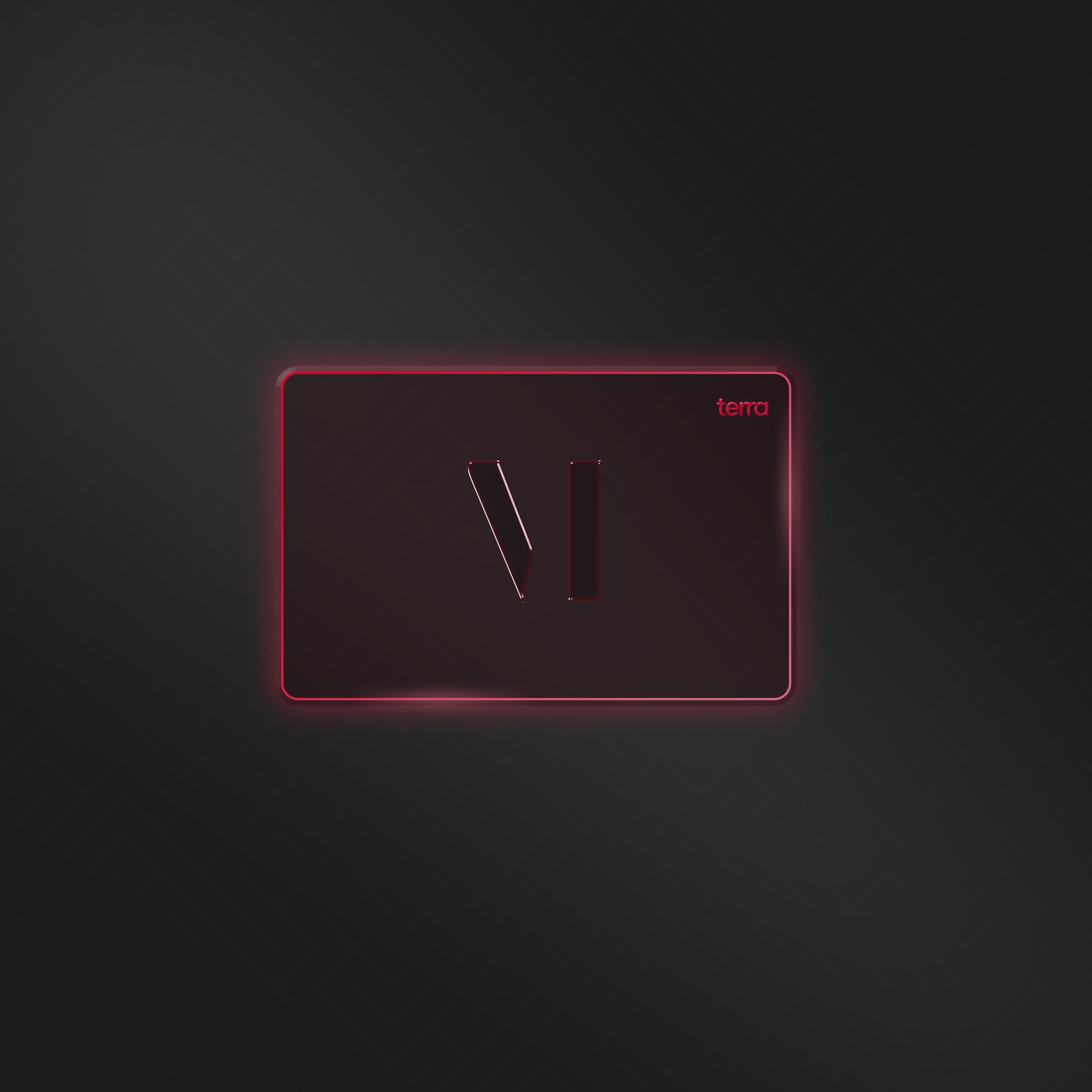
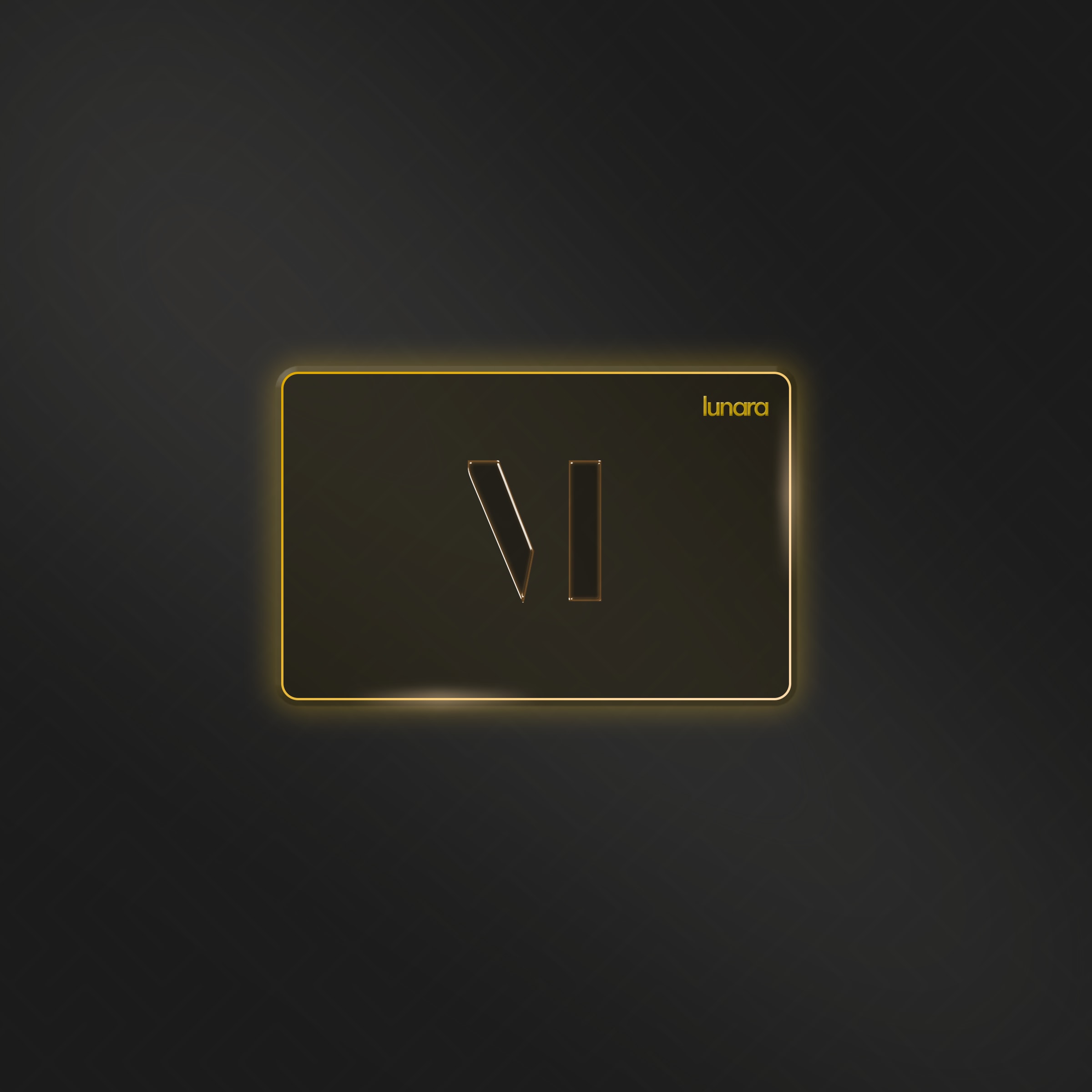
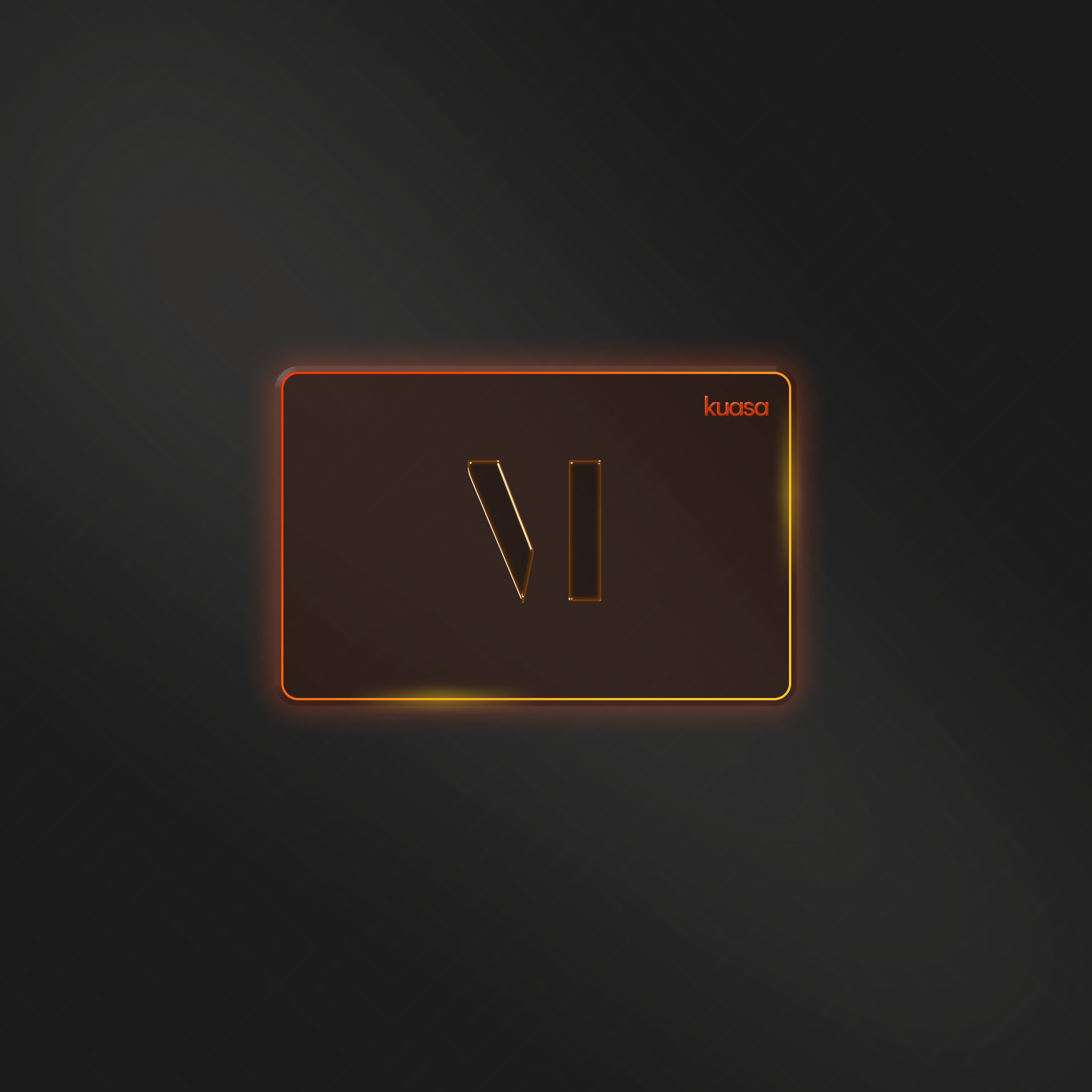
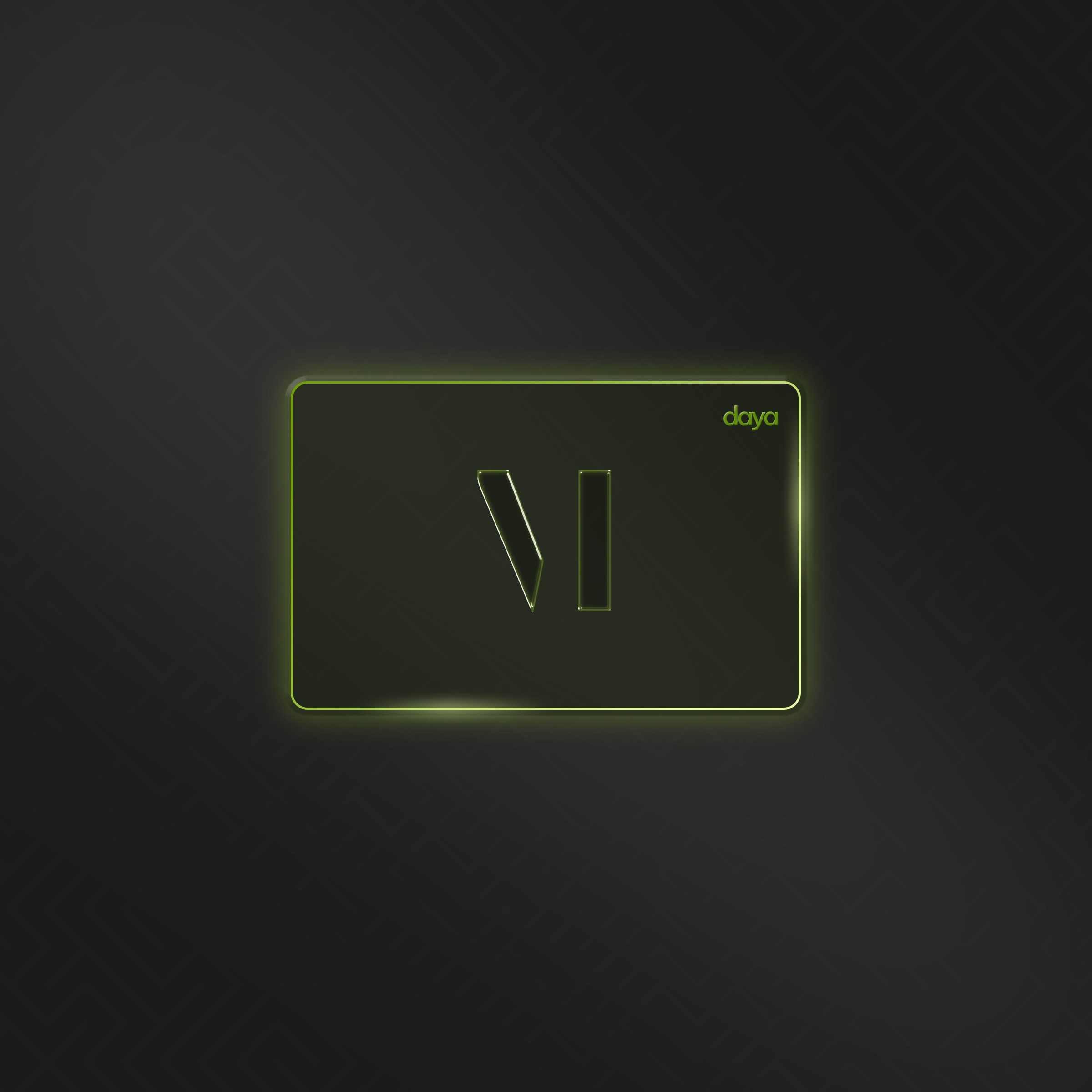
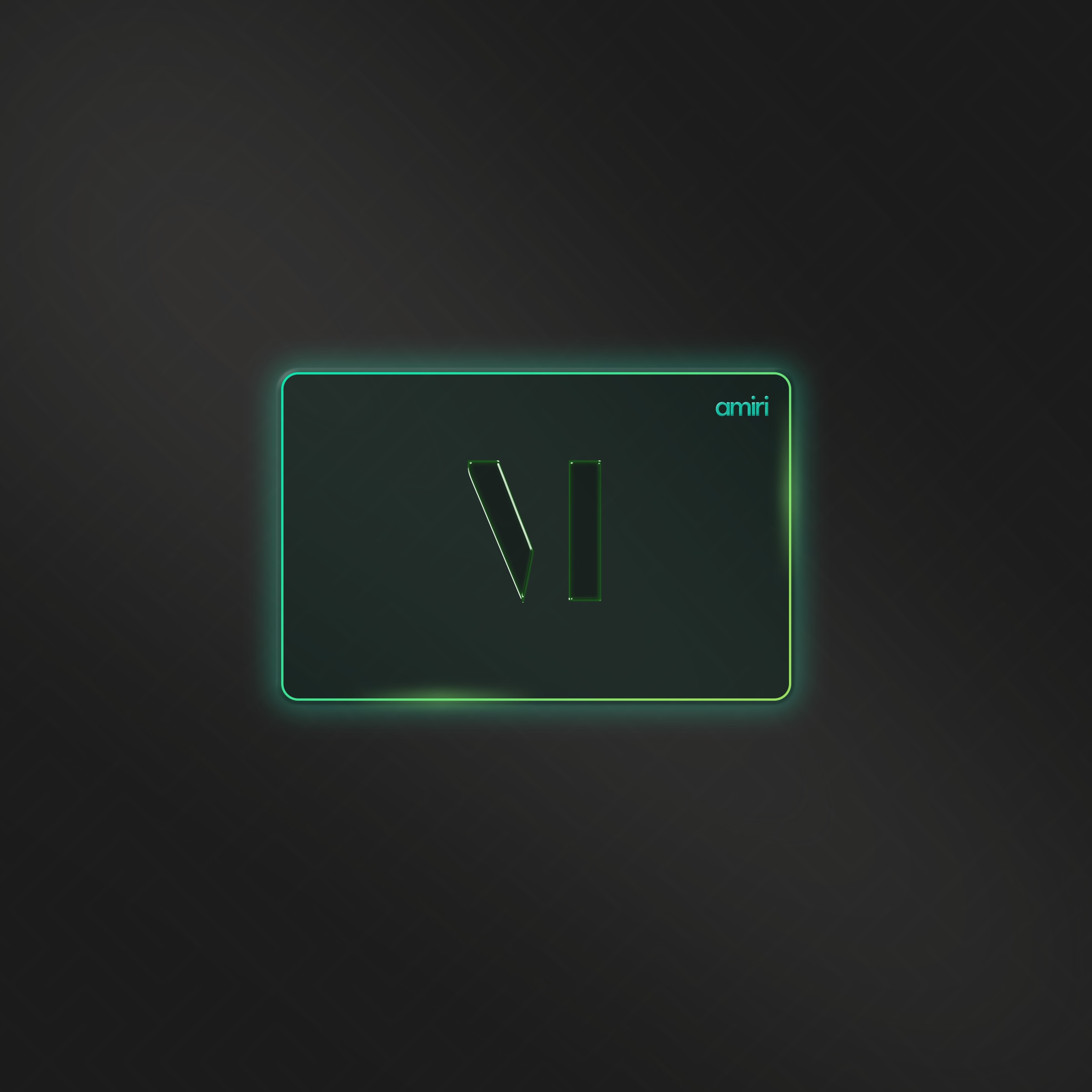
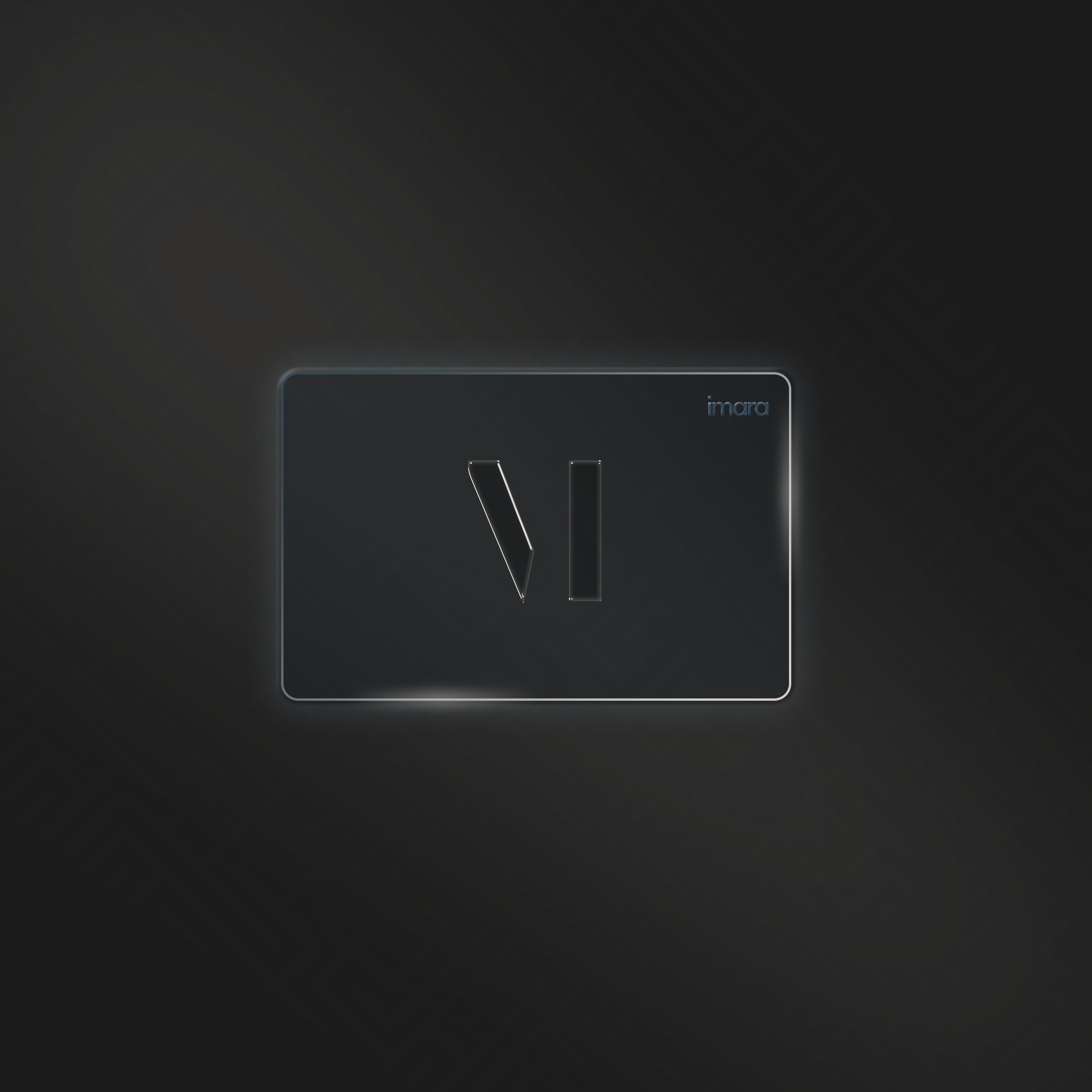
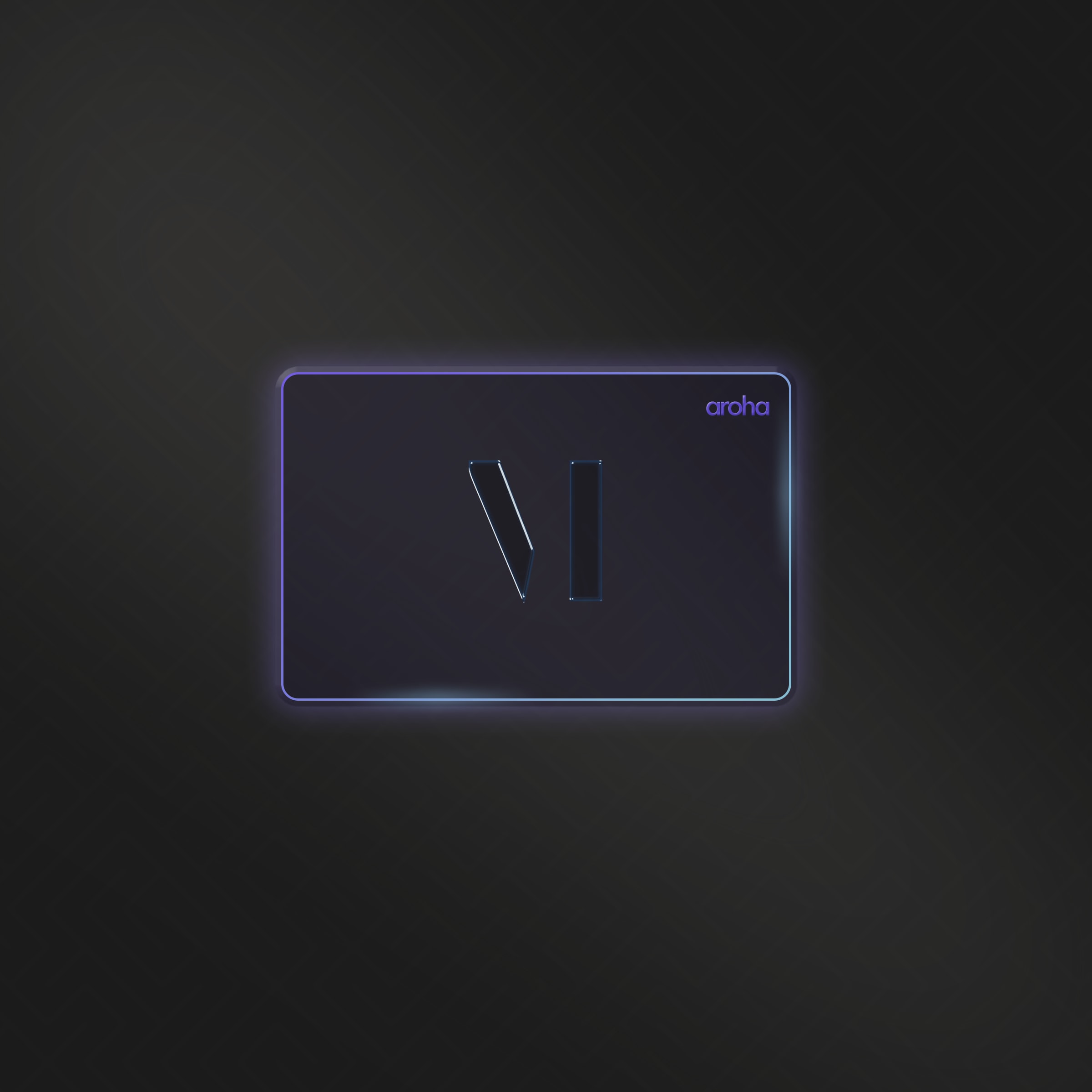
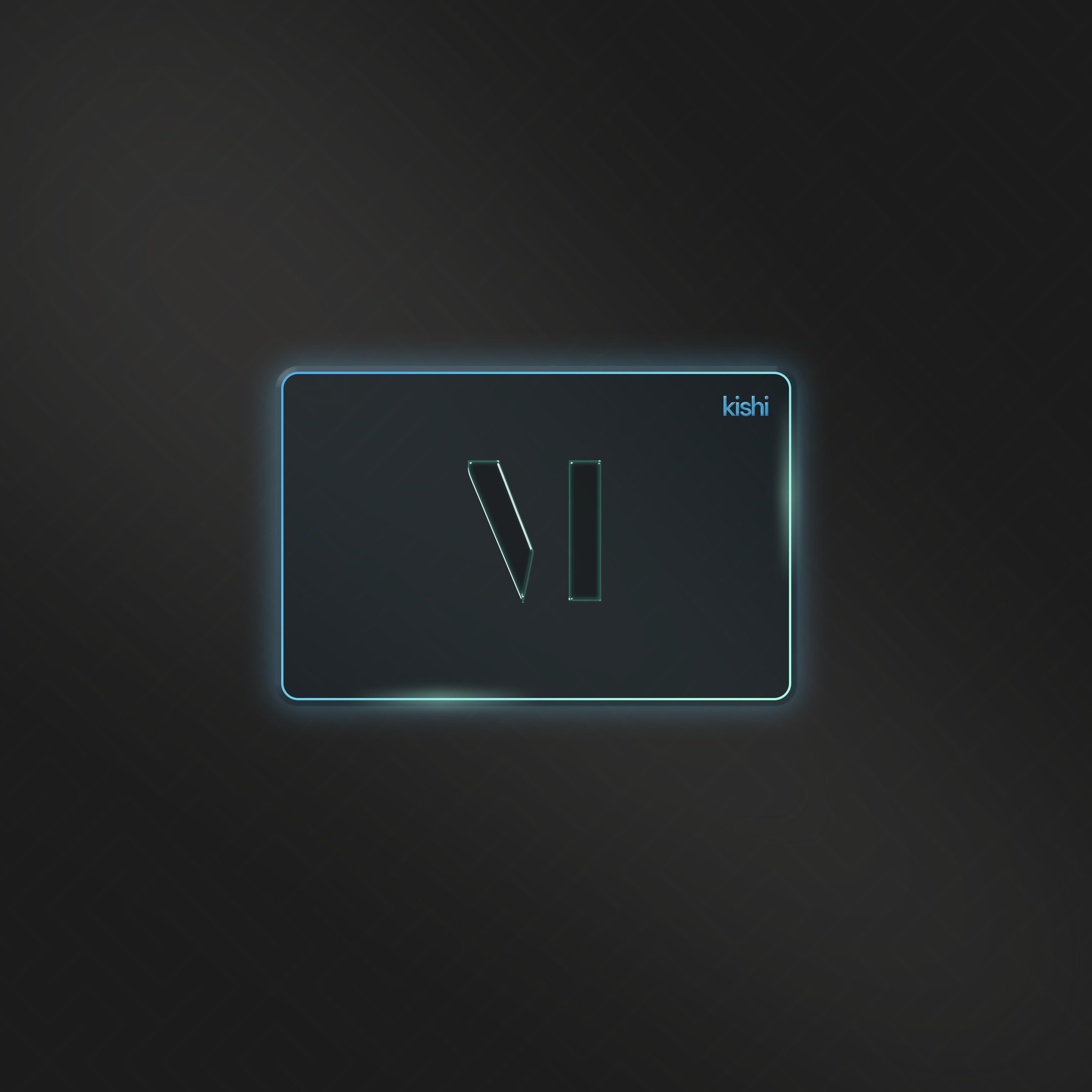
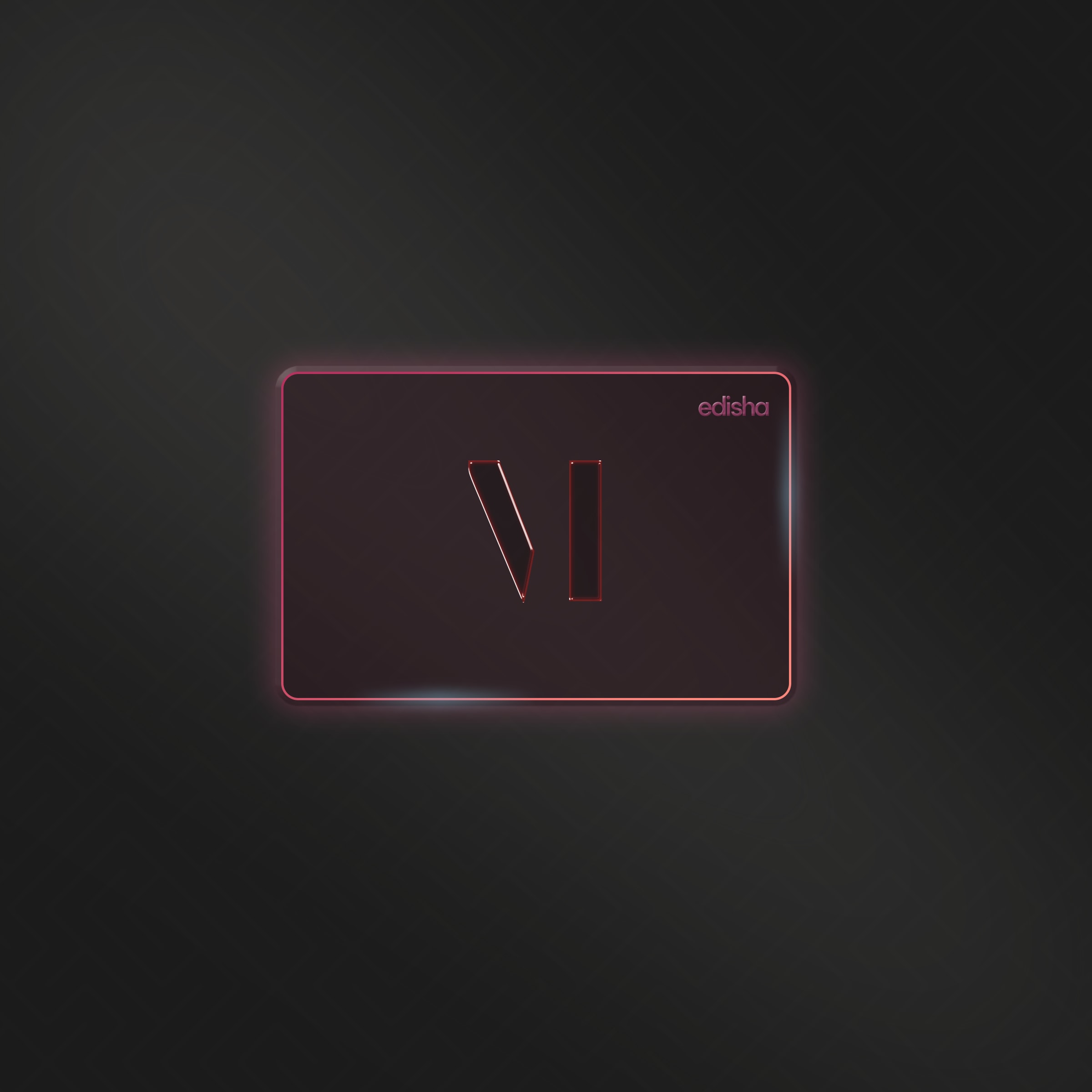
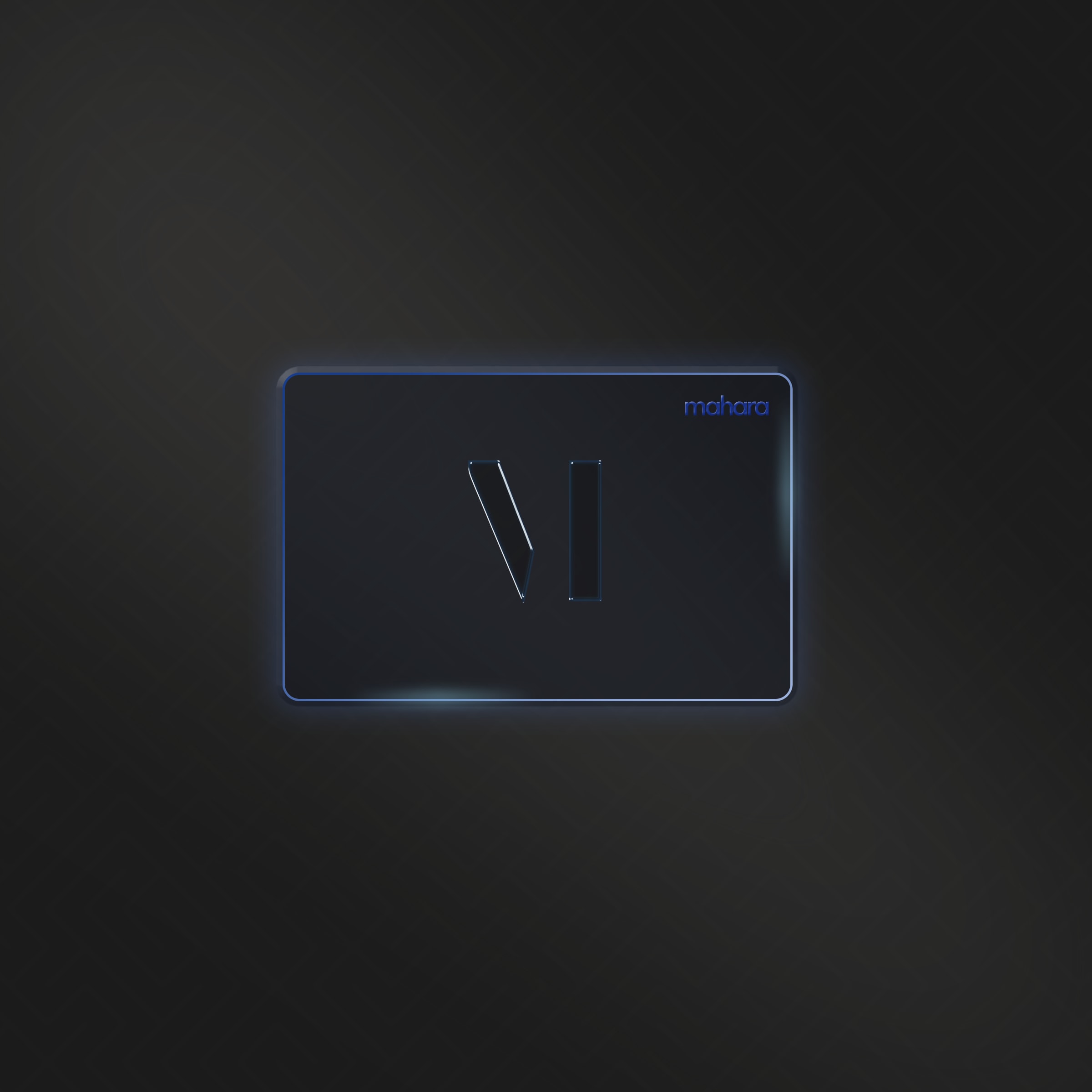
If your card came without an explicit tier, we round up to the nearest tier so you always have at least the budget your sender intended. See Tiers explained for the full list and what each tier typically unlocks.
Three ways to redeem
You will see three options in the carousel. They differ in whether a gift card is required and whether Mojo Credits alone are enough.
| Mode | Gift card required? | Mojo Credits alone? |
|---|---|---|
| Browse Experiences | Yes | No |
| Custom Experience | No | Yes |
| Request a Product | No | Yes |
You can always combine a gift card with credits. For example, redeem a Solara card for a hotel stay and use credits to cover a higher room category.
Each mode has its own walkthrough:
- Browse Experiences covers the curated catalogue, filters, and how to send a request.
- Custom Experience walks through planning a bespoke trip with Clavis.
- Request a Product shows the Item Concierge flow.
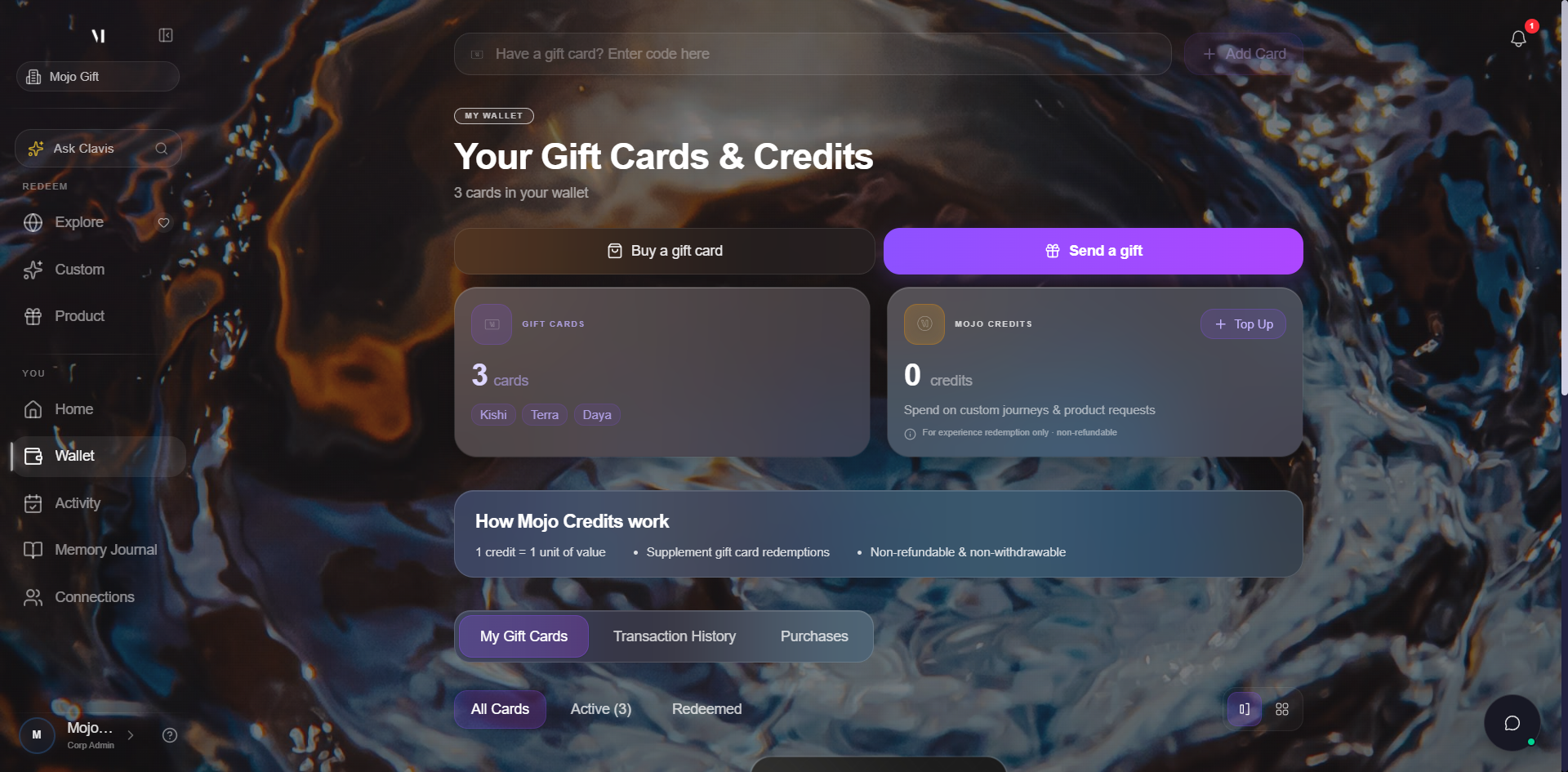
Your wallet
The wallet is your home base. It is one click from the sidebar at any time.
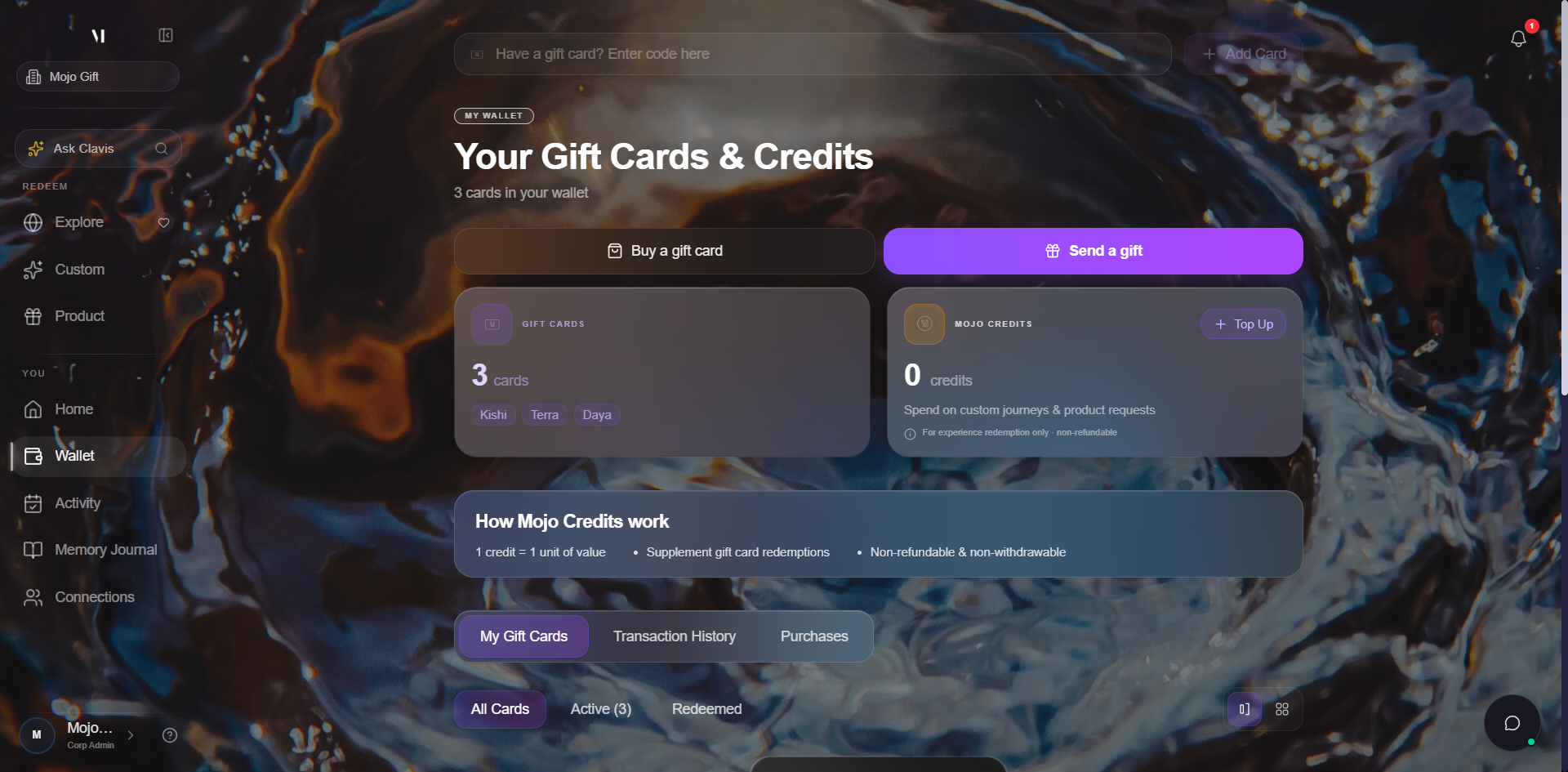

Gift Cards
2 cards

Mojo Credits
1,250 credits
Credits can be used for custom journeys and product requests
Credits are for experience redemption only and are non-refundable
The Wallet page also offers:
- Have a gift card? Enter code here at the top, for adding a card by code.
- Add Card for the same purpose via a dialog.
- Buy a gift card for purchasing one for someone else.
- Send a gift for forwarding a card to a friend.
For the full wallet walkthrough, see Your wallet.
Meeting Clavis
Clavis is the concierge AI built into the platform. You meet Clavis when you start a Custom Experience or a Product Request. Clavis listens, asks clarifying questions, and pre-fills the form so a human concierge can take it from there.
Where to go next
- New to gift cards entirely? Start with Redeeming a gift card.
- Curious about tier names? See Tiers explained.
- Want to top up? Read Topping up credits.
- Want to buy or send a card yourself? See Buying a gift card or Sending a gift card.
- Need a human? Get help.