Topping up credits
Buying additional Mojo Credits with a card.
Updated October 3, 2026
Topping up adds Mojo Credits to your wallet using a card. This page walks through the payment flow: where to start, what the dialog asks for, and what arrives in your wallet.
When to top up
You'd top up if any of these apply:
- You want to stretch a gift card into a bigger experience than the tier covers
- You're planning a custom journey or product request and don't have a gift card
- You want to keep a credit cushion ready for spontaneous bookings
Open the Top Up dialog
The Top Up button lives in the Mojo Credits panel on your wallet at /redeem/wallet. The same dialog opens from the credits pill on any redemption page header.
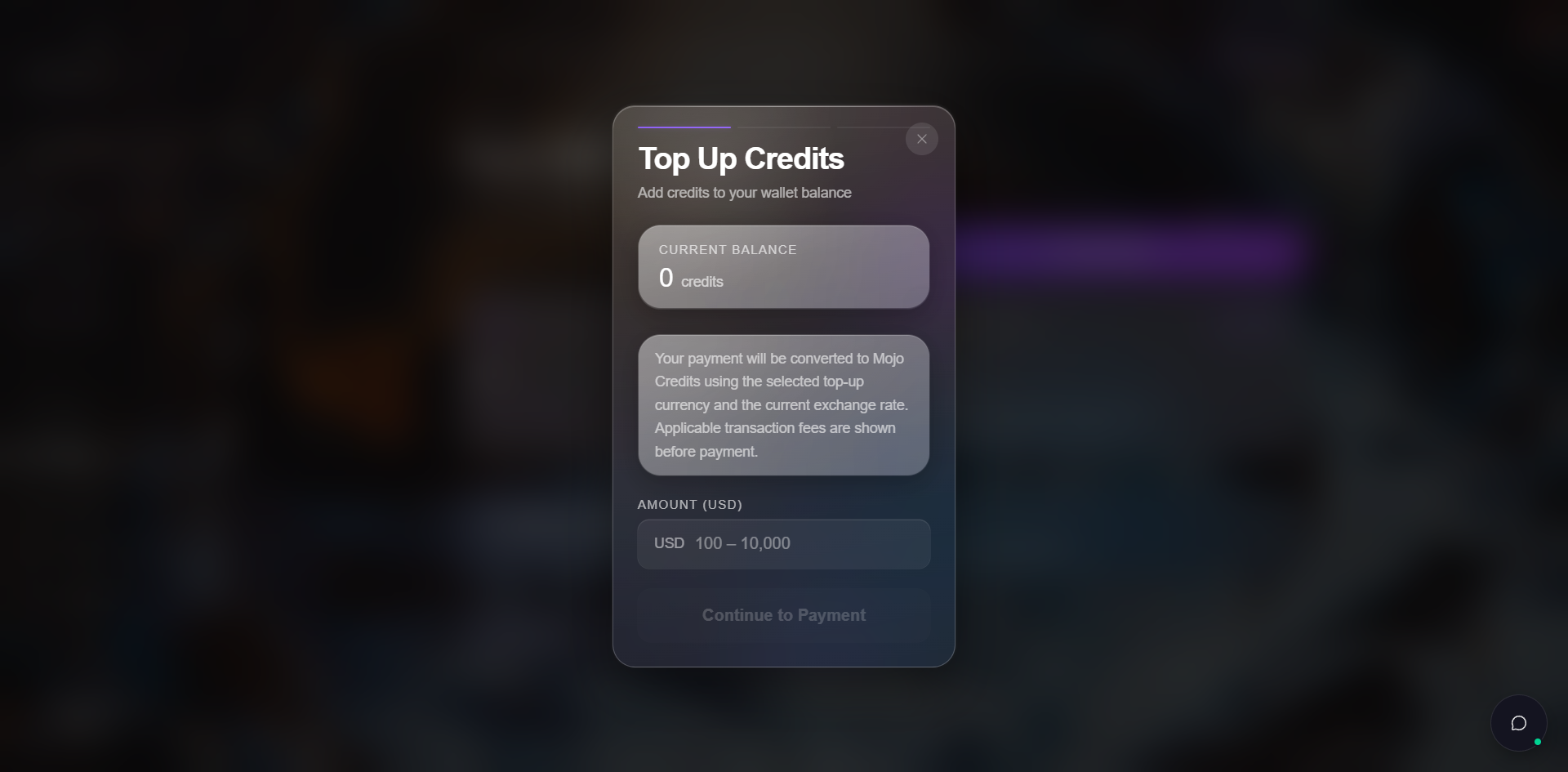
The dialog opens with these elements:
| Element | What it does |
|---|---|
| Current Balance | Snapshot of your existing credit balance, shown in credits. |
| Conversion note | Reminds you payment is in real currency, credits land in credits. |
| Amount (USD) | The figure you want to convert. Range is 100 to 10,000 in the selected currency. |
| Continue to Payment | Stays disabled until you enter a valid amount. |
Enter an amount
Type the amount in the currency shown next to the field. As soon as you enter a number, the dialog calculates the credits you'll receive, the platform fee, and the total you'll pay.
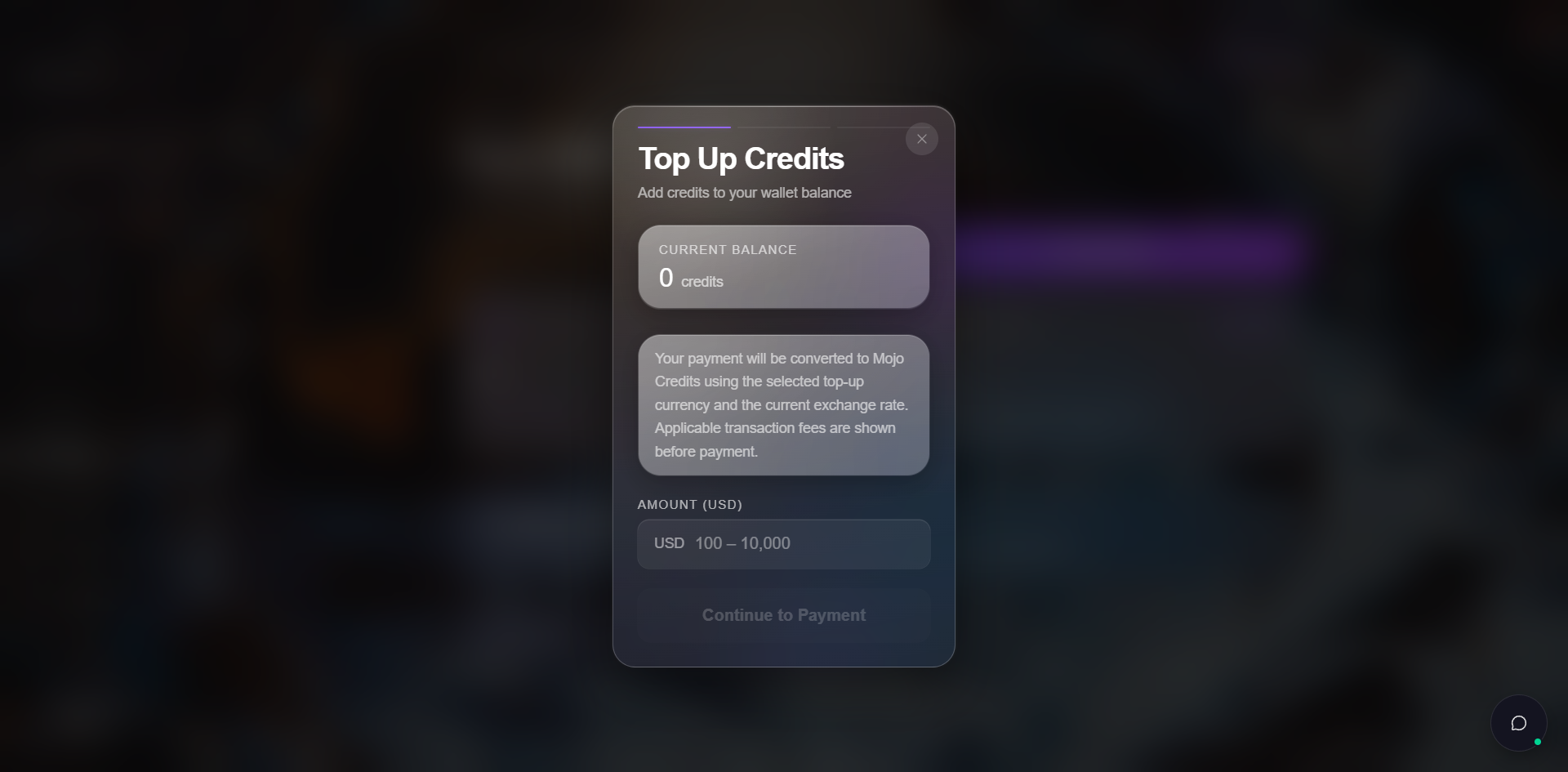
The summary block shows three lines:
| Line | Meaning |
|---|---|
| You receive | The credits that will land in your wallet. One credit equals one unit of the top-up currency. |
| Amount | The base amount you typed, in real currency. |
| Fee | Platform processing fee (currently 3%). |
| Total | What your card will be charged. This is the figure on your bank statement. |
Pay through Stripe
Continue to Payment hands you off to Stripe's payment element. Card and Amazon Pay are the available payment methods.
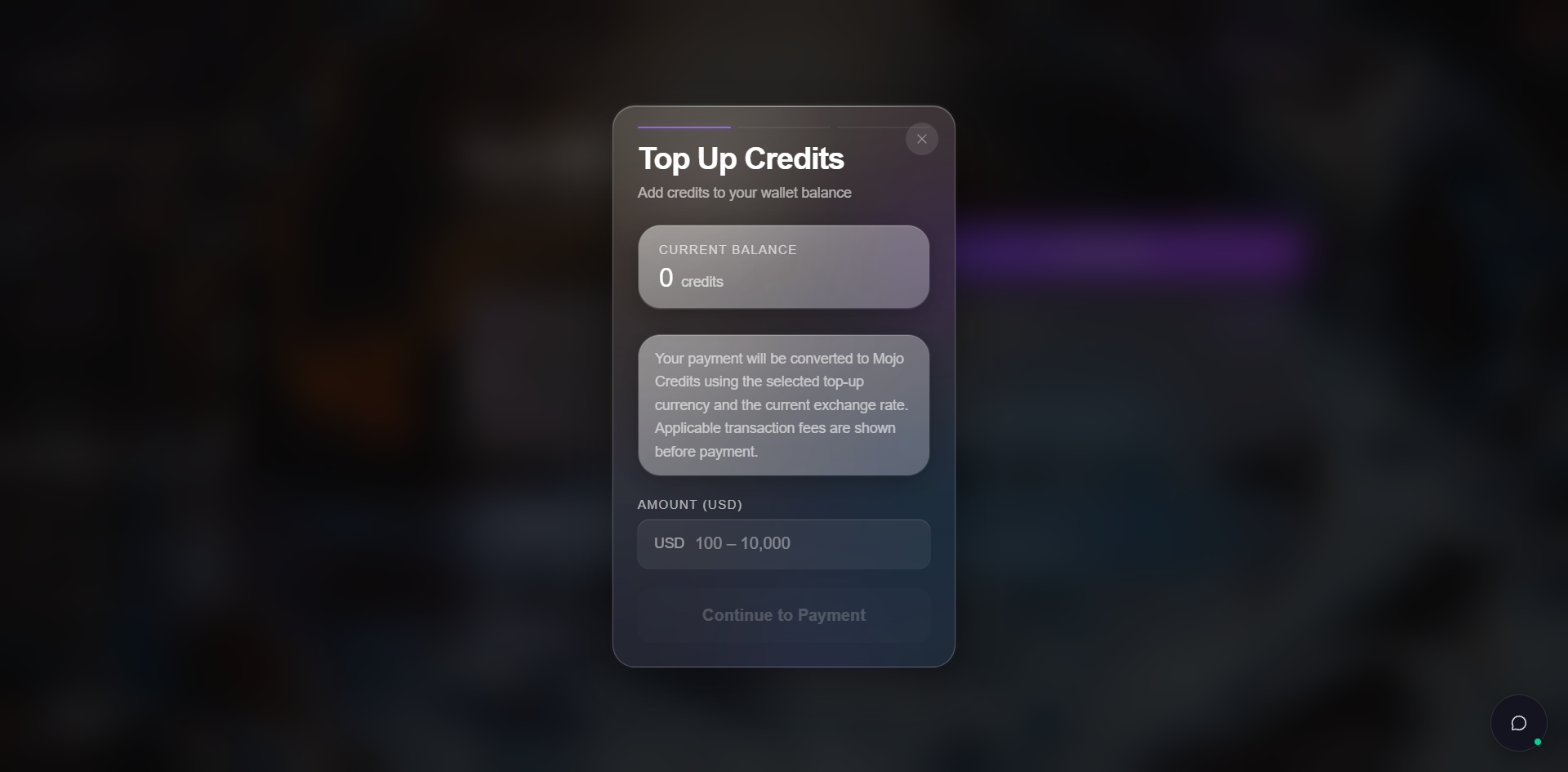
A few things to know about the payment step:
- Card details are entered into Stripe's iframe, so they never touch Mojo Gift's servers.
- The Pay button always restates the exact amount you'll be charged in real currency.
- The Back button at the top returns you to the amount step without losing your entry.
Once the payment clears, the credits arrive in your wallet within seconds and a receipt is emailed to you.
What lands in your wallet
After a successful top-up:
- The new balance shows in the Mojo Credits panel on the wallet
- A new entry appears in Transaction History under the Top Up sub-tab
- The credits are immediately spendable across all three redemption modes
If something goes wrong
| Situation | What to do |
|---|---|
| Payment is declined | Try a different card or contact your bank. No credits are added and no charge is made. |
| Payment succeeds but credits don't appear | Wait a minute then refresh. If the balance still hasn't updated, contact support with the time of the payment. |
| You change your mind before paying | Use the Back arrow or the Close button on the dialog. Nothing is charged until you press Pay. |
The full support flow is at Getting help.
What's next
- About Mojo Credits covers what credits are and where they apply.
- Your wallet covers the Transaction History tab where every top-up is recorded.
- Custom Experience and Request a Product are the modes that accept credits without a gift card.