Request a Product
Ask for something specific, we source it for you.
Updated October 3, 2026
Request a Product is the mode for sourcing something specific. You describe what you want, our concierge sources it, and we coordinate delivery. This page covers when to use it, the two intake paths (Clavis chat or manual form), and what happens after you submit.
When to use it
Pick Request a Product if you have a physical item in mind: a watch, a piece of art, a piece of equipment, a designer item, an unusual gift. If our concierge can source it, they will.
The mode accepts:
- A gift card alone
- Mojo Credits alone
- Both combined
Unlike Browse Experiences, this mode does not require a gift card. Credits-only is fine.
Open the page
Open the page from the Product quick link in the sidebar, the Request a Product card on the redeem home, or the Product tab inside any redemption page. The URL is /redeem?tab=request-product.
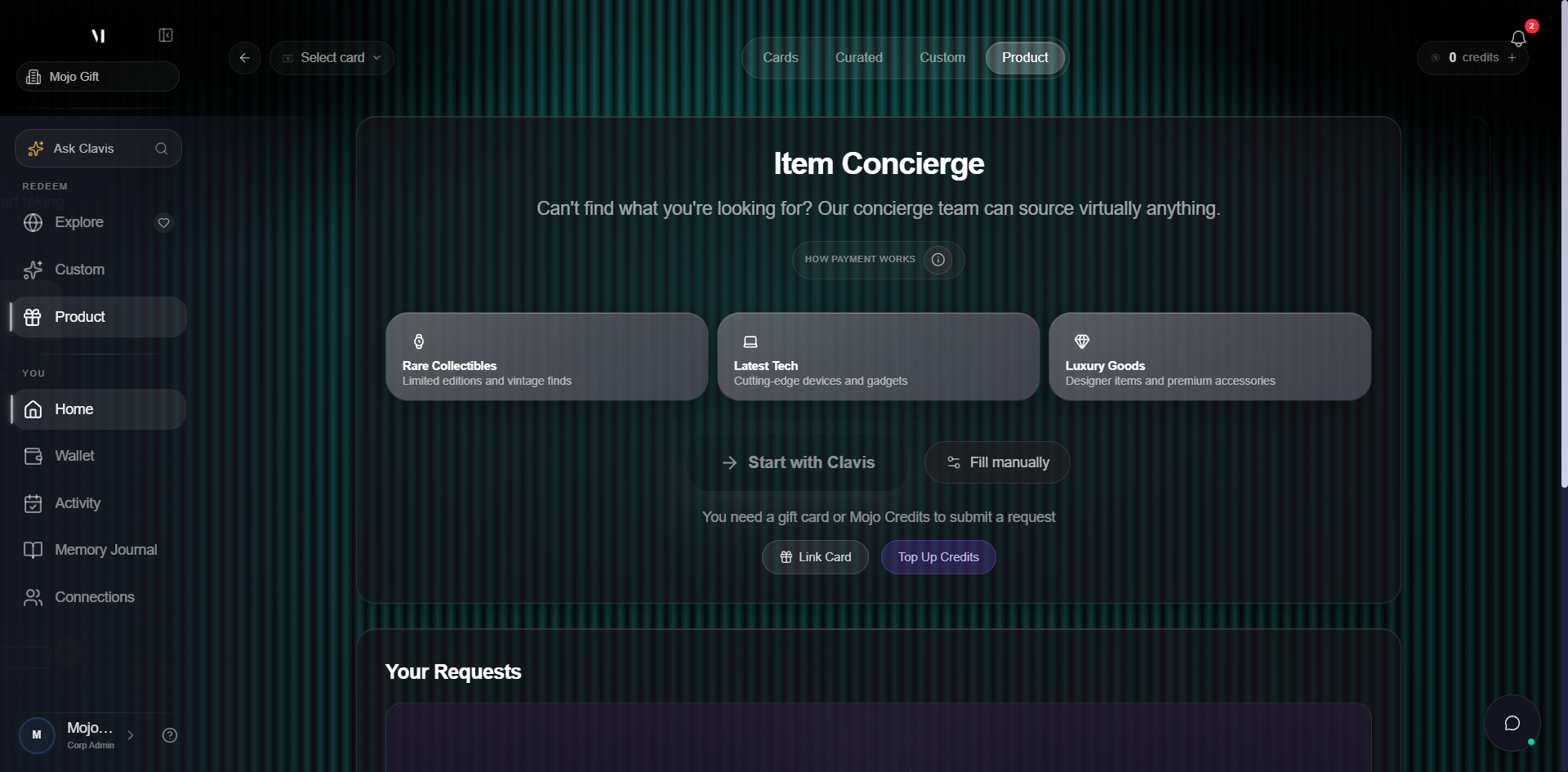
The bottom of the Item Concierge card has two starting paths:
| Path | What it does |
|---|---|
| Start with Clavis | Opens a chat with Clavis. She asks the right clarifying questions and pre-fills the request. |
| Fill manually | Opens the four-step form directly. Use this if you already know exactly what you want. |
Path 1: Talk to Clavis
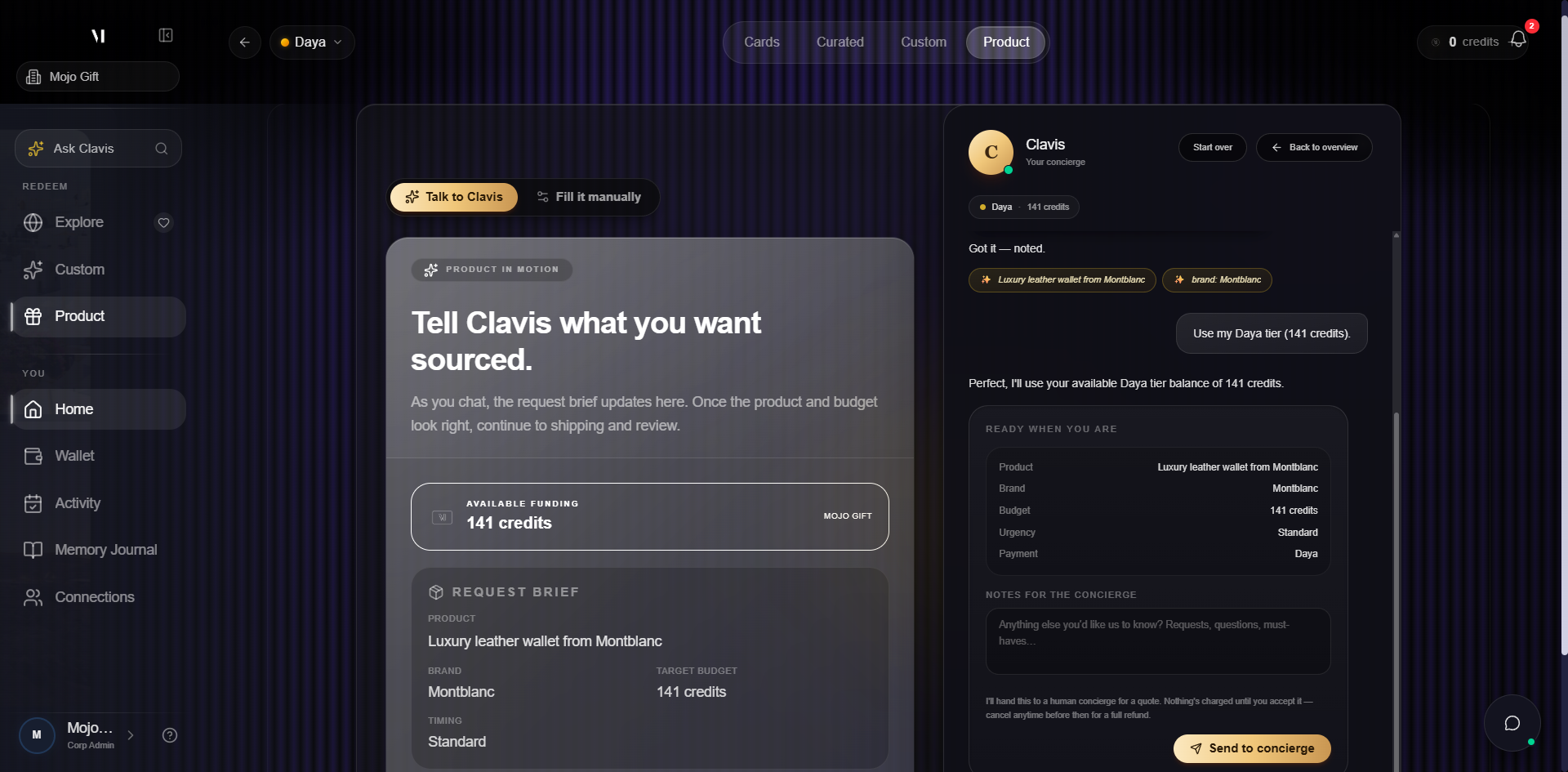
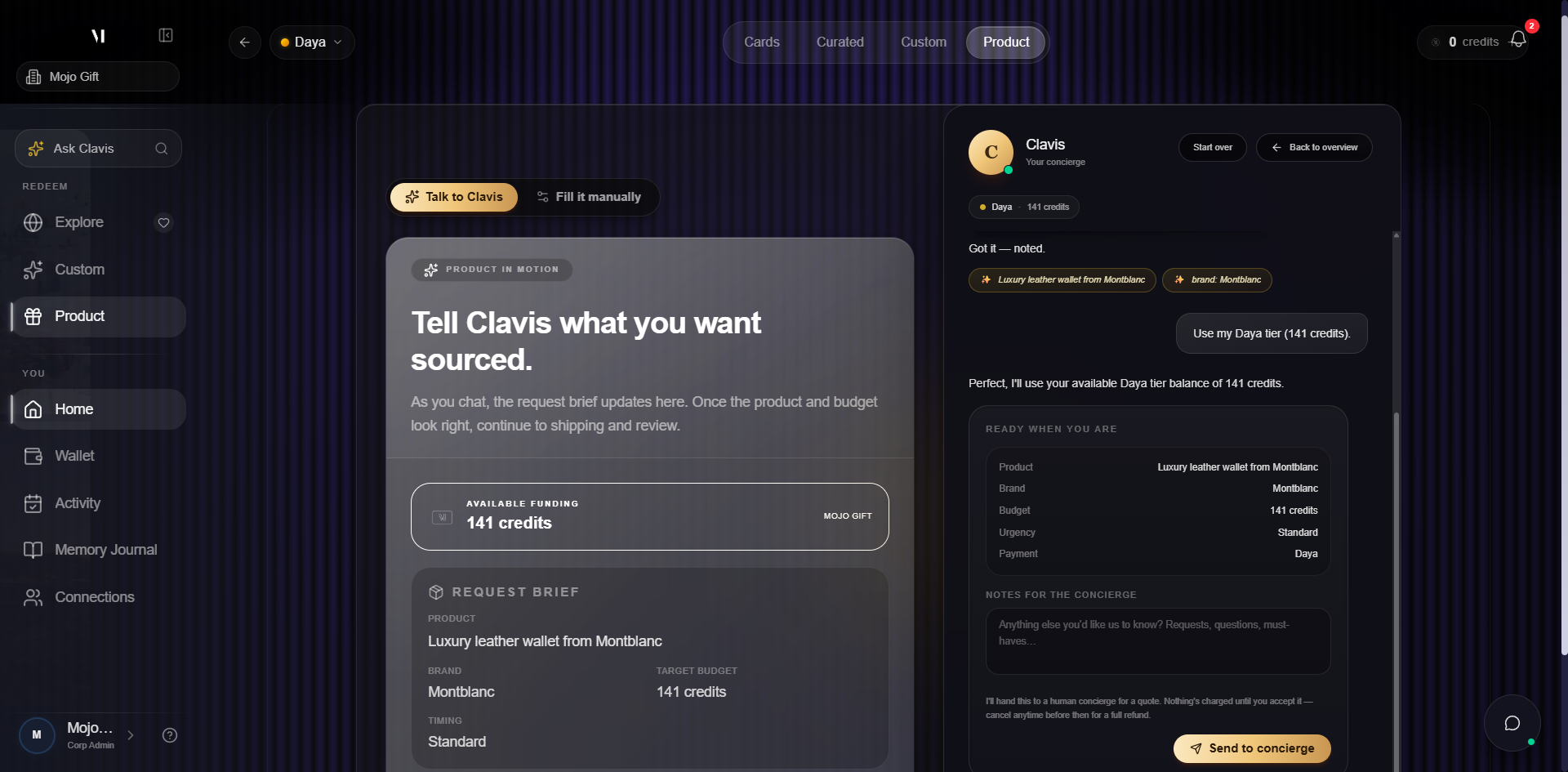
The Clavis path opens a split view: a postcard preview on the left that builds the brief as you go, and a Clavis chat panel on the right that asks the questions.
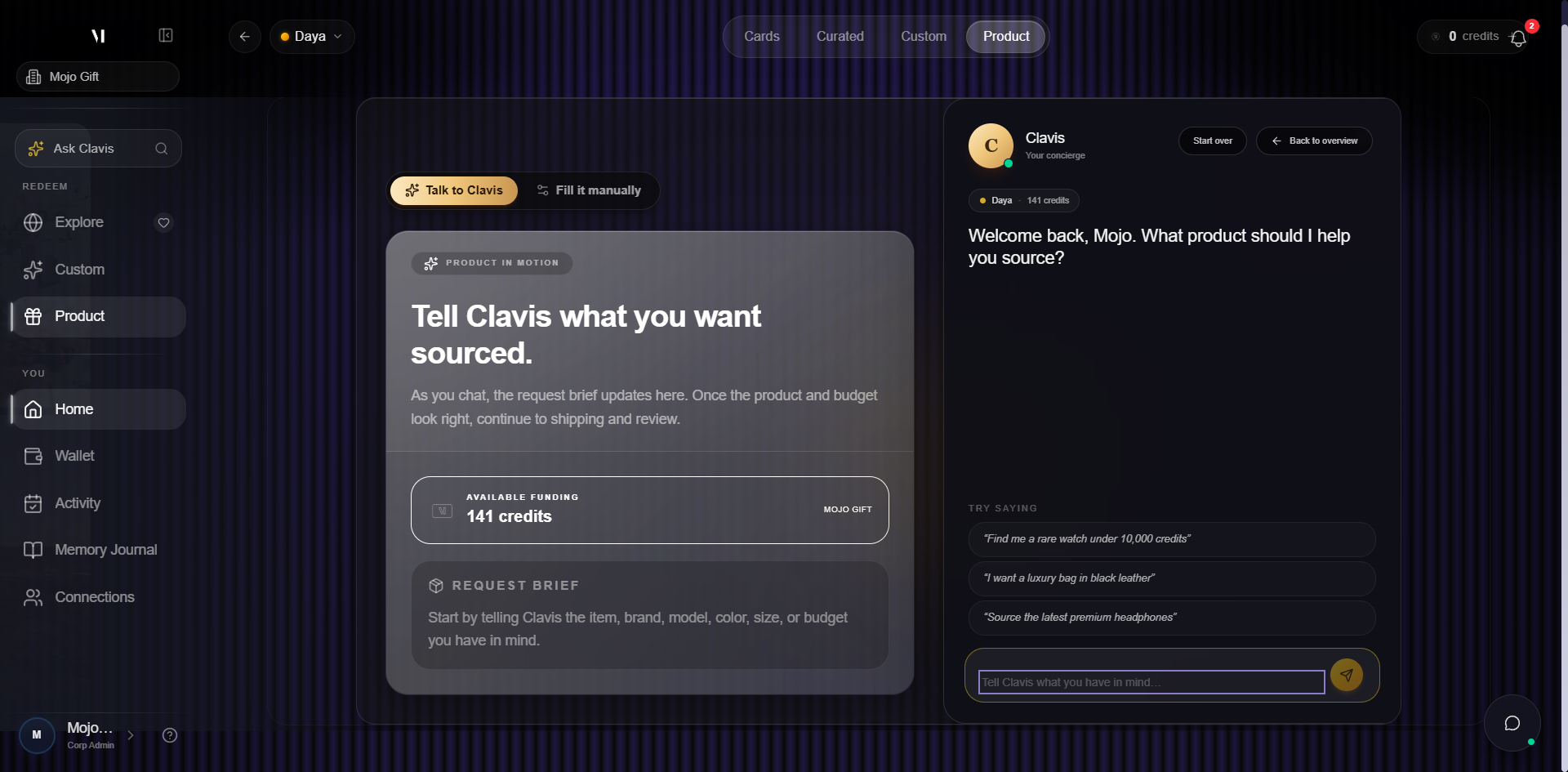
- Pick a starter prompt or type freely. The three suggested prompts seed the brief. You can also type, e.g. "I'm looking for a vintage Polaroid in good condition."
- Answer Clavis's questions. Clavis asks the right clarifying questions: spec, condition, budget, urgency, delivery preference. Each confirmed detail appears on the postcard on the left.
- Review the postcard. When the brief looks right, the postcard preview holds the full request including target budget and funding source.
- Submit the brief. Submitting hands the request to a human concierge.
The toggle at the top of the postcard switches between Talk to Clavis and Fill it manually without losing what you've already entered. Switch any time.
Path 2: Fill manually
If you'd rather skip the chat, Fill manually opens the same brief as a four-step form. The Clavis path lands here too once you've finished chatting.
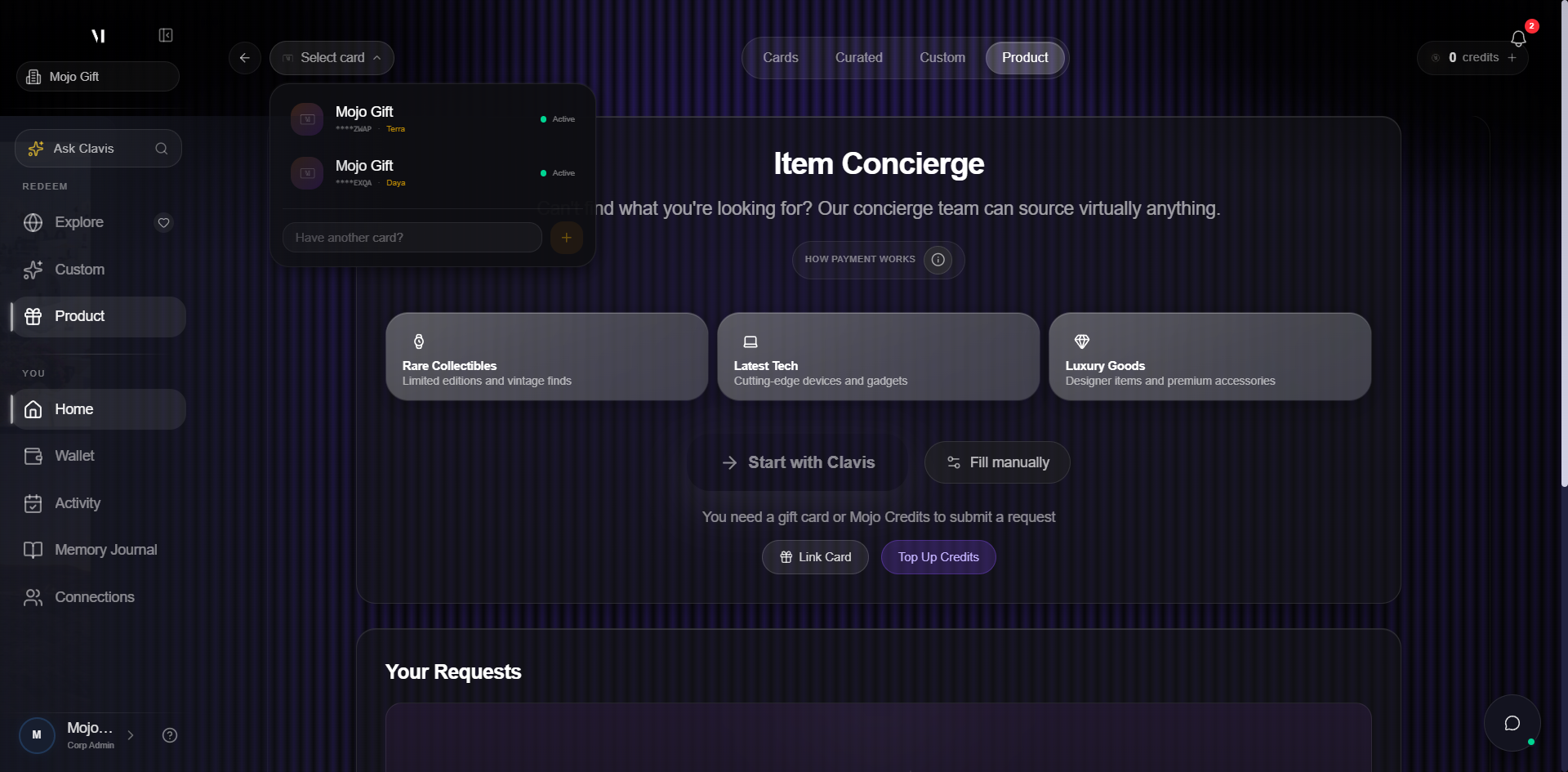
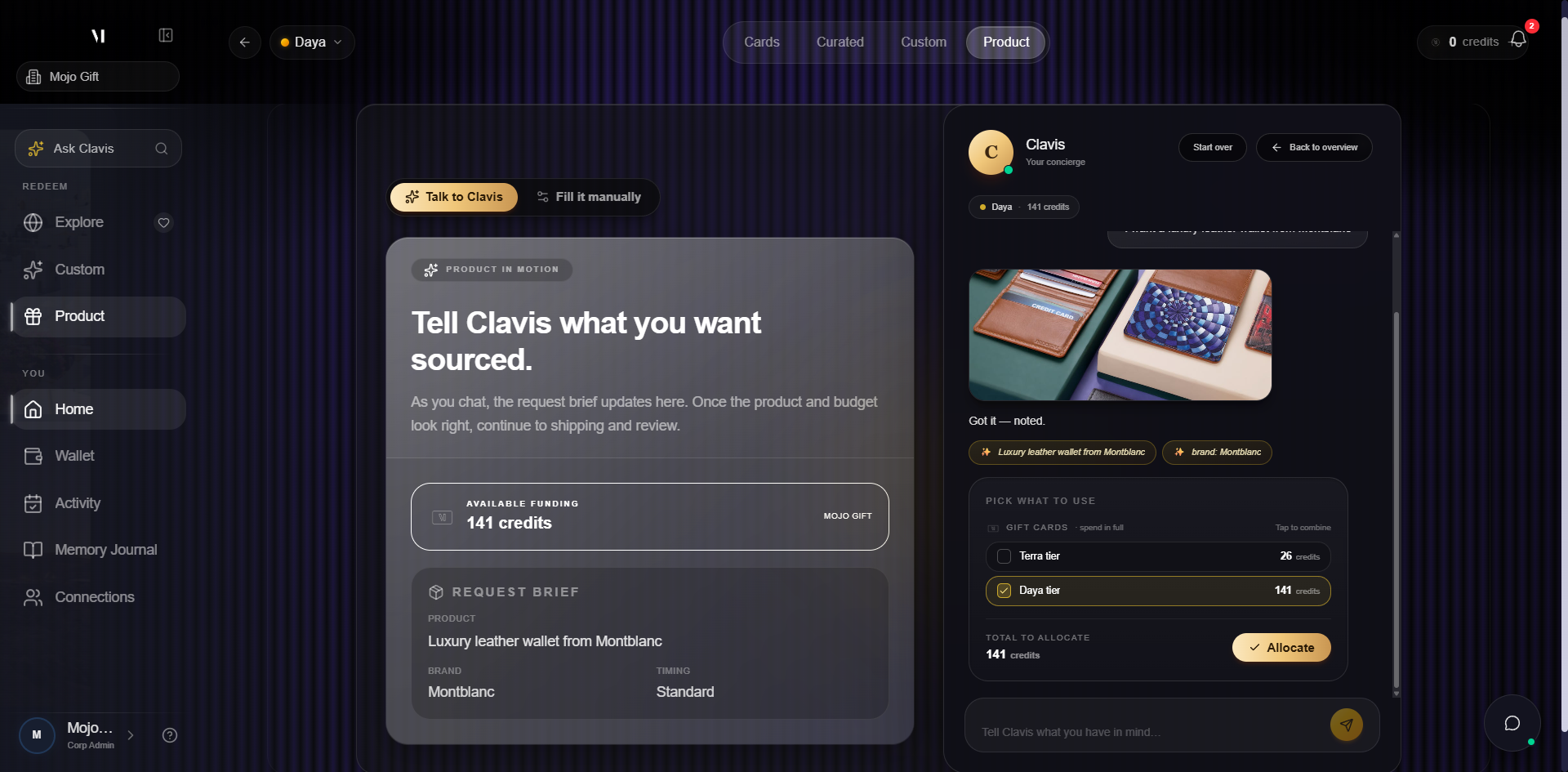
The four steps:
| Step | What you provide |
|---|---|
| 1 · Gift Card | Pick the card to fund the request, or continue without one to use credits only. |
| 2 · What You Want | Description, target budget, urgency, optional brand and special instructions. |
| 3 · Shipping & Contact | Where to deliver, who to contact, and how to reach you. |
| 4 · Review & Submit | Confirm everything before the brief lands with the concierge. |
You can move backwards through the stepper to edit any step before submitting.
After you submit
Once you tap Submit Request:
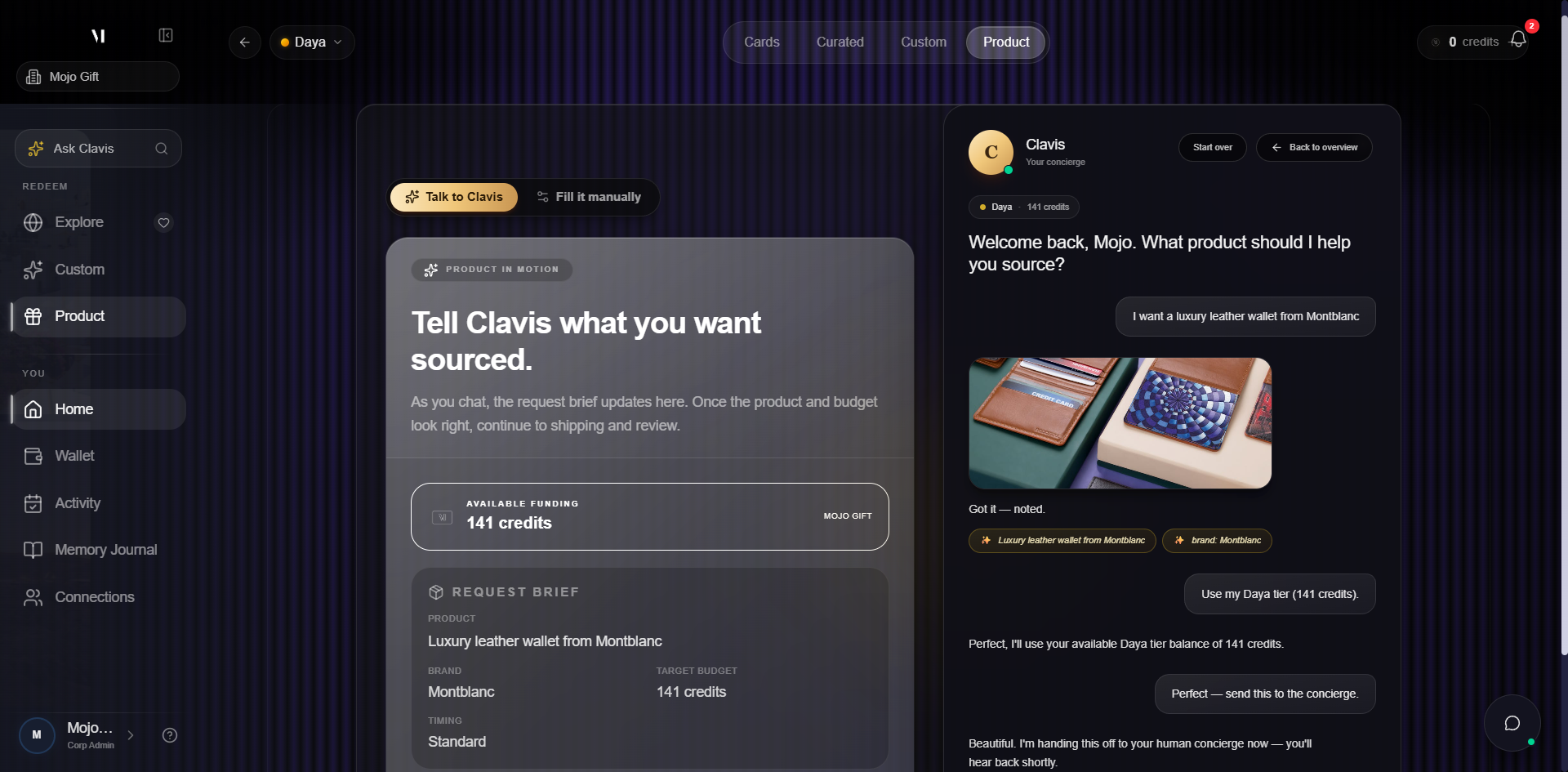
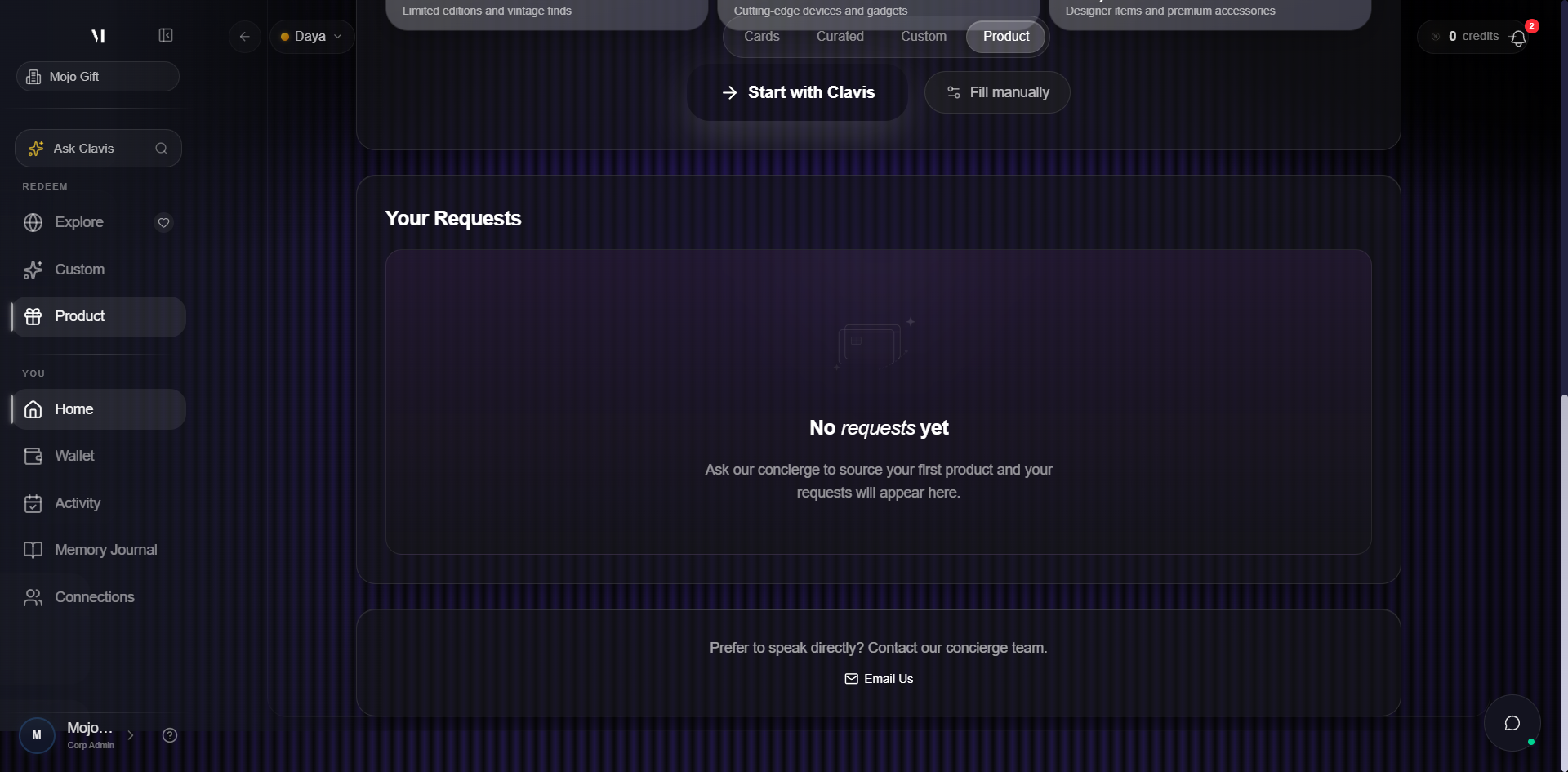
The Track Your Request page is your live view — status, the brief you submitted, and the concierge thread.
What Clavis does and doesn't do
Clavis is the concierge AI. In Product Request she can:
- Ask the right clarifying questions about specs (size, colour, version, condition)
- Suggest related options if your initial description is broad
- Pre-fill the four-step form so the concierge sees a clean brief
Clavis does not:
- Quote prices
- Confirm availability or stock
- Commit to a delivery date
The concierge handles the quote and the actual sourcing. Clavis just gets the brief in shape.
Available budget
The header always shows your current funding: card tier and a credit count. As you build the brief, the form lets you set a target budget within that funding. If the item ends up costing more, the concierge will quote you the difference; you can either accept or pass.
If you want to add credits before submitting, the Top Up Credits button on the gift card step opens the top-up flow without losing your in-progress brief.
After approval and delivery
Once the concierge accepts your brief and you accept the quote:
- Our team places the order on your behalf
- The product moves to My Activity under Products
- Tracking and final delivery confirmation arrive by email
You can chat with the concierge in the request thread for any updates, customisations, or address changes.
What's next
- Custom Experience is the same idea but for trips and experiences.
- Tracking bookings covers what happens after the brief lands with the concierge.
- About Mojo Credits covers credits-only requests.