Sending a gift card to someone
Picking a tier, choosing a recipient, and delivering through email.
Updated October 3, 2026
Sending a gift card lets you give someone a Mojo Gift experience by tier and cover, with an optional message and an optional scheduled delivery date. The flow lives at /redeem/wallet/gift and uses the same purchase wizard as buying a card for yourself, with one extra step for picking the recipient.
When to use this
Use Send a gift when you want to deliver a card directly to someone else's email and have it land on their wallet automatically. The recipient does not need to already have a Mojo Gift account; the gift email walks them through sign-up the first time they click through.
Use Buy a gift card instead if the card is for you.
Open the wizard
The Send a gift link sits in the action row at the top of your wallet, next to Buy a gift card. The wizard has five steps:
| Step | What it asks for |
|---|---|
| Tier | The gift card tier (Terra through Exora). |
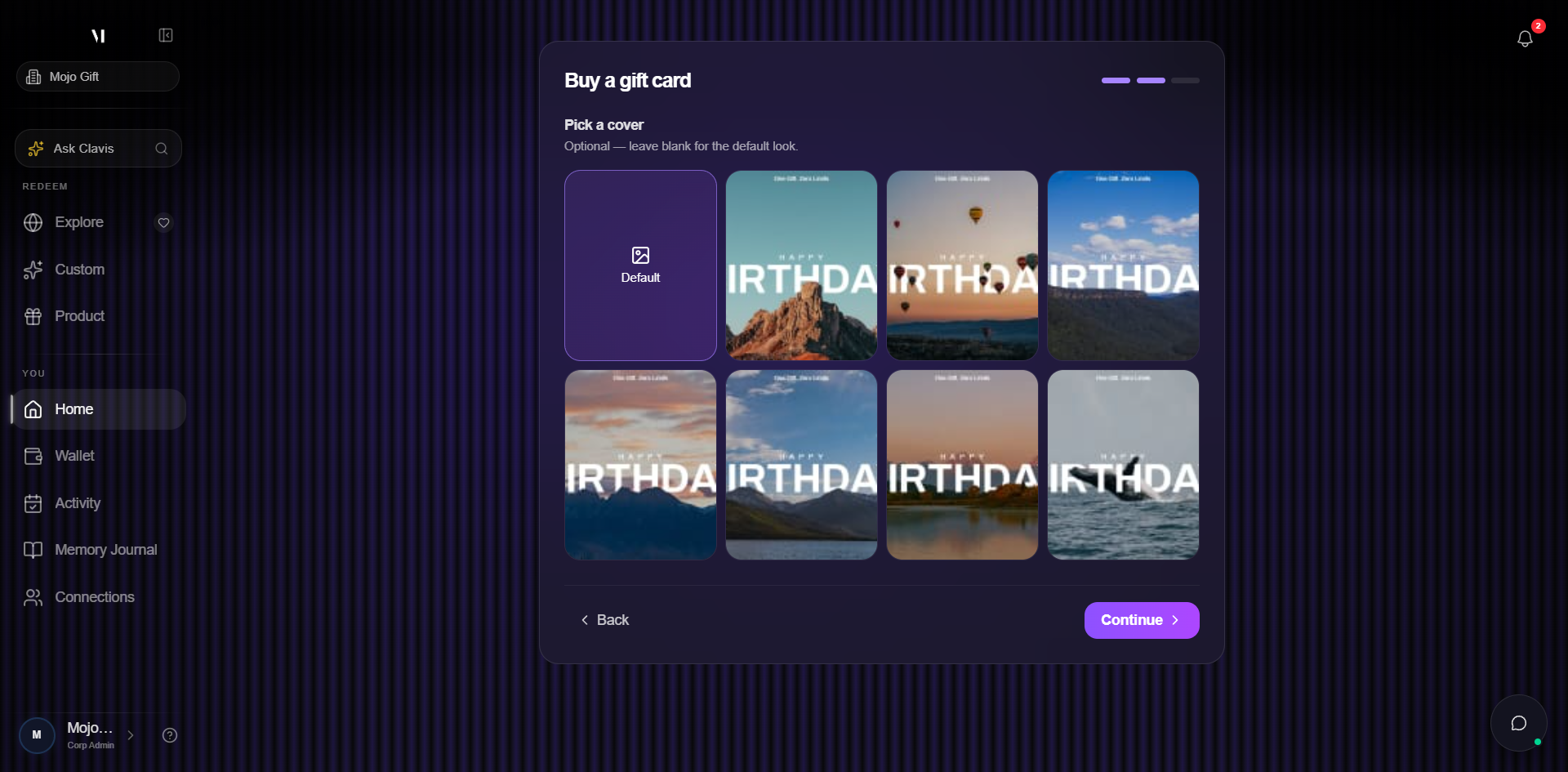
| Cover | Optional cover image. |
| Recipient | Who's getting the card. Pick from your Connections or add a new person inline. |
| Payment | Mojo Credits or Stripe (card). |
| Success | Confirmation. The recipient gets an email with the gift card. |
The first two and last two steps work the same as in Buy a gift card. The recipient step is unique to this flow.
Step 3: pick a recipient
This step has three parts:
Recipient
Type a name or email into the search box. Matching entries from your Connections appear underneath. If the person isn't already in your address book, click Add new connection to enter them inline; the new entry is saved to Connections automatically so the next gift to the same person is one click.
A connection requires:
- First name
- Last name
- Phone (optional)
Personal message
A short note that appears in the gift email and on the redemption screen the recipient sees the first time they open the card. The message is optional. Keep it under a couple of lines; long messages truncate in the email preview.
Schedule delivery
By default the gift email goes out as soon as the payment clears. Tick Schedule delivery for later to enter a future date. The card is created at submission time but the email is held until the scheduled date. Until then the card sits in your wallet's Purchases tab with status Scheduled.
Step 4: payment
Same as Buy a gift card: pay with Mojo Credits if your balance is enough, or pay by card via Stripe.
If you pay by credits, the gift email goes out as soon as the order is created, or on the scheduled date if you set one. If you pay by card, the email goes out as soon as Stripe confirms the charge, which is typically within a few seconds.
Step 5: success
After a successful payment:
- The recipient gets an email with the gift card image, the message, and a link to redeem
- An entry appears under Purchases on your wallet with the recipient's name and a status of Sent, Scheduled, or Delivered
- A receipt email is sent to you
You can track the gift's status from the Purchases tab. The status moves from Scheduled (if you scheduled it) to Sent (email delivered to the recipient's inbox) to Delivered (recipient opened the email and the card lands on their wallet).
Cancellations and changes
Once an email has been sent, the gift can no longer be cancelled by you. If you scheduled the delivery and the date hasn't arrived yet, contact support to cancel before the email goes out.
If the recipient's email bounces (typo, expired address) the system retries automatically. If retries continue to fail, support reaches out to you for a corrected address.
What's next
- Connections covers the address book that backs the recipient picker.
- Your wallet covers where sent gifts appear (Purchases tab) and how to track their status.
- Tiers explained covers how to pick the right tier for the recipient.