Buying a gift card for yourself
Adding a card to your own wallet through the purchase wizard.
Updated October 3, 2026
A gift card is the only way to unlock the Browse Experiences mode. If you want a card on your own wallet without waiting for one to be sent to you, the purchase wizard at /redeem/wallet/buy lets you buy one for yourself. The card lands in your wallet immediately on a successful payment.
When to use this
Buying a card for yourself makes sense in three situations:
- You want access to the Browse Experiences catalog and you don't have a card yet
- You want to lift your effective tier on a specific experience by stacking a new card with credits
- You want a clean record of a self-purchased card for reimbursement or gifting later
If you only want extra spending power on Custom Experiences or Product Requests, topping up Mojo Credits is faster and cheaper.
Open the wizard
The Buy a gift card link sits in the action row at the top of your wallet, next to Send a gift. Click it to open the four-step wizard.
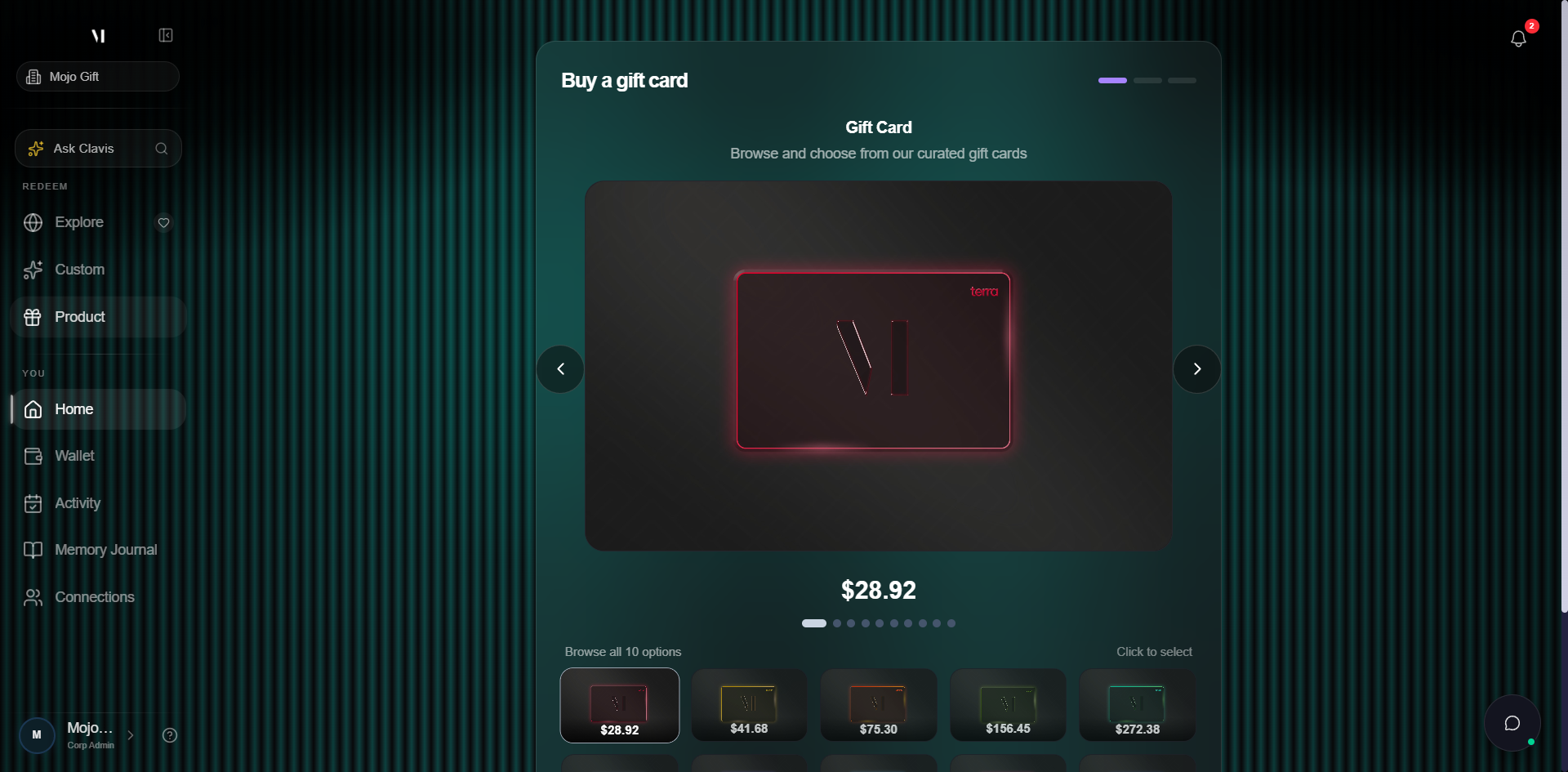
The four wizard steps are:
| Step | What it asks for |
|---|---|
| Tier | Which gift card to buy. Eleven tiers from Terra to Exora, each with a fixed real-currency price. |
| Cover | Optional cover image. Skip this if you want the default look. |
| Payment | Mojo Credits or Stripe (card). Credits is only available if your balance is enough to cover the full price. |
| Success | Confirmation. The card appears on your wallet and a copy of the receipt is emailed to you. |
Step 1: pick a tier
Each tier is shown as a card preview with the tier name underneath. The price under the preview is the purchase price in real currency, paid in this wizard. Once the card is in your wallet, all recipient pages show only the tier name, never the dollar value.
The eleven tiers and their prices today:
| Tier | Price (USD) |
|---|---|
| Terra | 28.92 |
| Lunara | 41.68 |
| Kuasa | 75.30 |
| Daya | 156.45 |
| Amiri | 272.38 |
| Imara | 405.70 |
| Aroha | 533.22 |
| Kishi | 683.93 |
| Edisha | 1,315.75 |
| Mahara | 1,500.00 |
| Exora | 5,000.00 |
Once a tier is selected, a Selected badge appears on its preview and the Continue button enables.
Step 2: pick a cover
The cover sets the visual that the gift card shows in your wallet and on the redemption pages. Step 2 is optional. The Default cover keeps the brand visual and you can move on without picking anything else.
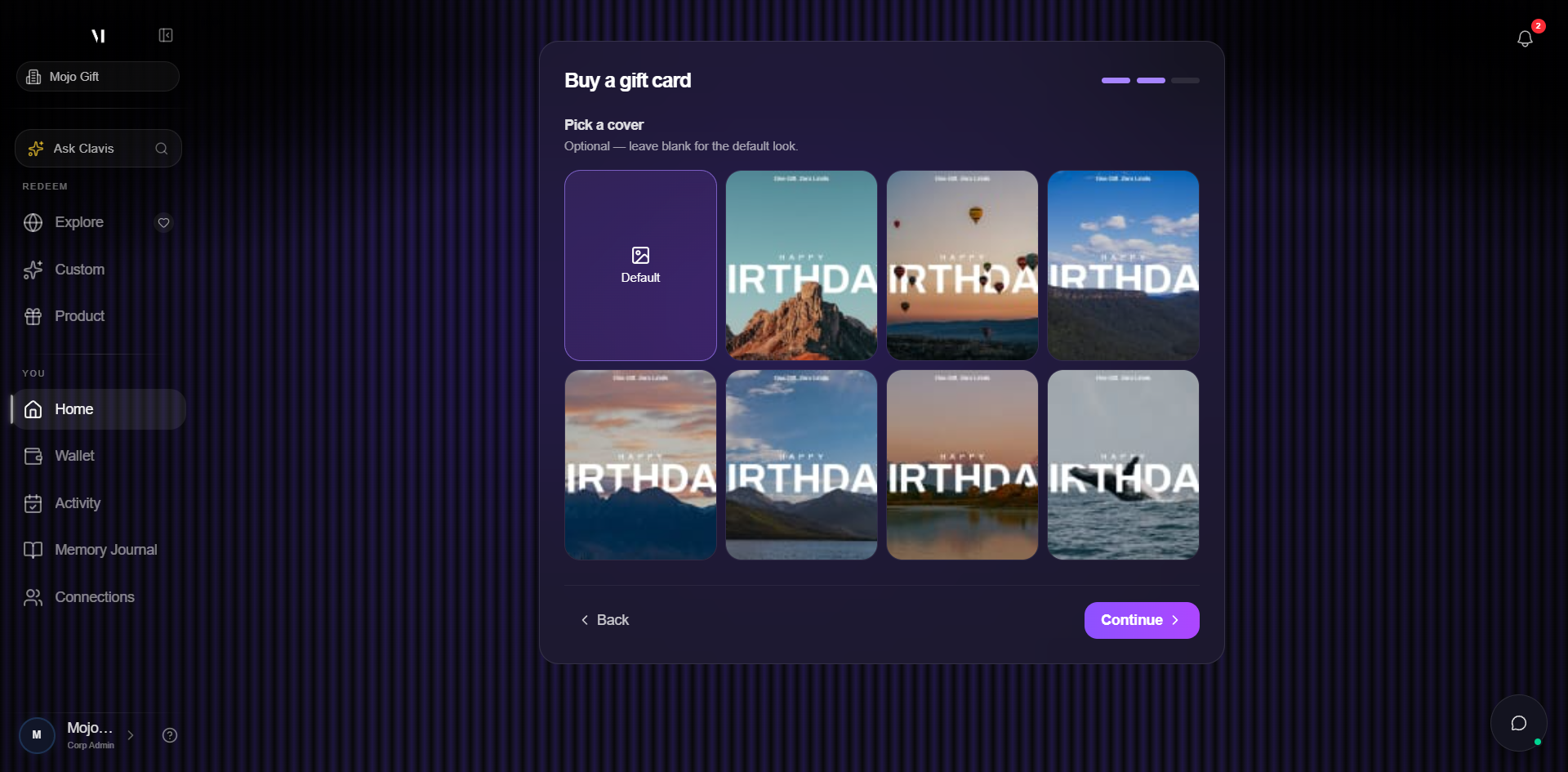
The cover only changes the visual. It does not change the tier, value, or how the card behaves at redemption.
Step 3: pick a payment method
The payment step shows the order total and two methods.
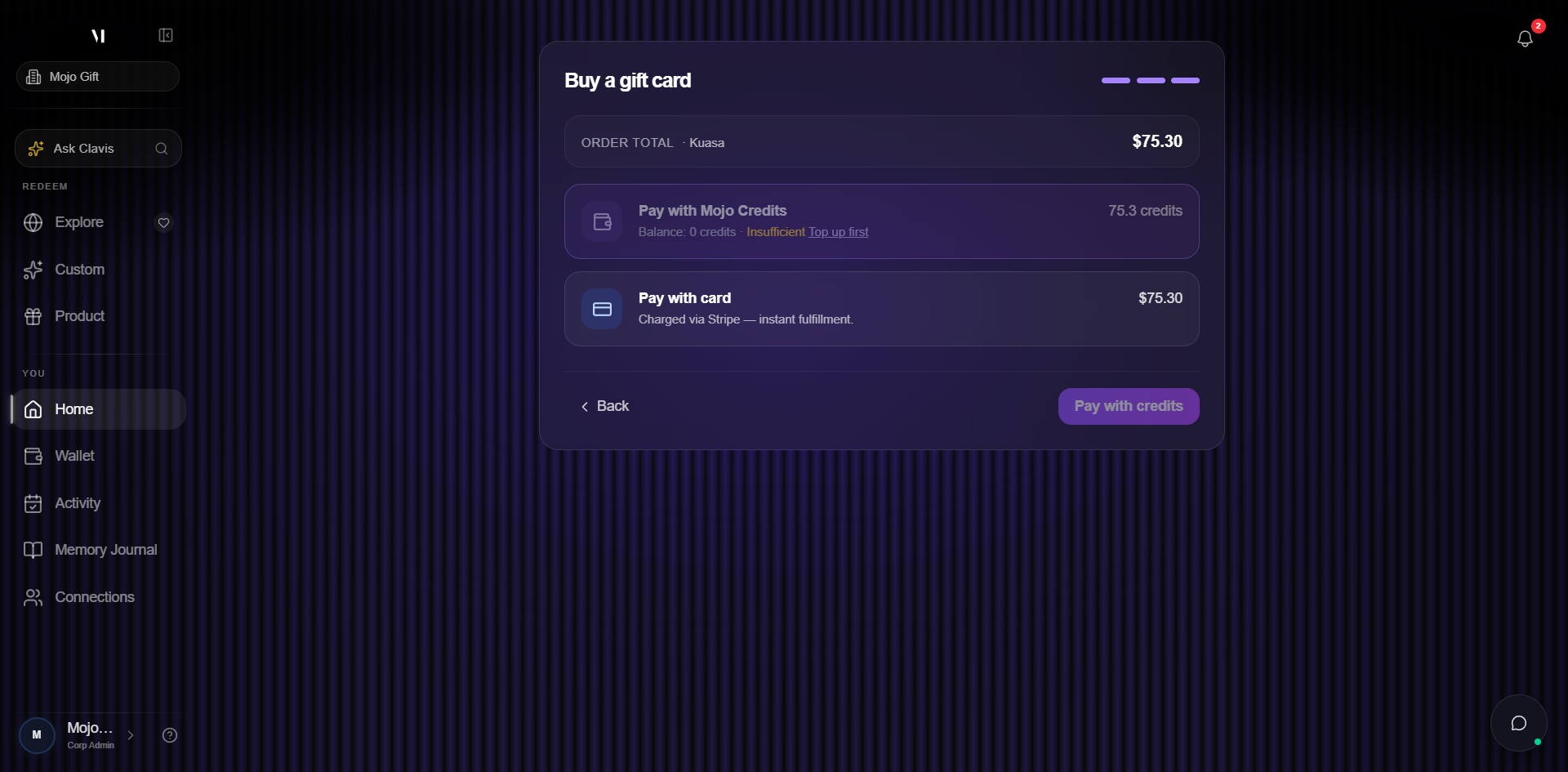
The two methods:
| Method | When it's available | What you see on your bank statement |
|---|---|---|
| Mojo Credits | Only if your credits balance is greater than or equal to the tier price. The label shows your current balance and the credits that will be debited. | Nothing. Credits are platform-only. |
| Card (Stripe) | Always available. | A charge from "Mojo Gift" or the Stripe descriptor configured for the platform. |
If credits is selected but your balance is short, the dialog points to the top-up flow so you can fund the card and come back.
Step 4: success
After a successful payment the wizard moves to the success state, the card is added to My Gift Cards, and a confirmation email is sent. The new card is immediately visible on your wallet and can be used for any of the three redemption modes.
What's next
- Send a gift card covers the same wizard with a recipient step inserted.
- Tiers explained covers what each tier unlocks for the holder.
- Topping up credits covers buying credits to combine with a gift card.