Corporate portal overview
What Mojo Gift Corporate is, who it's for, and how to begin.
Updated October 3, 2026
Mojo Gift Corporate is the side of the platform built for companies. It is what your team uses to buy gift cards in bulk, schedule them around milestones, and keep a clear paper trail at the end of the quarter. This page describes what the corporate experience looks like before you sign up, so you know what you are stepping into.
If you are a recipient of a card, you do not need this page. See the recipients getting started guide instead.
Where the corporate experience starts
The public entry point is the Mojo Gift Corporate landing page. That page introduces the platform to prospective companies. It is also the only place where a brand new corporate account can be created.
The hero gives you the shape of the platform at a glance.
- For any team. Works for a single gifter or a hundred person HR org.
- Bulk gifts in seconds. The ordering flow is a single step.
- 98 percent satisfaction. Measured across recipients who have completed redemptions.
- 24/7 access. You control the portal. We do not gate access.
What companies use it for
Most teams arrive with one of four use cases in mind. The portal supports all of them. You do not have to commit to just one.
- Recognition. Reward a closed deal, a launch, or an internal promotion. One-off, often urgent, usually a same day send.
- Client Gifts. Year end gestures, deal close thank-yous, holiday touches. Higher tier, sometimes co-branded.
- Events. Conferences, internal offsites, partner summits. Usually a CSV upload of attendees.
- Programs. Birthdays, work anniversaries, milestones. Configure once, then they fire automatically.
What is inside the portal
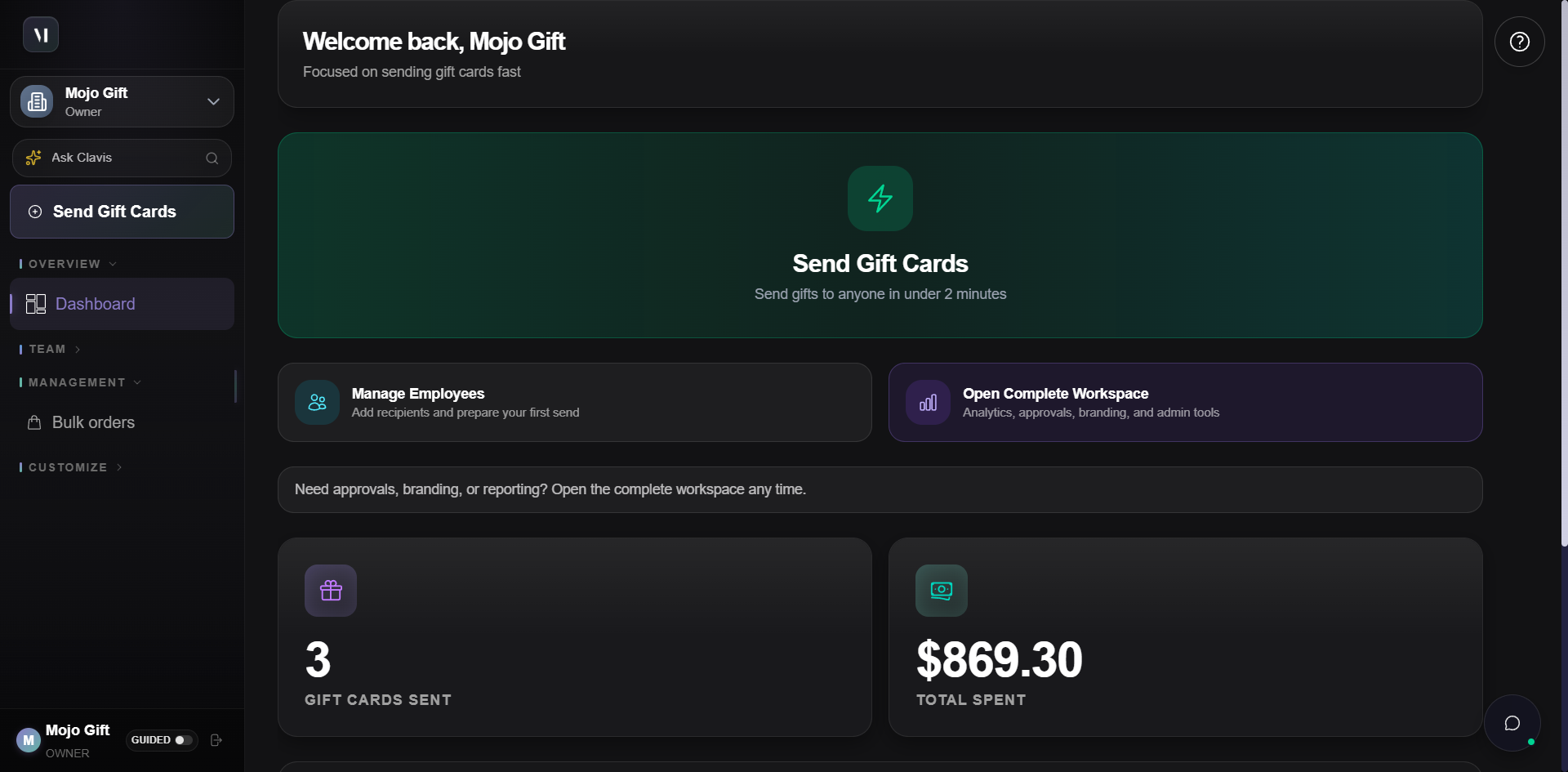
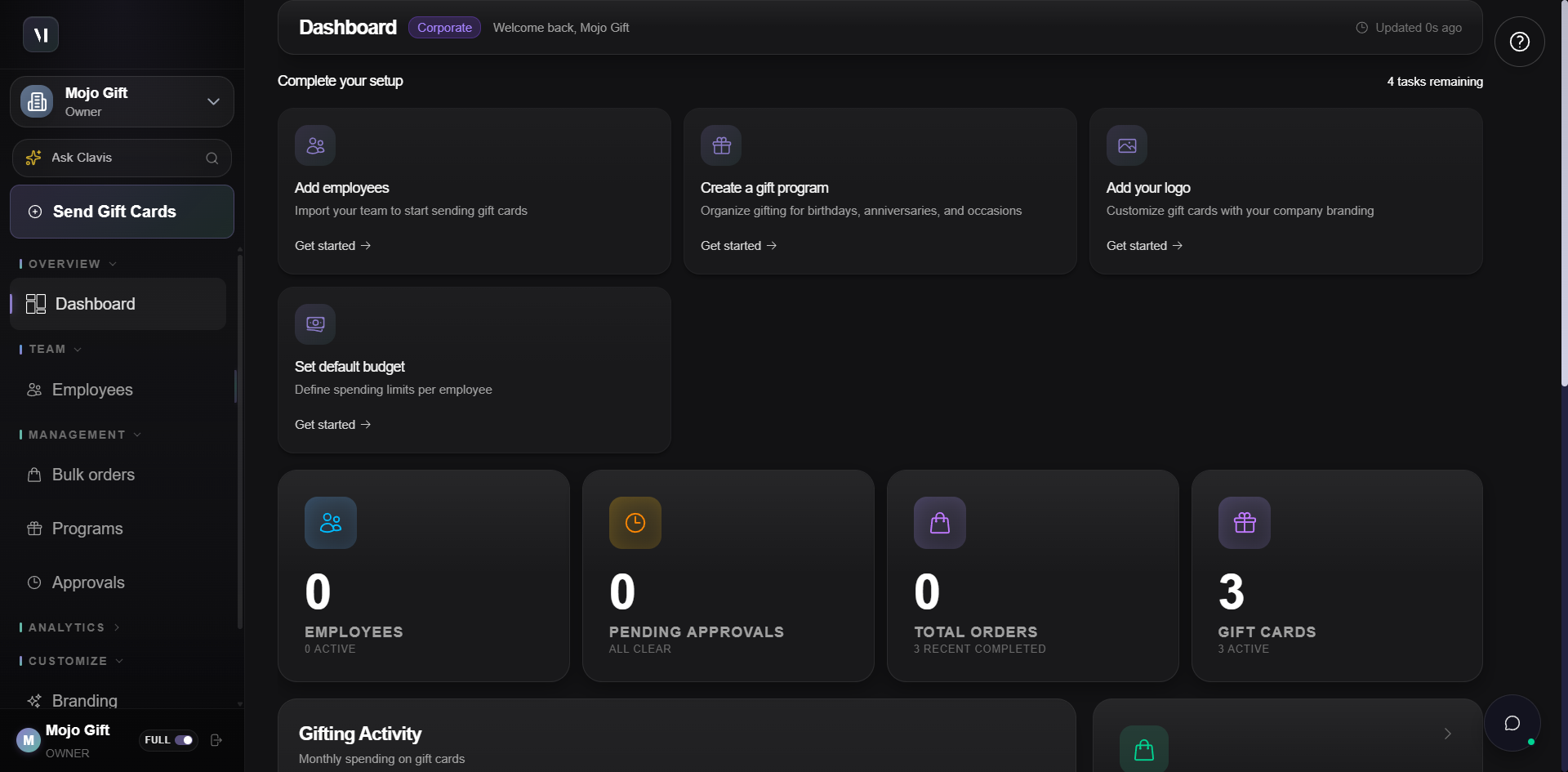
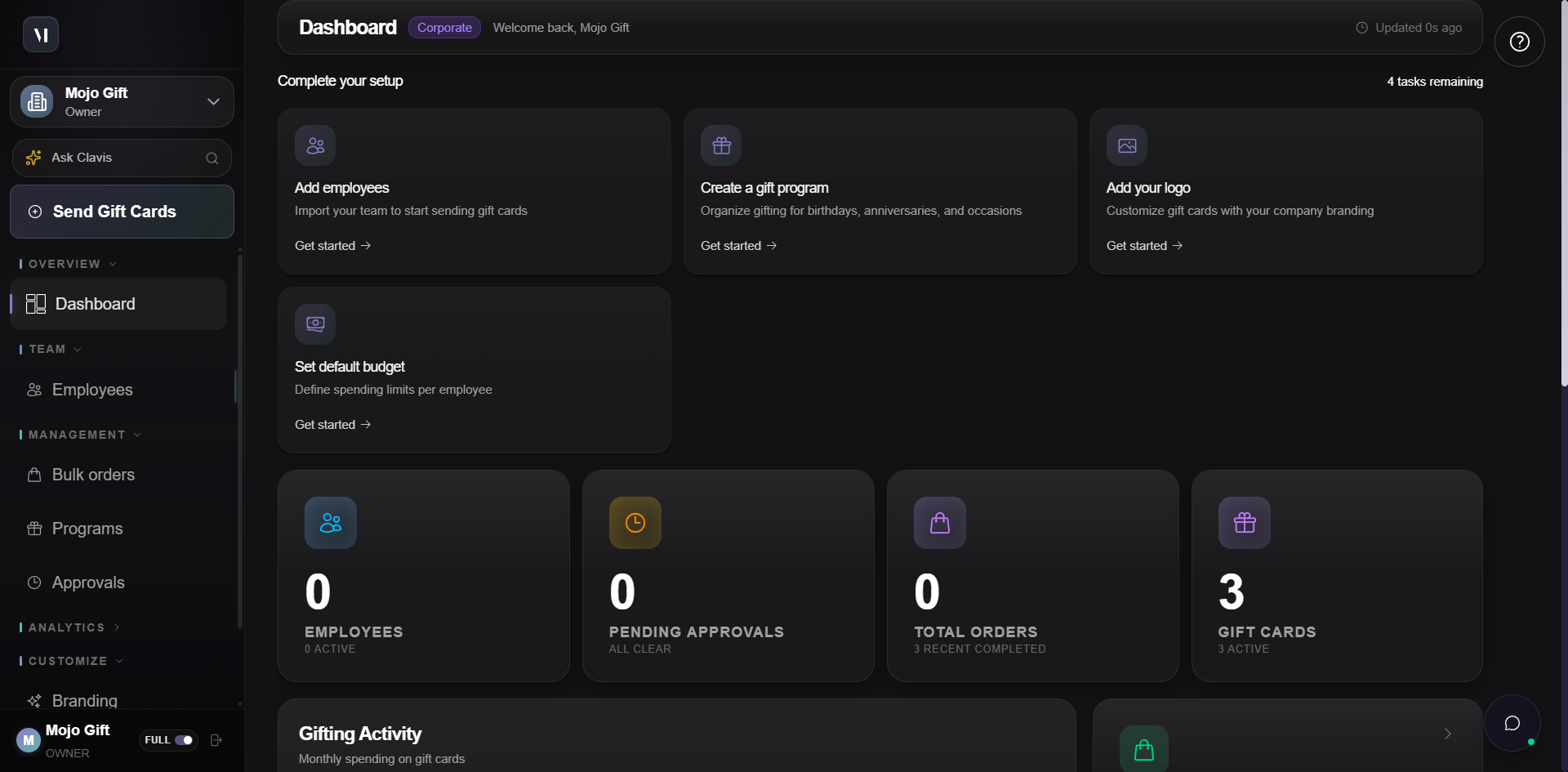
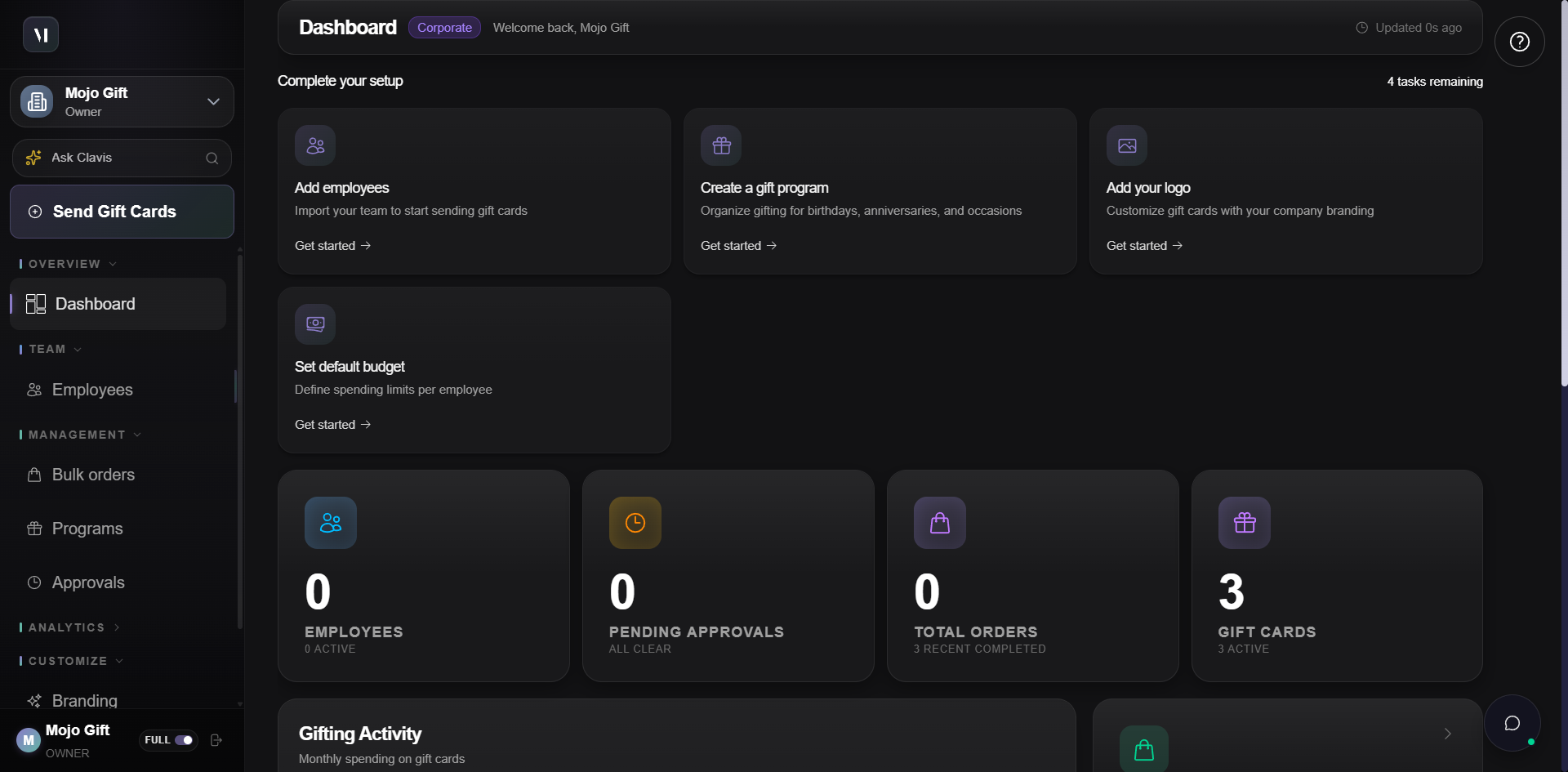
Once you are signed in, the corporate portal is organised around four working surfaces. The landing page gives you a live preview of each. Click through the tabs there to see the actual UI rather than a marketing mockup.
| Tab | What it is for |
|---|---|
| Dashboard | Programs, team size, pending orders, monthly budget. The at-a-glance overview after you sign in. |
| Orders | Every bulk order your account has placed. Drill in to see recipients, status, and approval history. |
| Team | The colleagues who can act on the account. Assign roles, budgets, and approval authority. |
| Approvals | The queue for review-required orders, governed by rules you set. |
What it can do
The portal is built around six capabilities. They show up across every working surface. You do not have to opt in or configure anything to get them.
| Capability | What it covers |
|---|---|
| Spend Governance | Team limits, required approvals, and permissions across departments. Replaces the spreadsheet workflow. |
| Full Order Visibility | Track every gift card from order to delivery, with an audit trail per order. |
| Easy Invoice Setup | Multi-entity billing with custom payment terms. Clean monthly billing for finance. |
| Security You Can Trust | Encryption, access controls, and audit logs built in. |
| Simple Setup | Onboard in minutes with guided configuration. |
| Dedicated Support | Priority access to your account team. |
Tiers, not dollar amounts
Mojo Gift cards are not presented to recipients as a dollar value. They are presented as a tier (Terra, Solara, Ember, and so on). Internally, you and your finance team work in real currency such as USD or AED. Recipients see an experience tier instead.
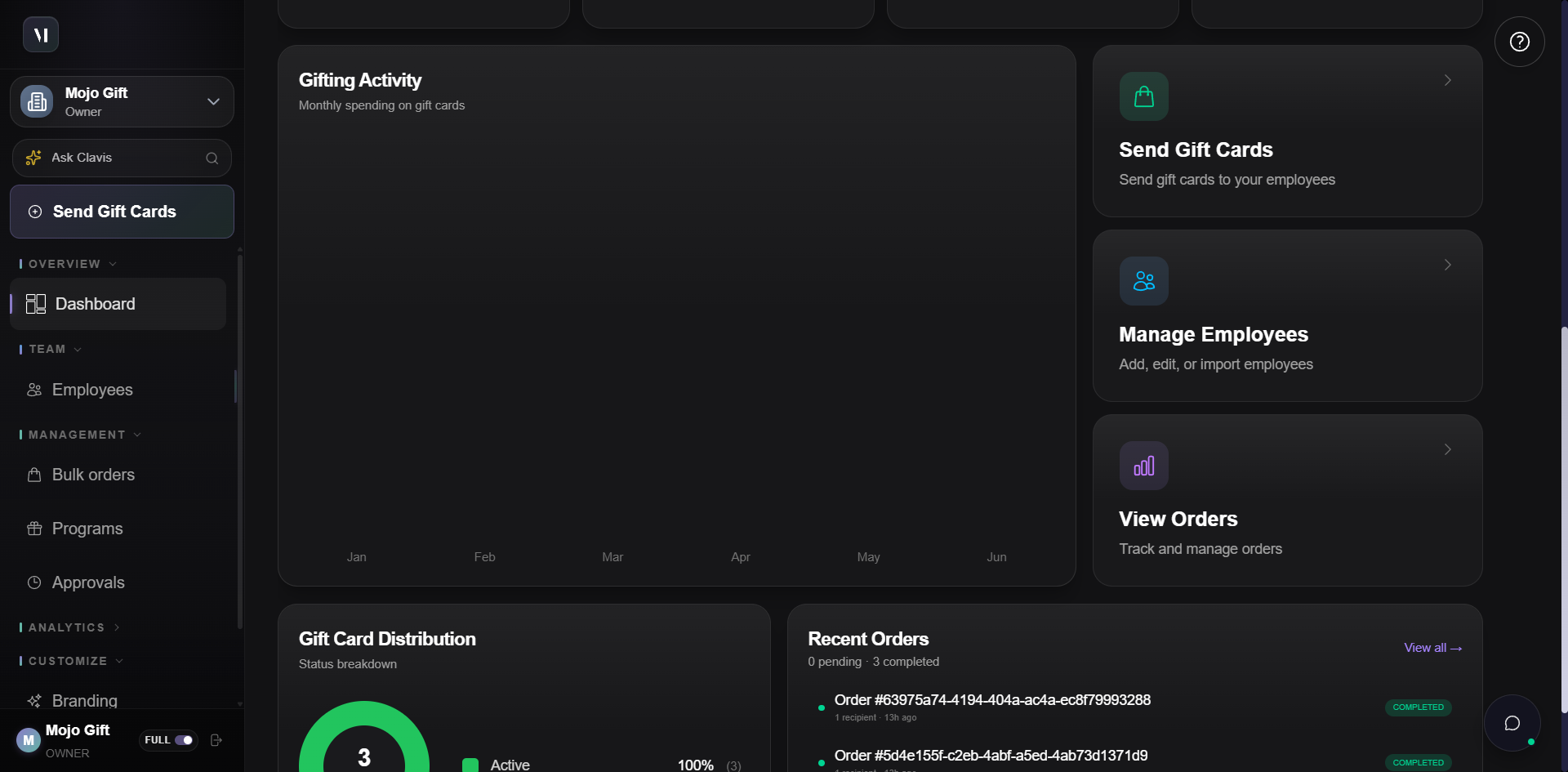
You will choose the tier when placing an order. The full ordering flow is covered in Placing an order.
How a new account starts
The setup itself is short. There are three things to do, in this order.
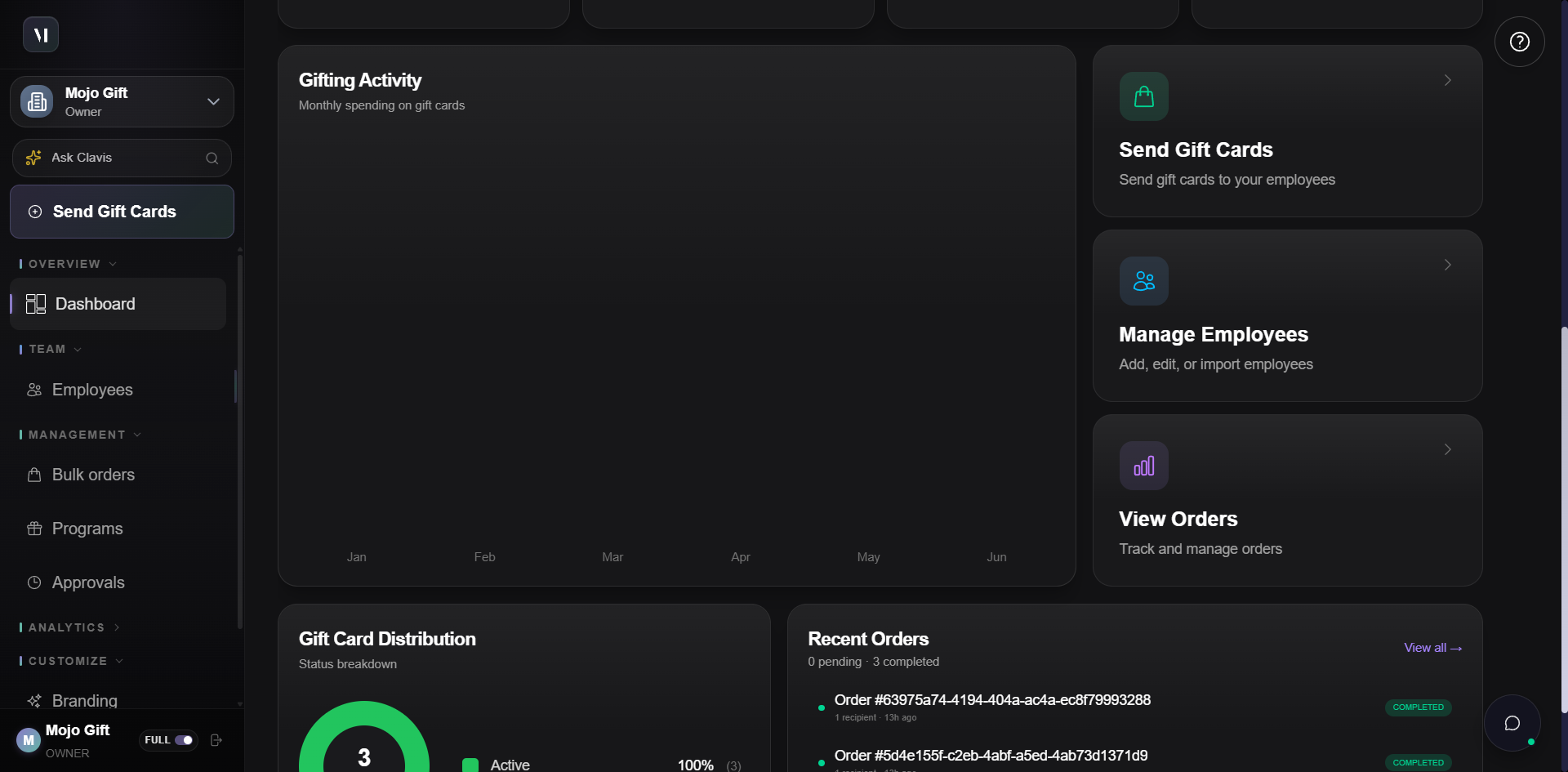
Create your account. Sign up with your company details. The corporate profile is ready in minutes. Walkthrough: Creating an account.
Set up your team. Add colleagues, assign budgets, and configure approval workflows. Each role has its own permissions. Walkthrough: Roles and permissions.
Start gifting. Schedule sends, place bulk orders, and track redemption from the dashboard. Walkthrough: Placing an order.
Ready to start
If you have decided to try the corporate portal, the entry point is the same one shown earlier.
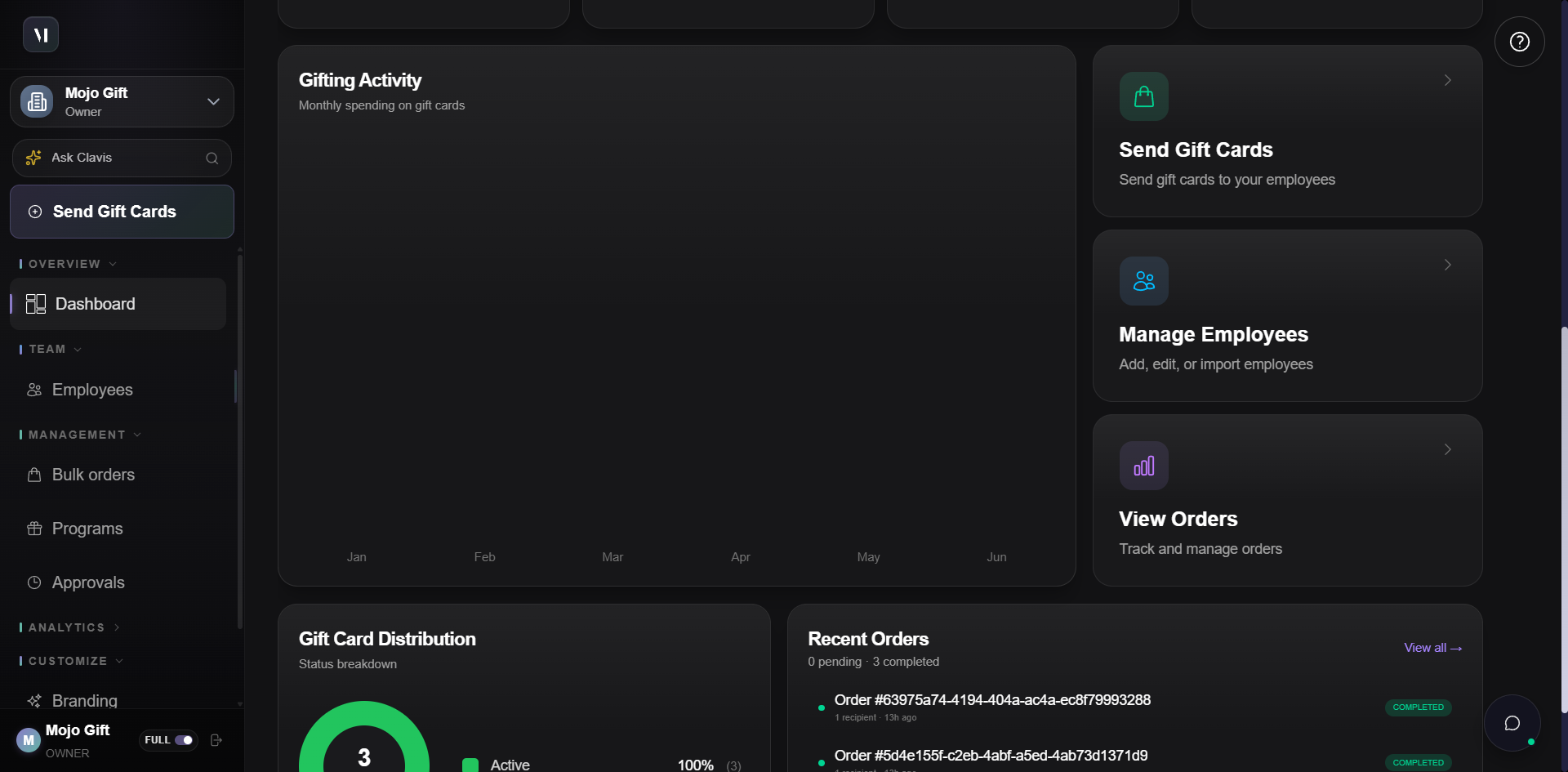
When you are ready, head to Creating an account. That is the next page in this guide, and it walks through the registration form field by field.