Roles & permissions
Owner, Admin, Manager, Employee, and External Contact, and what each can do.
Updated October 3, 2026
A corporate account is built around a small group of users who share the dashboard. Each one carries a role that decides what they can see and do. This page covers the five role labels, where roles are assigned, the two ways to add a user, and what the difference looks like in practice.
The role system documented here is corporate-only. Internal Mojo Gift staff (SUPER_ADMIN, HR_ADMIN, MOJO_GIFT_STAFF) sign in to a separate admin portal and never appear inside your corporate sidebar.
Where roles live
Roles are managed under Settings > Users & Permissions, the last tab on the Settings page.
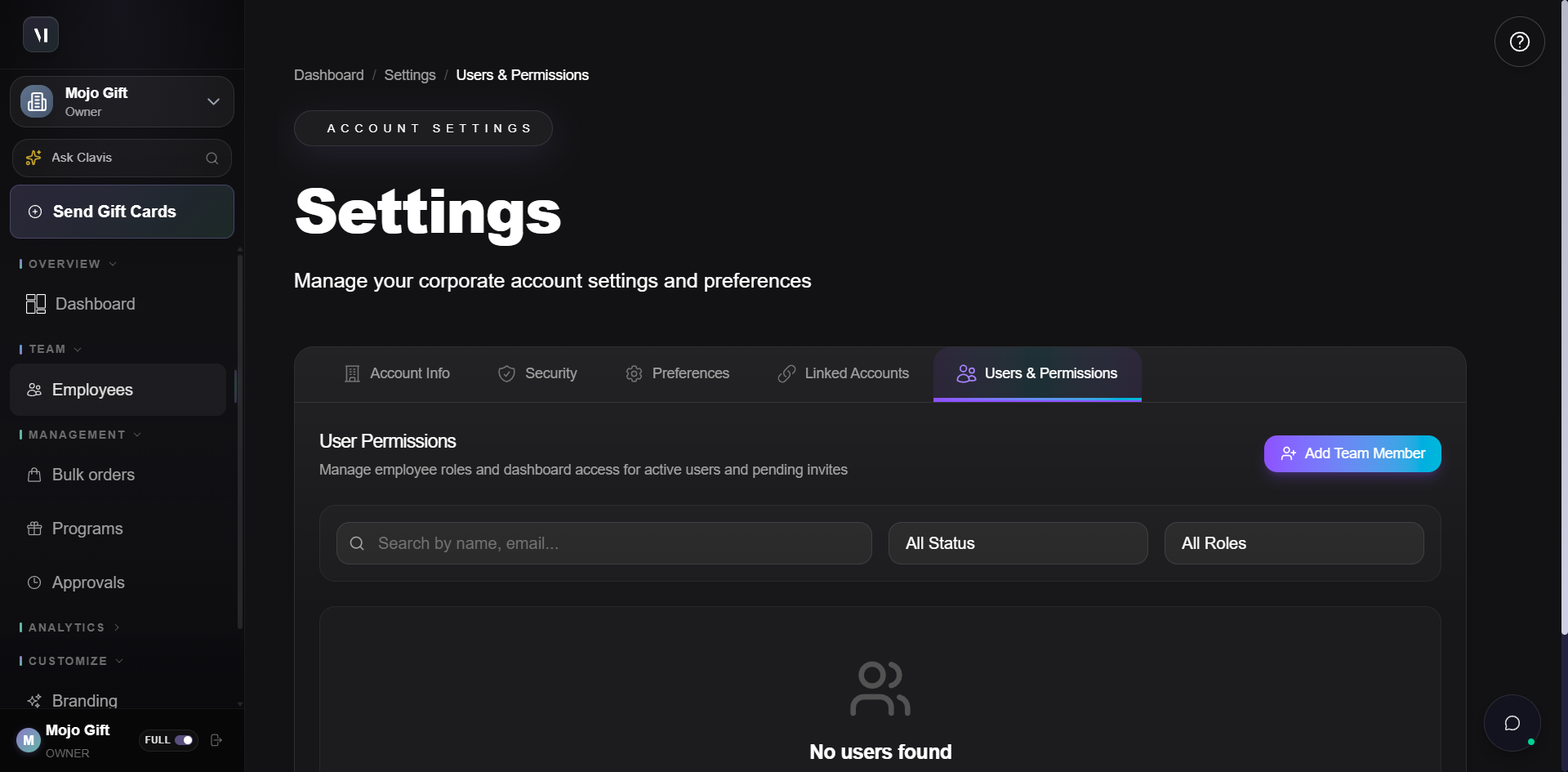
The tab has three sections from top to bottom:
- Header row with the panel title and the Add Team Member button.
- Filters (search, status, role) for finding a specific user when the list is long.
- The user list itself, showing every active user and every pending invite.
The status filter offers: Active, Pending, Expired, Revoked. The role filter offers all five roles plus All Roles.
The five roles
| Role | Description on the role picker |
|---|---|
| Owner | Implicit role for the user who registered the company. Carries every permission the platform exposes, including operations that other admins cannot perform. Cannot be assigned through the Add Team Member dialog. |
| Admin | Full access except owner-only features. |
| Manager | Access to employees, orders, and reports. |
| Employee | Access to personal gift cards only. |
| External Contact | Limited access, personal gift cards only. |
The role picker exposes Admin, Manager, Employee, and External Contact when you invite a user. Owner stays with whoever registered the account.
The selected role assigns a default set of dashboard permissions. After the user accepts the invitation and creates their account, you can fine-tune which features they can see from this same Users & Permissions page. The role acts as a starting point, not a hard limit.
Adding a team member
The Add Team Member button opens a dialog with two tabs. The tabs are not different roles, just different ways to identify the person you're inviting.
Tab 1: From Directory
Use this tab when the person already exists in your Employees directory but does not yet have a dashboard account.
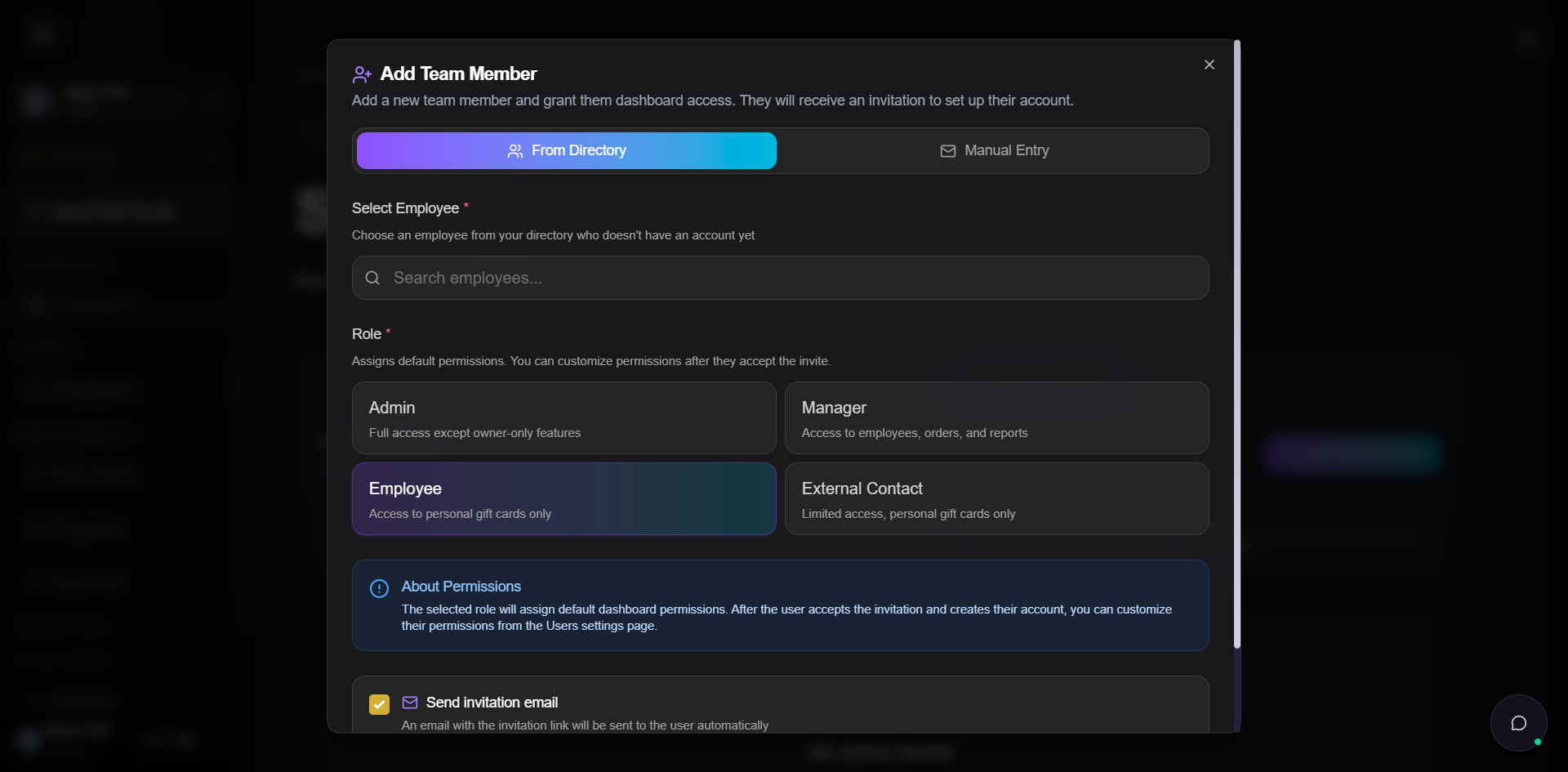
The form on this tab is short:
| Field | Notes |
|---|---|
| Select Employee | Search the directory for an existing record. The dropdown only lists employees who do not already have an account. |
| Role | Pick one of Admin, Manager, Employee, or External Contact. Employee is selected by default. |
| Send invitation email | Toggle. When on, the user receives an email with a link to create a password and finish the account. |
Tab 2: Manual Entry
Use this tab when the person is not in the employee directory, for example a part-time agency contact or a temporary collaborator.
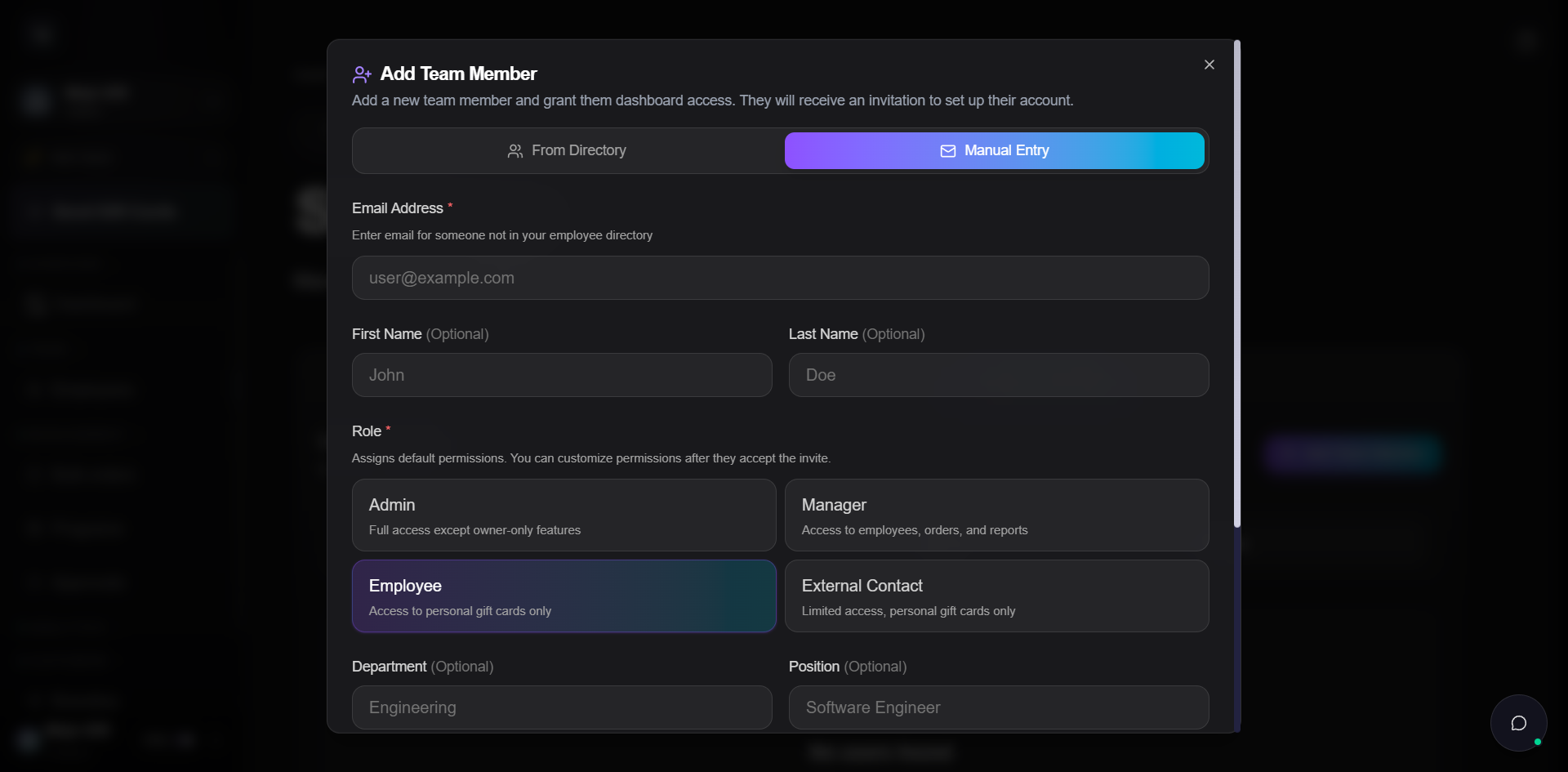
This tab adds:
| Field | Required | Notes |
|---|---|---|
| Email Address | Yes | The address the invitation is sent to. |
| First Name | No | |
| Last Name | No | |
| Role | Yes | Same four-role grid as the From Directory tab. |
| Department | No | |
| Position | No | |
| Send invitation email | No | Toggle, default on. |
Manual Entry does not create a record in the Employees directory. If you want this person to live in both places, add them to Employees first and then come back here and use From Directory.
What each role can do
The role picker only spells the difference out at a high level. The full breakdown:
| Capability | Owner | Admin | Manager | Employee | External Contact |
|---|---|---|---|---|---|
| Place bulk orders | Yes | Yes | Yes | No | No |
| Approve orders | Yes | Yes | No | No | No |
| Manage the employee directory | Yes | Yes | Yes | No | No |
| Manage programs | Yes | Yes | No | No | No |
| Configure branding | Yes | Yes | No | No | No |
| View reports | Yes | Yes | Yes | No | No |
| Invite or remove other users | Yes | Yes | No | No | No |
| Change account-level settings | Yes | Yes | No | No | No |
| Owner-only operations (e.g., deleting the account) | Yes | No | No | No | No |
| Receive personal gift cards | Yes | Yes | Yes | Yes | Yes |
| See their own personal gift cards | Yes | Yes | Yes | Yes | Yes |
The split that matters most day-to-day:
- Owner and Admin are functionally interchangeable for everything except the handful of destructive, account-wide operations reserved for the Owner.
- Manager is the right fit for someone who runs the program but should not be inviting other users or touching billing.
- Employee and External Contact are recipients with a login. They cannot place orders, manage the directory, or approve anything. The difference between the two is durability: Employee is a permanent team member, External Contact is a temporary collaborator.
Invite states
A user the dialog has invited but who has not yet finished signing up shows up in the list with a status. The status filter at the top of the page narrows by these:
| Status | What it means |
|---|---|
| Active | The invitation was accepted and the user has signed in at least once. |
| Pending | The invitation has been sent but not yet accepted. |
| Expired | The invitation link timed out before the user clicked it. Re-send to extend. |
| Revoked | The invitation was cancelled before the user accepted. They can no longer use the link. |
Active users count toward the user limit on your account. Pending invites do not.
Changing or removing a role
Open the user from the list to expose role and permission controls. You can:
- Change the role label (from Manager to Admin, for example).
- Toggle individual permissions inside the role's default set.
- Revoke the user, which closes their dashboard access without deleting the user record.
Changes save immediately and do not require the user to sign out and back in.
Order approvals at a glance
The role split matters most at order time. The base rule across roles:
| Order type | Owner | Admin | Manager | Employee | External Contact |
|---|---|---|---|---|---|
| Standard order on a non-priority account | Yes | Yes | No | No | No |
| Standard order on a priority account | Yes | Yes | No | No | No |
| Any order | Always | Always | Never | Never | Never |
Priority status is set at the account level, not the user level. See Priority accounts for the full routing rules and how Mojo Gift staff fit in.
What's next
- Placing an order walks through the bulk order flow that an Owner, Admin, or Manager will use most days.
- Approvals covers the review queue that Owners and Admins work from.
- Managing employees is where you build the directory that the From Directory tab pulls from.