Payment & invoicing
Offline payment workflow and invoices.
Updated October 3, 2026
Mojo Gift's corporate side does not run on a payment gateway. There is no Stripe checkout, no card vaulting, and no charge at the moment you submit an order. Every corporate order is paid offline: bank transfer, invoice, or a method arranged with your account manager. This page describes how that works and where the relevant fields live in the portal.
If you are a recipient topping up Mojo Credits, that side does use Stripe and is described in Topping up credits. Different payment surface, different audience.
Where billing details live
All billing fields live on the Billing tab inside Settings. You filled most of these in during registration if you completed the optional billing section. Everything is editable from here.
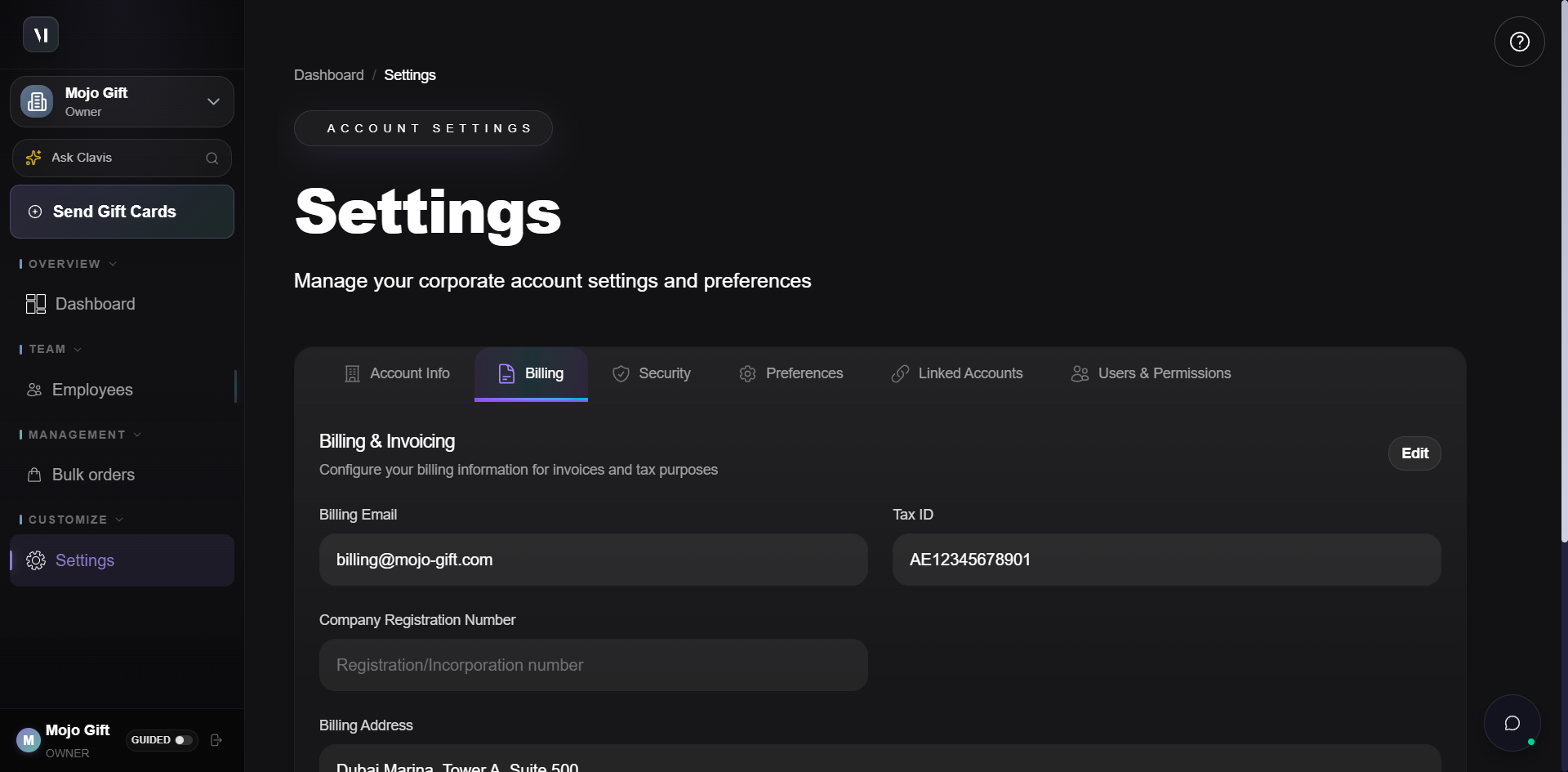
| Field | Used for |
|---|---|
| Billing Email | The inbox invoices go to. Often a finance shared inbox separate from the contact email. |
| Tax ID | Your VAT, GST, or local tax registration number. Goes on every invoice. |
| Company Registration Number | Your company's incorporation or trade licence number. Goes on every invoice. |
| Billing Address, City, State/Province, Postal Code, Country | The legal billing address Mojo Gift prints on invoices. Required for invoices to be valid in most jurisdictions. |
The same fields are required before any order can be submitted. If you skipped them at registration, the order form blocks you with a "Complete Billing Setup" modal until they are filled. See Creating an account for that path.
How payment is collected
The flow looks like this:
You submit an order. No payment is requested or charged at this point. The order enters your account's approval queue.
The order is approved internally. Either by one of your Corporate Admins, by a Mojo Gift staffer, or, on a priority account, by senior Mojo Gift reviewers.
Mojo Gift sends an invoice. Generated against the billing details you entered, sent to the Billing Email on file.
You pay offline. Bank transfer is the default. Other methods (corporate credit card via reference, ACH/SEPA, PO-based settlement) can be arranged with your account manager.
Mojo Gift records receipt. When payment lands, the order's payment status is updated internally and the gift cards become eligible for delivery to recipients.
What appears on the invoice
The invoice Mojo Gift sends to your Billing Email includes:
- The company details you entered (name, address, tax ID, registration number).
- The order reference and submission date.
- A line per gift card or per tier, with quantity and unit price.
- The total in your account's billing currency.
- Mojo Gift's payment instructions (account details for transfer).
Currency on every corporate invoice is real fiat (USD, AED, etc.), not Mojo Credits. Mojo Credits are a recipient-side concept that has no presence in the corporate portal or its invoices.
Updating billing details mid-relationship
Click Edit at the top right of the Billing tab. The fields become editable, Save commits the change. Any future invoice (for orders submitted after the change) uses the new details. Already-issued invoices are not retroactively reissued because changing your billing address does not retroactively change history.
If you need an invoice corrected (wrong tax ID, address typo) on an order that has already been billed, contact your account manager. They can issue a credit note and reissue the invoice with the corrected details.
Reconciliation
The fastest way to see what is paid versus pending is to ask your account manager for a statement. The portal does not currently surface a "paid / outstanding" view to corporate admins. Internally, every order tracks a paymentStatus (PENDING, PAID, REFUNDED) but that field is admin-side only.
A future revision of the corporate portal may expose payment status next to each order in Bulk orders. For now, the canonical source is the email thread with your account manager.
Refunds
Refunds happen rarely (orders are typically paid after approval, not before) and are processed as an offline reversal: Mojo Gift either credits your next invoice or returns funds to the originating account. There is no self-serve refund button in the corporate portal.
For recipient-side refunds (a Mojo Credits top-up that needs reversing), see Stripe refunds in the internal docs.
What's next
- Placing an order covers what triggers an invoice in the first place.
- Approvals covers the gate between order submission and invoice generation.
- Settings is the broader reference for the page where billing lives.