Managing employees
Adding, removing, and gifting your team.
Updated October 3, 2026
The Employees area is your corporate-side directory of the people who can receive gift cards. Two kinds of records live here: Employees (your permanent team) and External Contacts (one-off recipients like contractors, consultants, or agency staff). The page lives at /gift-cards/corporate/employees, under the Team section of the sidebar.
You do not have to populate this directory before you can send gift cards. You can ship a one-off gift card directly from Send Gift Cards. The directory exists for the cases where you want to send to the same people repeatedly, filter by tag, or pull a CSV in bulk.
The page at a glance
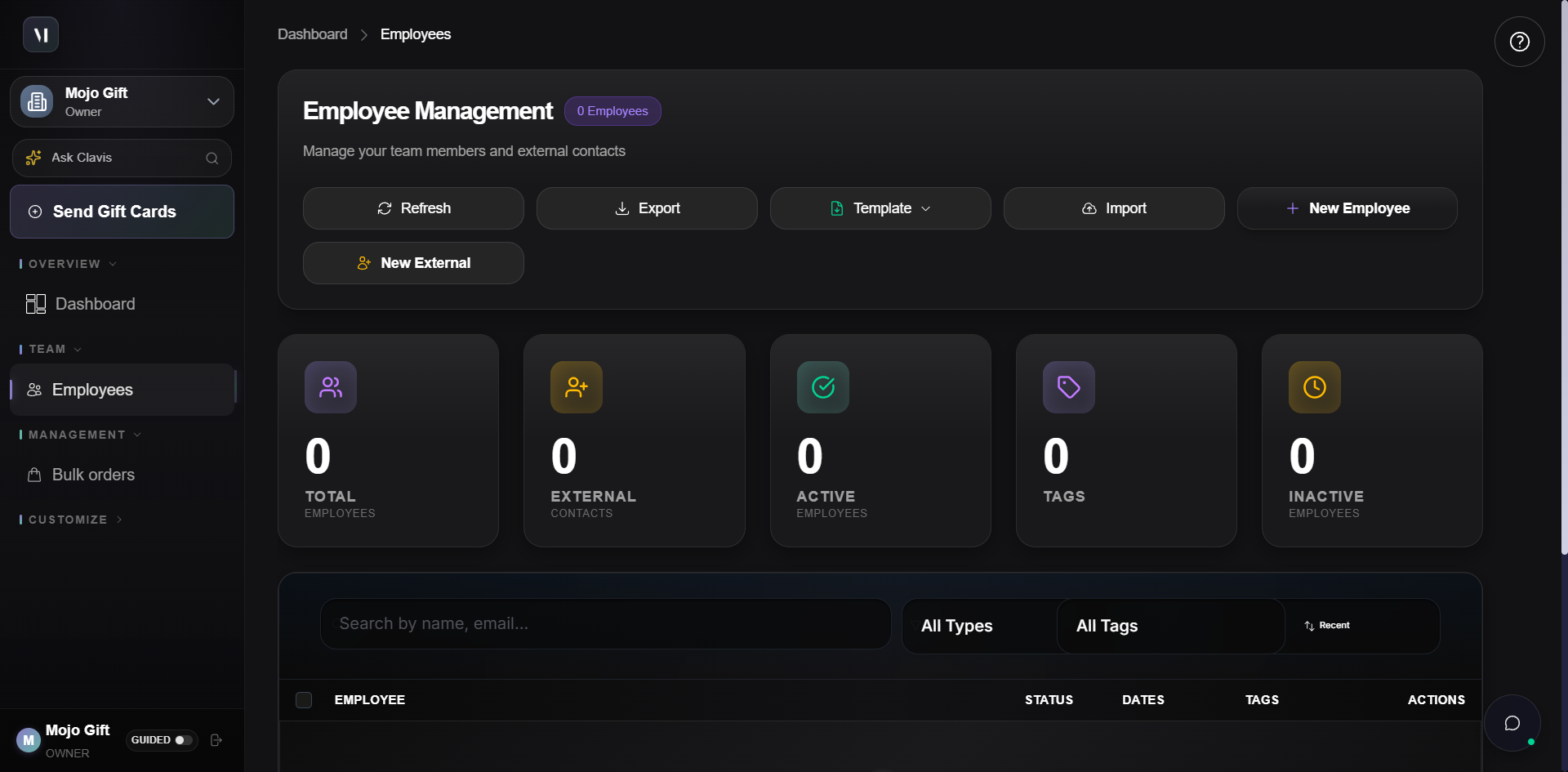
The page has four parts, top to bottom:
- Header and action row with the directory counters and the buttons that create, import, or export records.
- Stat tiles that summarise the directory by record type and status.
- Filters for narrowing the list by name, type, or tag.
- The directory table itself.
The five stat tiles
| Tile | What it counts |
|---|---|
| Total Employees | All employee records, active plus inactive. |
| External Contacts | Records flagged as temporary or external. |
| Active Employees | Employee records currently eligible to receive gifts. |
| Tags | Distinct tag labels in use across the directory. |
| Inactive Employees | Employees who have been deactivated but kept on file. |
Each tile is clickable and filters the table to that subset.
Adding a single employee
Click New Employee to open the Add Employee dialog.
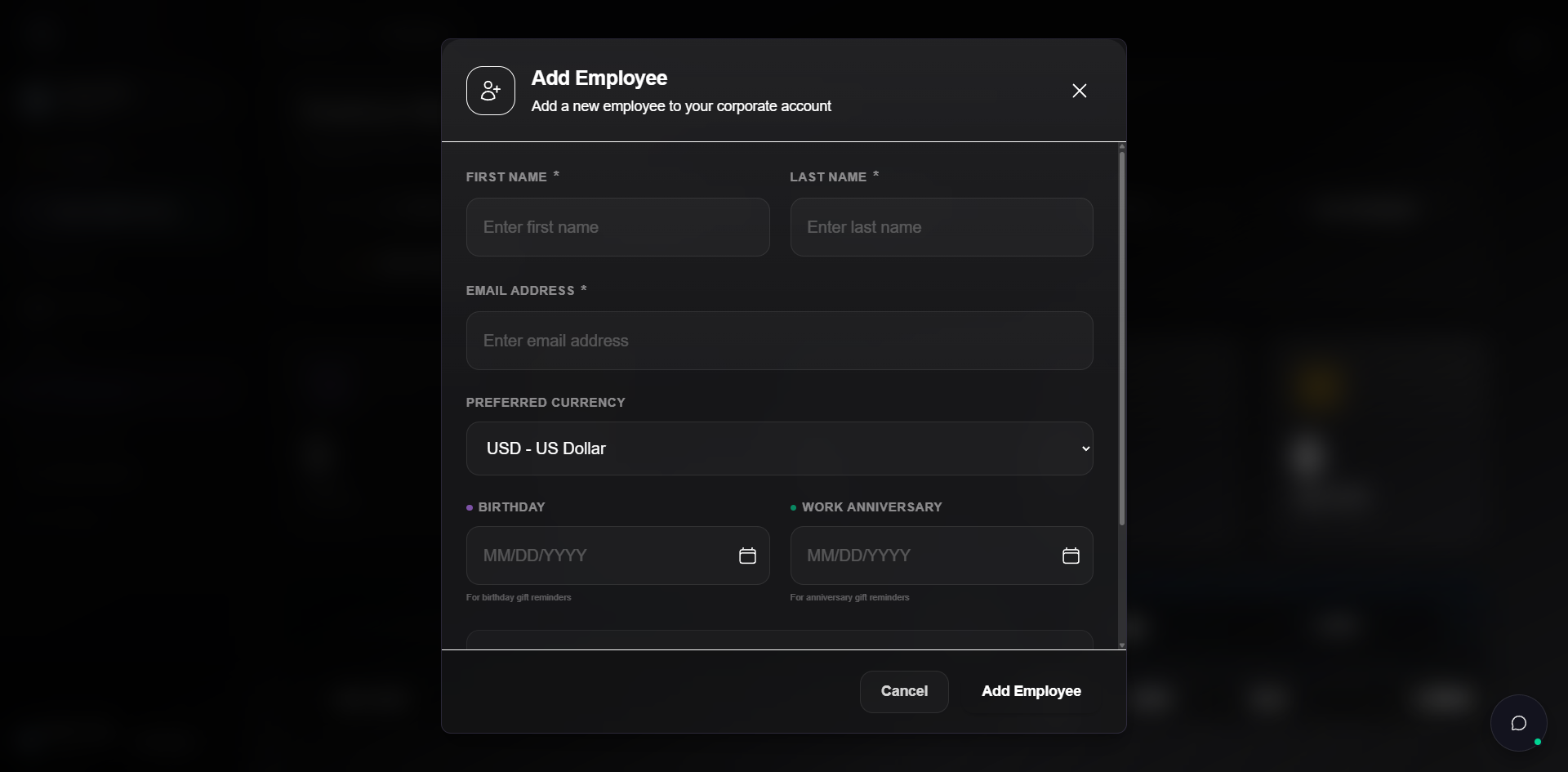
The dialog has these fields:
| Field | Required | Notes |
|---|---|---|
| First Name | Yes | |
| Last Name | Yes | |
| Email Address | Yes | The address gift card emails are delivered to. |
| Preferred Currency | No | Defaults to USD. Twelve currencies are available, including AED, EUR, GBP, JPY, SAR, PHP, INR, SGD, AUD, CAD, CHF. |
| Birthday | No | Month, day, and year. Used for birthday gift reminders. |
| Work Anniversary | No | Month, day, and year. Used for anniversary reminders. |
| Tags | No | Free-form labels. Type a label and click Add Tag. Tags become available in the tag filter as soon as they're saved on a record. |
Adding an external contact
External contacts use a slimmer dialog because they're meant to be temporary.
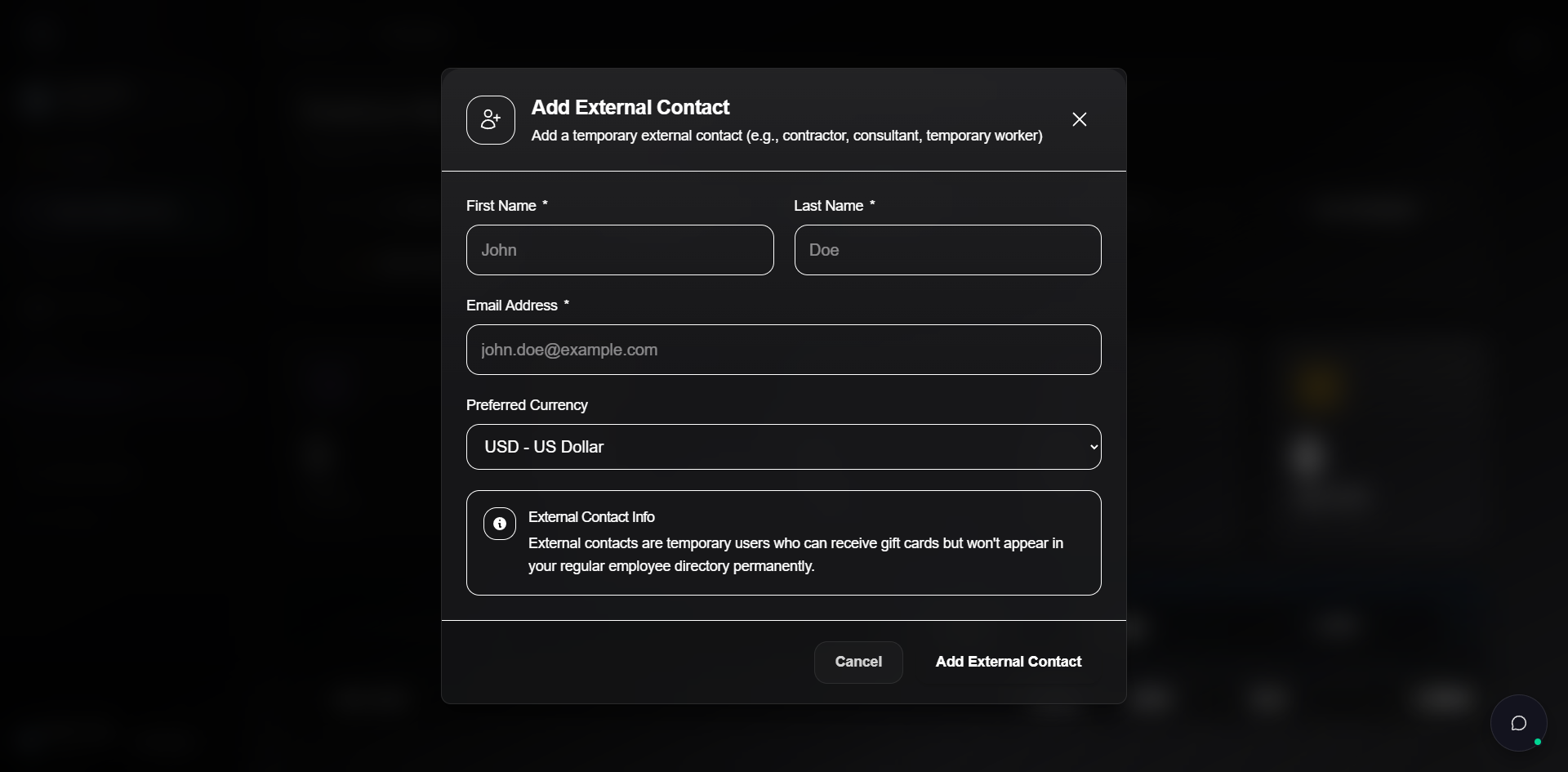
External contacts can:
- Receive gift cards the same way employees do.
- Show up in the directory under the External Contacts tile and the External type filter.
External contacts cannot:
- Be tagged.
- Have birthday or anniversary dates set.
- Be enrolled in programs that target the employee directory.
If a contractor turns into a long-term hire, add them as a regular employee record. There is no convert-in-place flow.
Bulk import via CSV or Excel
For more than a handful of records, use the import flow.
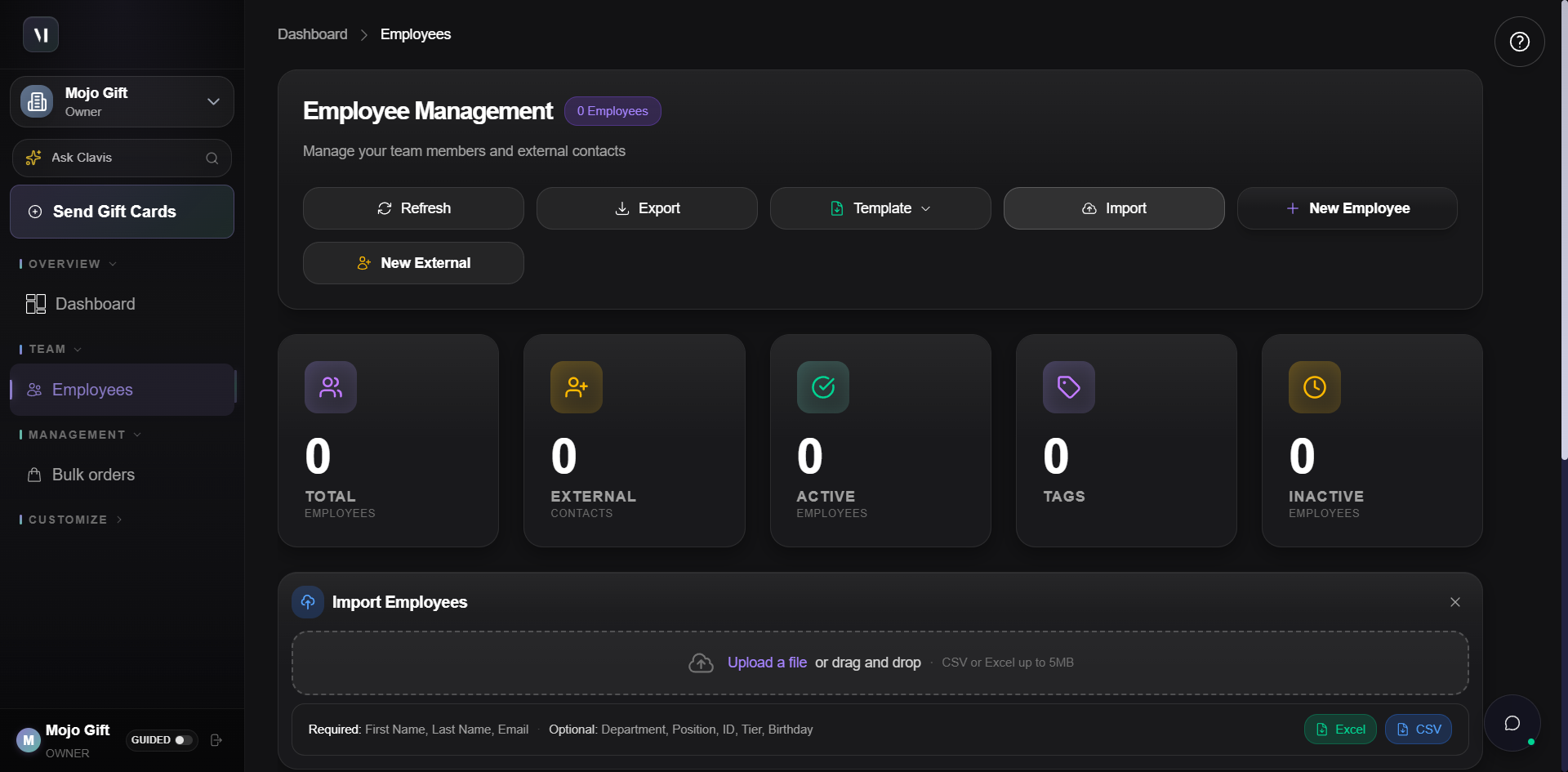
Two file formats are supported:
| Format | When to use |
|---|---|
| CSV | Plain text, easy to generate from any HR system or spreadsheet. |
| Excel | .xlsx files, useful when you have multiple sheets or formatting in the source. |
The size limit is 5 MB for either format. The required columns are First Name, Last Name, and Email. The optional columns are Department, Position, ID, Tier, and Birthday. Any extra columns in your file are ignored.
For the full import walkthrough, see CSV bulk import.
Downloading a starter template
If you do not have a CSV ready, click the Template button to download a pre-filled starter file with the right column headers and one sample row.
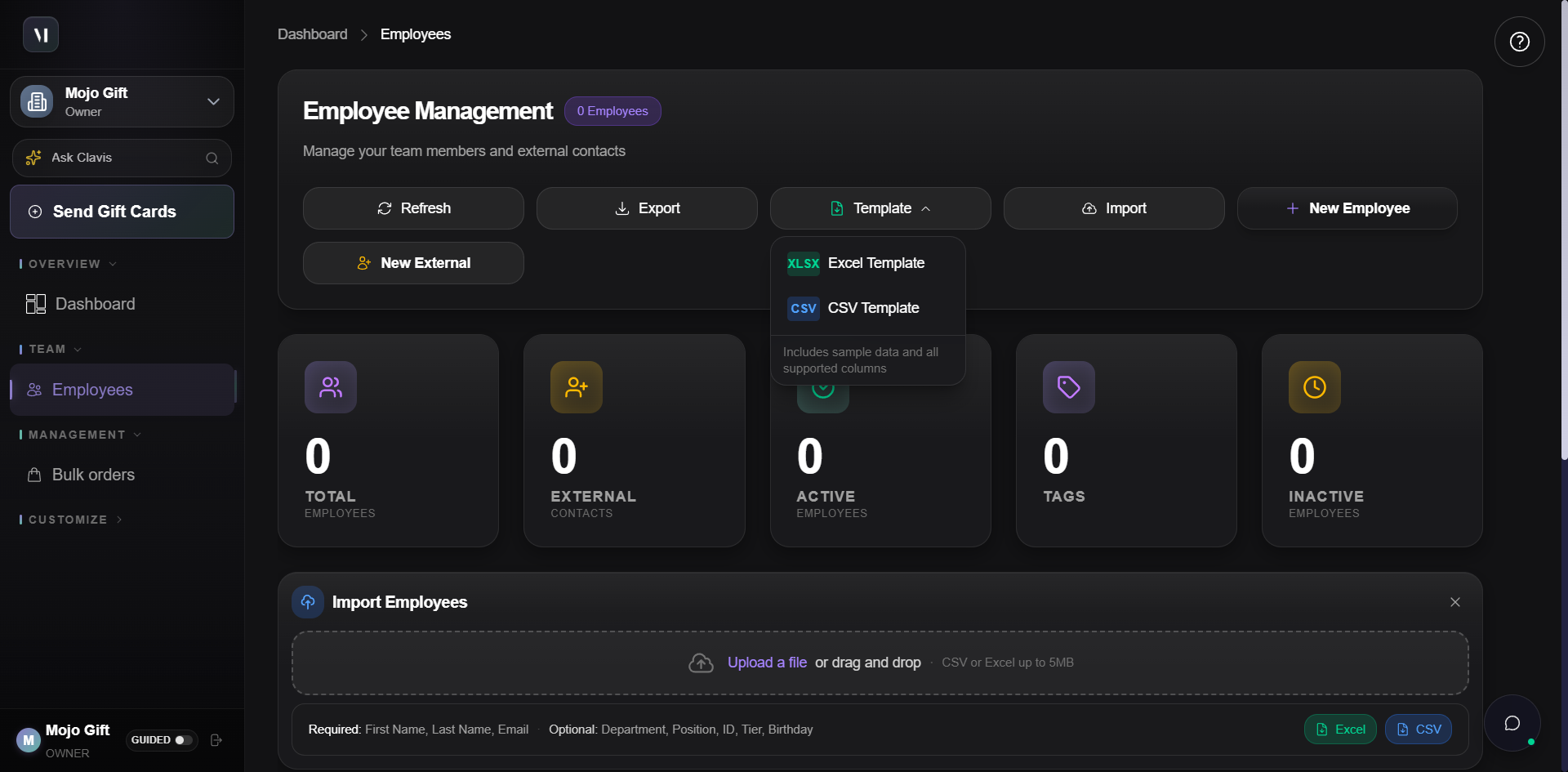
Both templates carry the same columns. Pick whichever your spreadsheet tool prefers.
Filtering and sorting
Three filter controls sit above the table:
| Control | What it does |
|---|---|
| Search by name, email... | Free-text match across first name, last name, and email. |
| All Types | Narrows to Employees only or External only. |
| All Tags | Narrows to records carrying a specific tag. The dropdown only lists tags that exist on at least one record. |
| Recent | Sort toggle. Most recently added or updated records first. |
Filters stack. Searching for "anna" with the type filter set to External matches only external contacts whose name or email contains "anna".
The directory table
| Column | What it shows |
|---|---|
| Employee | Name and email. |
| Status | Active or Inactive. External contacts are tagged External in this column. |
| Dates | Birthday and work anniversary, when set. |
| Tags | Coloured chips for any tags applied to the record. |
| Actions | Per-row actions: edit, deactivate, or remove. |
The leading checkbox in the header selects every visible row at once for bulk operations.
Editing or removing a record
Click any row to open the record. The same form used to add the employee opens with the existing values, and you can change anything except the role distinction (employee vs external). Saving updates is immediate.
Removing a record:
- Stops them from appearing in future order builders.
- Does not revoke gift cards that have already been sent and redeemed.
- Does not delete the recipient's account on the redeem side. Recipient accounts are owned by the recipient, not the corporate account.
Refresh and Export
| Button | What it does |
|---|---|
| Refresh | Re-fetches the directory from the server. The header timestamp ("Updated just now") confirms the refresh. |
| Export | Downloads the current view as a file. Filters apply, so an exported CSV reflects whatever search and filters were active when you clicked Export. |
What's next
- CSV bulk import covers the import flow in depth, including how mismatched columns are handled.
- Placing an order shows how to pick recipients from this directory in the order builder.
- Programs covers recurring campaigns that target tagged subsets of the directory.