Programs
Recurring gifting campaigns (anniversaries, holidays).
Updated October 3, 2026
A program is a reusable gifting configuration. Instead of building the same order over and over (same tier, same message, same approval rules) for every birthday or work anniversary, you save it once as a program. Orders that draw on a program inherit its defaults. Some programs also fire automatically on a date or a trigger. This page covers what a program contains, how to create one, and how the templates browser fits in.
If you only need to send a single one-off gift, use Placing an order instead. Programs are for the cases where you will repeat the same configuration.
The Programs index
Programs live at /gift-cards/corporate/programs. The index shows your existing programs along with summary tiles, plus shortcuts to common next actions.
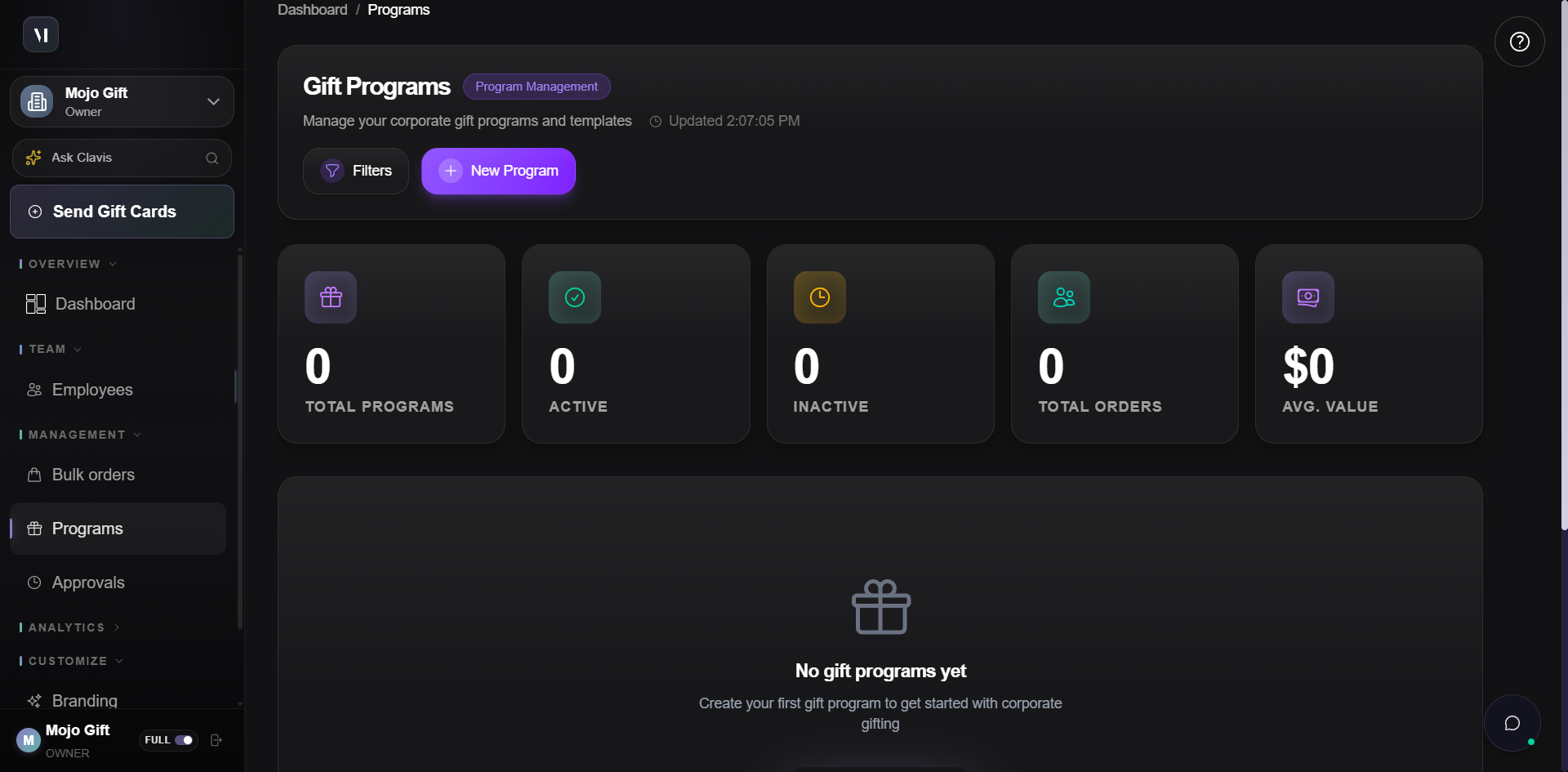
The five summary tiles at the top break down programs by status (Active, Inactive) and roll up the underlying order activity (Total Orders, Avg. Value).
The four cards at the bottom (Browse Templates, Send Gifts, Manage Recipients, View Reports) are shortcuts to related surfaces. They are not specific to programs.
Two ways to create a program
| Path | Where it lives | When to use |
|---|---|---|
| From scratch | The + New Program button at the top of the index. | The program is unique to your company or does not match any of the bundled templates. |
| From a template | The Browse Templates card or the templates page directly. | You want a known-good starting point for a common scenario (recognition, anniversaries, holidays, wellness, performance). |
Both paths land in the same form once you commit to a configuration. Templates pre-fill the fields; from-scratch leaves them blank.
The New Program form
/gift-cards/corporate/programs/new is the configuration screen. It has three sections.
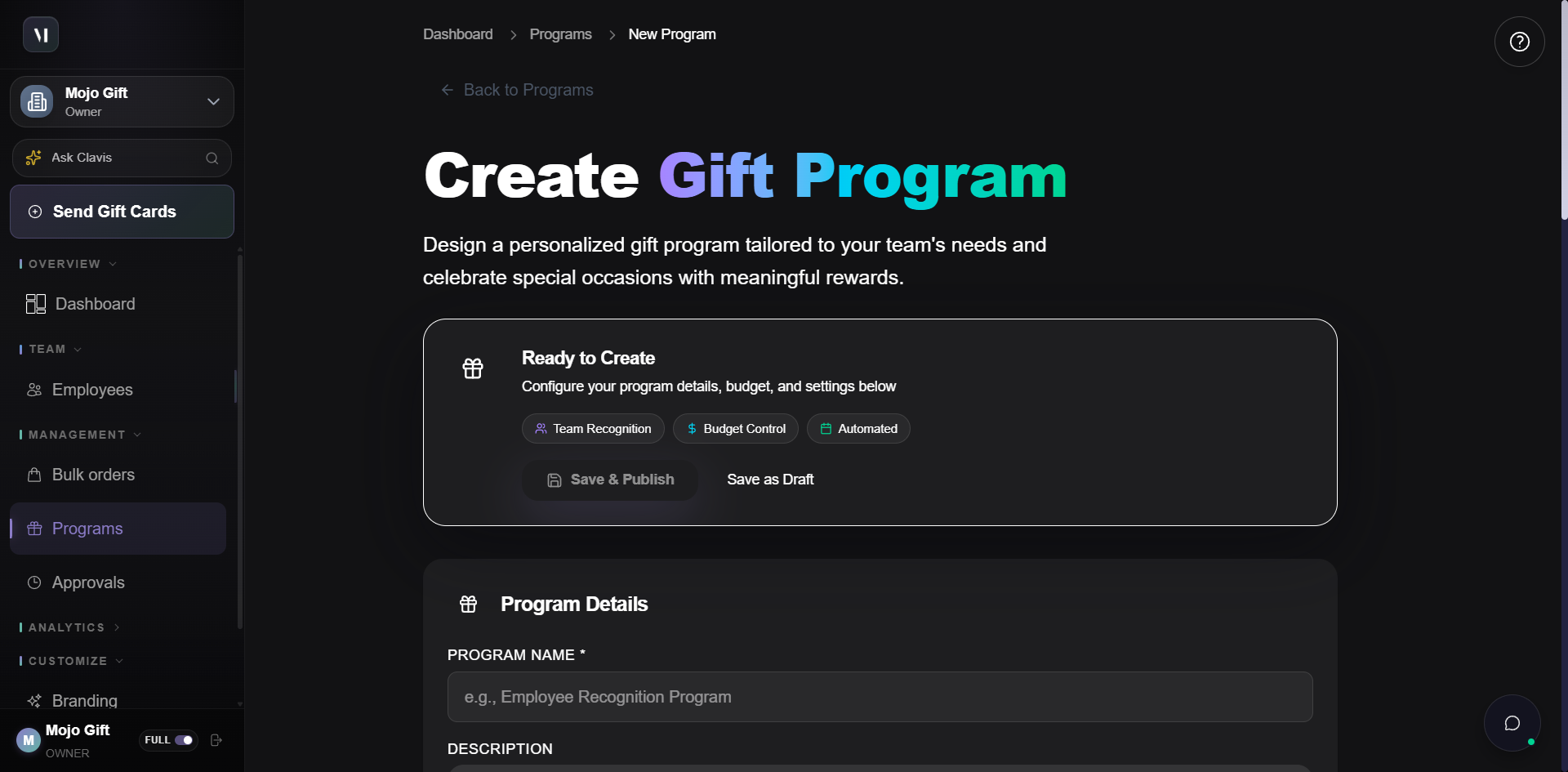
Program Details
| Field | What to enter |
|---|---|
| Program Name | Required. Used in dropdowns when an order is associated with this program, and in reports. |
| Description | Optional. Internal notes about purpose and audience. Not shown to recipients. |
| Default Gift Message | The message attached to every gift sent under this program. Order-level messages override it. |
Budget Configuration
| Field | What it does |
|---|---|
| Currency | The fiat currency for gifts under this program. Defaults to your account's billing currency. |
| Gift Card carousel | Picks the default tier. Same 12 presets as the order form, plus a Custom amount tile. |
| Budget Type | Per Gift means each gift in the program gets the selected amount. Other budget modes (per program, per recipient cap) are configurable here when the use case demands them. |
Program Settings
| Field | What it controls |
|---|---|
| Gift Expiration (Days) | How long an unused gift stays redeemable. Default 365. Set to 0 for no expiry. |
| Require Approval | When on, gifts above a threshold need a manager to approve before they fire. When off, the program runs automatically inside its budget. |
| Allow Recipient Choice | When on, recipients see multiple gift options at redemption time and pick one. When off, they get the specific tier you selected. |
Save as Draft vs. Save & Publish
| Action | What happens |
|---|---|
| Save as Draft | The program record is created but is inactive. Useful if you are still iterating on the configuration. Does not show up in the order form's program picker. |
| Save & Publish | The program is active and can be selected by orders, automation, or scheduled triggers. |
You can flip a program between draft and active later by editing it.
Templates
The templates page is a catalog of pre-built program configurations grouped by use case.
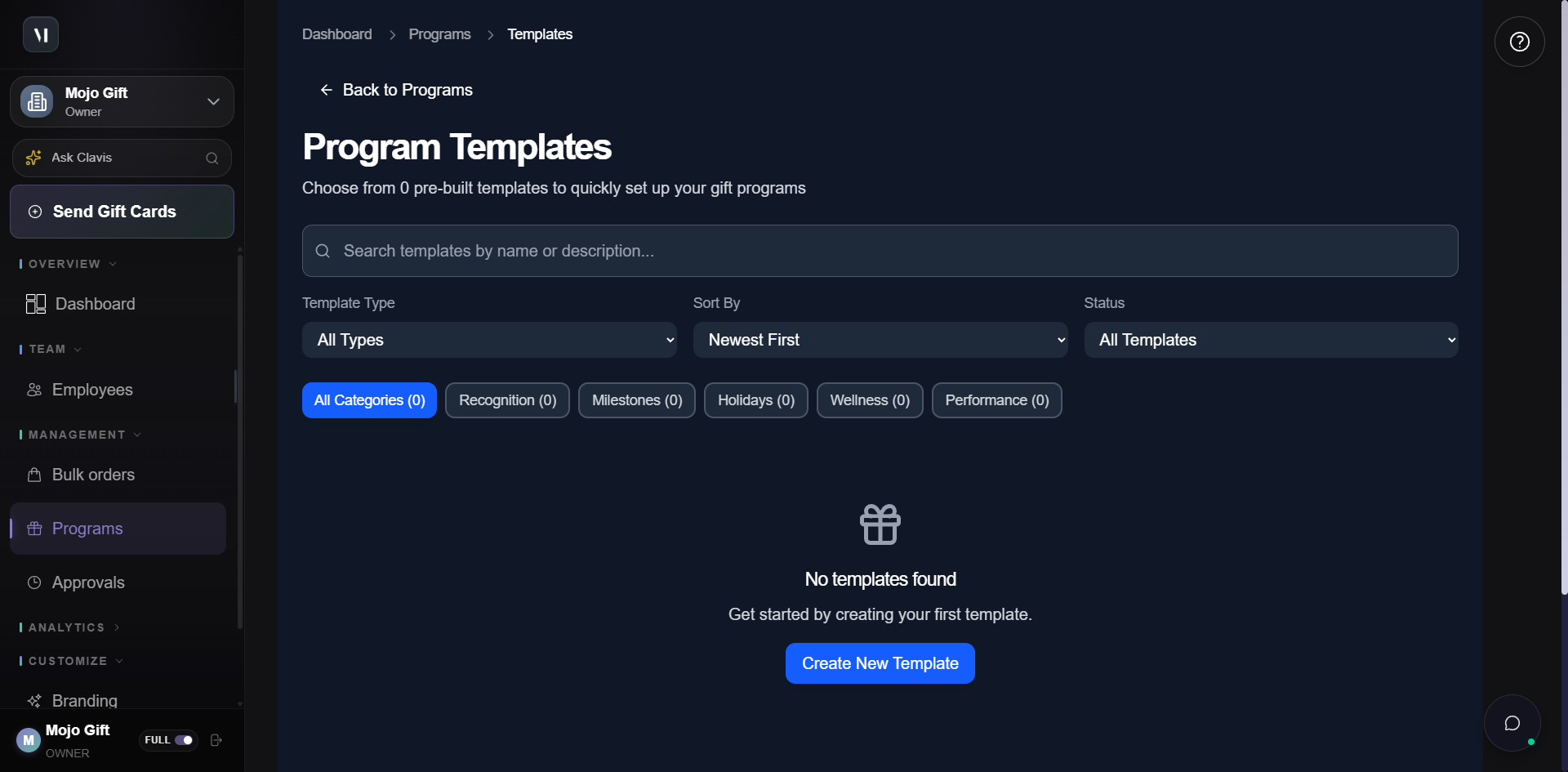
The six category tabs map to common gifting scenarios:
| Category | Typical use |
|---|---|
| Recognition | Closing a deal, internal promotion, employee of the month. |
| Milestones | Work anniversaries, retirement, project completion. |
| Holidays | End of year, regional holidays, cultural observances. |
| Wellness | Wellness days, mental health initiatives, health check-up rewards. |
| Performance | Quota beats, KPI achievements, sales contests. |
The bundled template list is configured by Mojo Gift. If you cannot find one that fits, use Create Custom Program at the bottom of the page (or just hit + New Program on the index).
What's next
- Automation rules covers triggers that fire programs automatically (date based, event based).
- Approvals covers the approval queue that programs with Require Approval route into.
- Reports is where you check how a program is performing once it has been running.